Getting Started
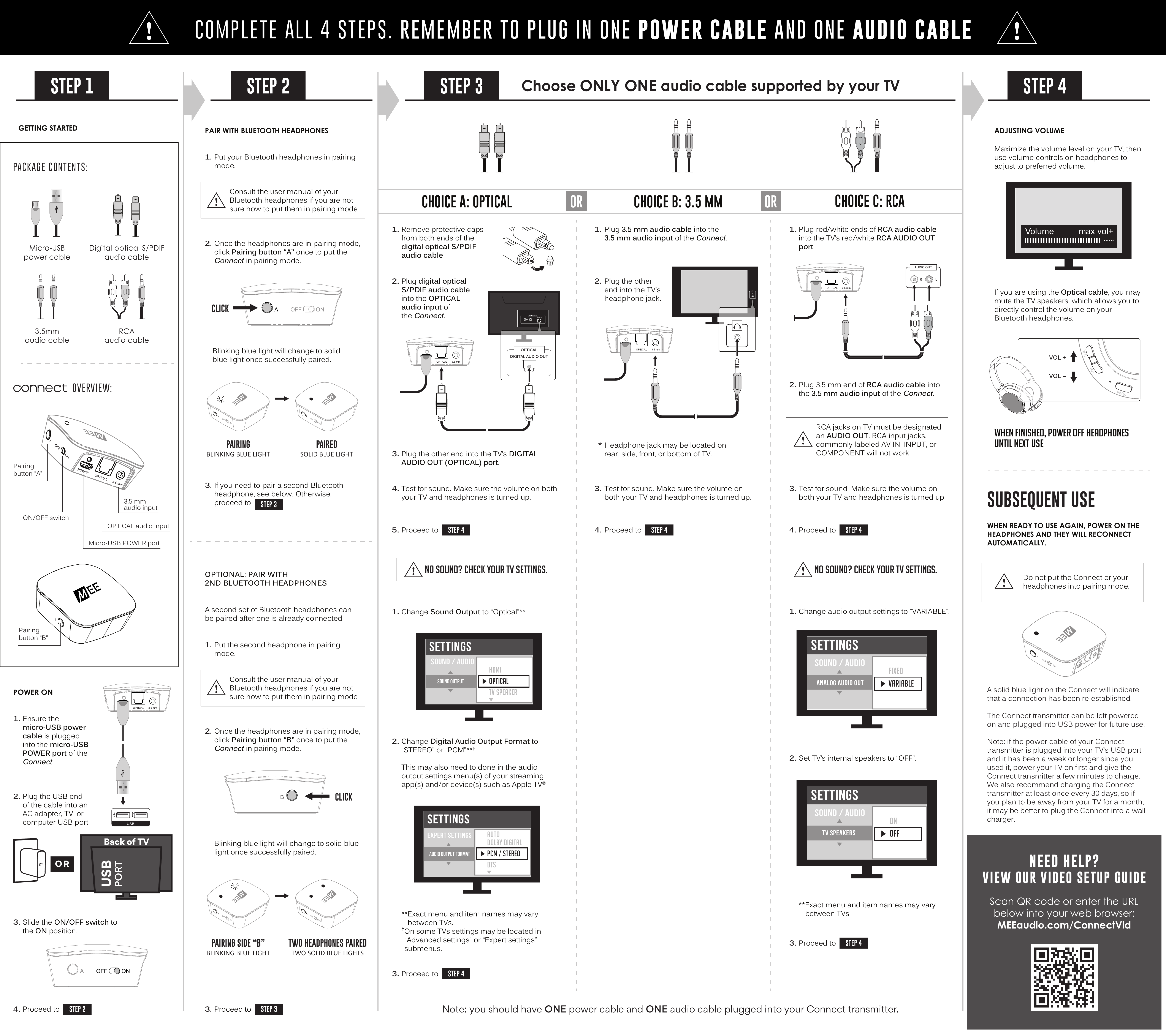
Important: Complete all 4 steps. Remember to plug in one power cable and one audio cable.
Package Contents
- Micro-USB power cable
- Digital optical S/PDIF audio cable
- 3.5mm audio cable
- RCA audio cable
Connect Overview
- Micro-USB POWER port — for power cable
- ON/OFF switch
- Pairing button "A" — pairs first Bluetooth device
- Pairing button "B" — pairs second Bluetooth device
- OPTICAL audio input
- 3.5 mm audio input
STEP 1 Power On
- Ensure the micro-USB power cable is plugged into the micro-USB POWER port of the Connect. Plug the USB end of the cable into an AC adapter, TV, or computer USB port.
- Slide the ON/OFF switch to the ON position.
- Proceed to Step 2.
- Proceed to Step 2.
STEP 2 Pair with Bluetooth Headphones
- Put your Bluetooth headphones in pairing mode.
Consult the user manual of your Bluetooth headphones if you are not sure how to put them in pairing mode.
- Once the headphones are in pairing mode, click Pairing button "A" once to put the Connect in pairing mode. The blue light will blink while pairing, then turn solid blue once successfully paired.
- If you need to pair a second Bluetooth headphone, see the optional section below. Otherwise, proceed to Step 3.
Optional: Pair with 2nd Bluetooth Headphones
A second set of Bluetooth headphones can be paired after one is already connected.
- Put the second headphone in pairing mode.
Consult the user manual of your Bluetooth headphones if you are not sure how to put them in pairing mode.
- Once the headphones are in pairing mode, click Pairing button "B" once to put the Connect in pairing mode. The blinking blue light will change to a solid blue light once successfully paired. When two headphones are paired, both blue indicator lights will be solid.
STEP 3 Connect Audio Cable — Choose Only One
Choose only one audio cable supported by your TV.
Choice A Optical (Recommended)
- Remove protective caps from both ends of the digital optical S/PDIF audio cable.
- Plug the digital optical S/PDIF audio cable into the OPTICAL audio input of the Connect.
- Plug the other end into the TV's DIGITAL AUDIO OUT (OPTICAL) port.
- Test for sound. Make sure the volume on both your TV and headphones is turned up.
- Proceed to Step 4.
No sound? Check your TV settings.
- Change Sound Output to "Optical"**
- Change Digital Audio Output Format to "STEREO" or "PCM"**†
- This may also need to be done in the audio output settings menu(s) of your streaming app(s) and/or device(s) such as Apple TV®.
**Exact menu and item names may vary between TVs. †On some TVs, settings may be located in "Advanced settings" or "Expert settings" submenus.
Choice B 3.5mm
- Plug the 3.5mm audio cable into the 3.5mm audio input of the Connect.
- Plug the other end into the TV's headphone jack.
Headphone jack may be located on the rear, side, front, or bottom of the TV.
- Test for sound. Make sure the volume on both your TV and headphones is turned up.
- Proceed to Step 4.
Choice C RCA
- Plug the red/white ends of the RCA audio cable into the TV's red/white RCA AUDIO OUT port.
- Plug the 3.5mm end of the RCA audio cable into the 3.5mm audio input of the Connect.
- Test for sound. Make sure the volume on both your TV and headphones is turned up.
- Proceed to Step 4.
No sound? Check your TV settings.
- Change audio output settings to "VARIABLE".
- Set TV's internal speakers to "OFF".
**Exact menu and item names may vary between TVs.
RCA jacks on TV must be designated an AUDIO OUT. RCA input jacks, commonly labeled AV IN, INPUT, or COMPONENT, will not work.
You should have one power cable and one audio cable plugged into your Connect transmitter.
STEP 4 Adjusting Volume
Maximize the volume level on your TV, then use volume controls on headphones to adjust to preferred volume.
If you are using the Optical cable, you may mute the TV speakers, which allows you to directly control the volume on your Bluetooth headphones.
Subsequent Use
When finished using your headphones, power them off until next use.
When ready to use again: Power on the headphones and they will reconnect automatically. Do not put the Connect or your headphones into pairing mode. A solid blue light on the Connect will indicate that a connection has been re-established.
The Connect transmitter can be left powered on and plugged into USB power for future use.
If the power cable of your Connect transmitter is plugged into your TV's USB port and it has been a week or longer since you used it, power your TV on first and give the Connect transmitter a few minutes to charge. We also recommend charging the Connect transmitter at least once every 30 days — if you plan to be away from your TV for a month, it may be better to plug the Connect into a wall charger.
Need Help? View Our Video Setup Guide
Scan the QR code on the cover page or visit: MEEaudio.com/ConnectVid
↑ Back to topAdditional Information
Factory Reset / Clear Memory
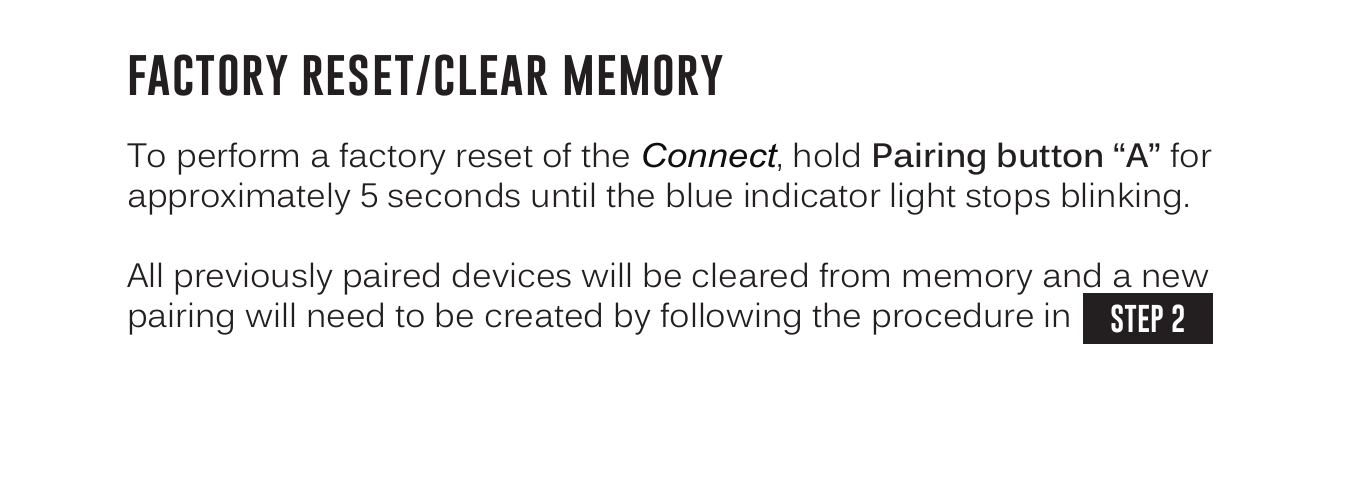
To perform a factory reset of the Connect, hold Pairing button "A" for approximately 5 seconds until the blue indicator light stops blinking.
All previously paired devices will be cleared from memory and a new pairing will need to be created by following the procedure in Step 2.
↑ Back to topLED Indicator Lights
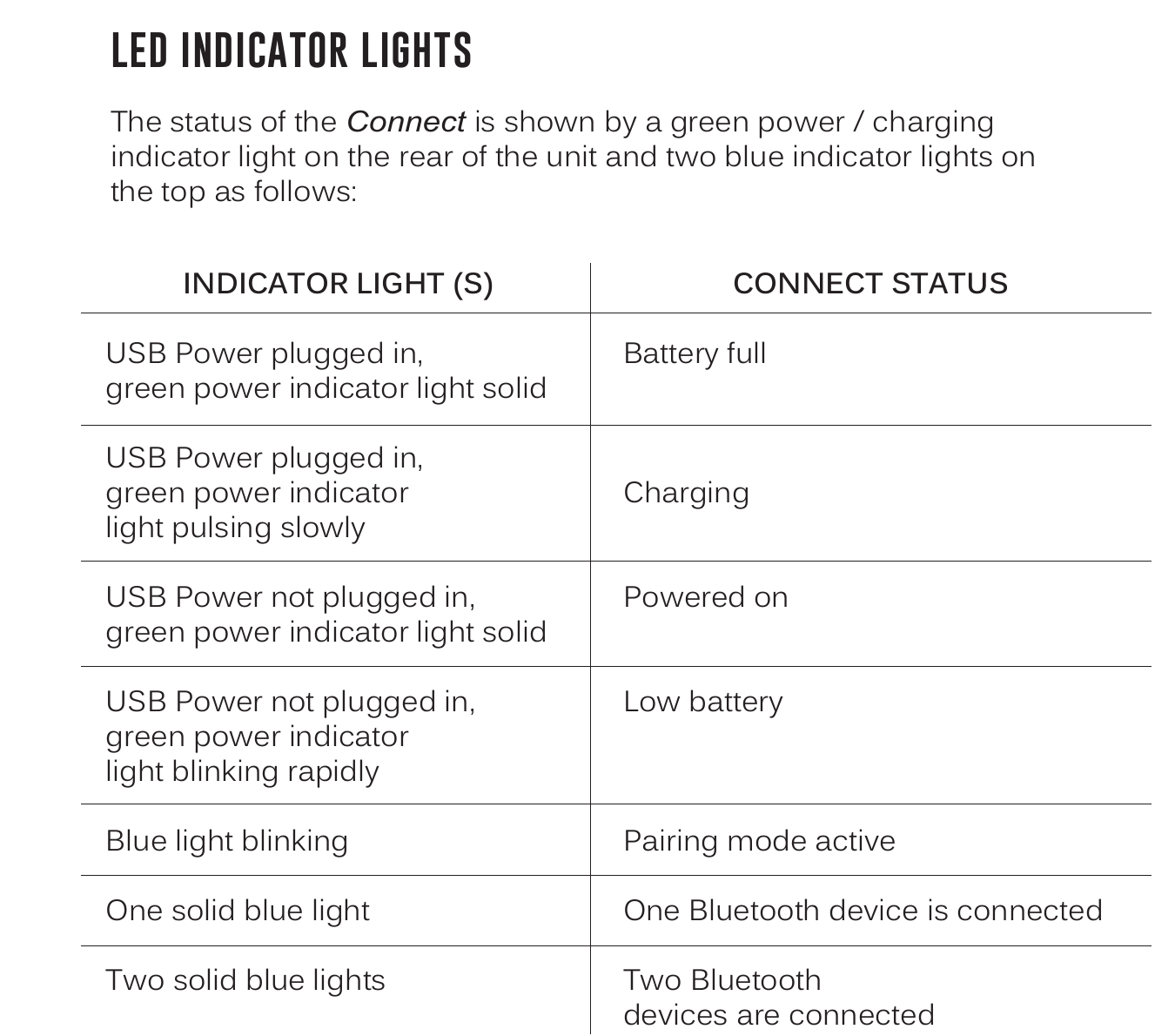
The status of the Connect is shown by a green power/charging indicator light on the rear of the unit and two blue indicator lights on the top as follows:
| Indicator Light(s) | Connect Status |
|---|---|
| USB Power plugged in, green power indicator light solid | Battery full |
| USB Power plugged in, green power indicator light pulsing slowly | Charging |
| USB Power not plugged in, green power indicator light solid | Powered on |
| USB Power not plugged in, green power indicator light blinking rapidly | Low battery |
| Blue light blinking | Pairing mode active |
| One solid blue light | One Bluetooth device is connected |
| Two solid blue lights | Two Bluetooth devices are connected |
Safety and Care
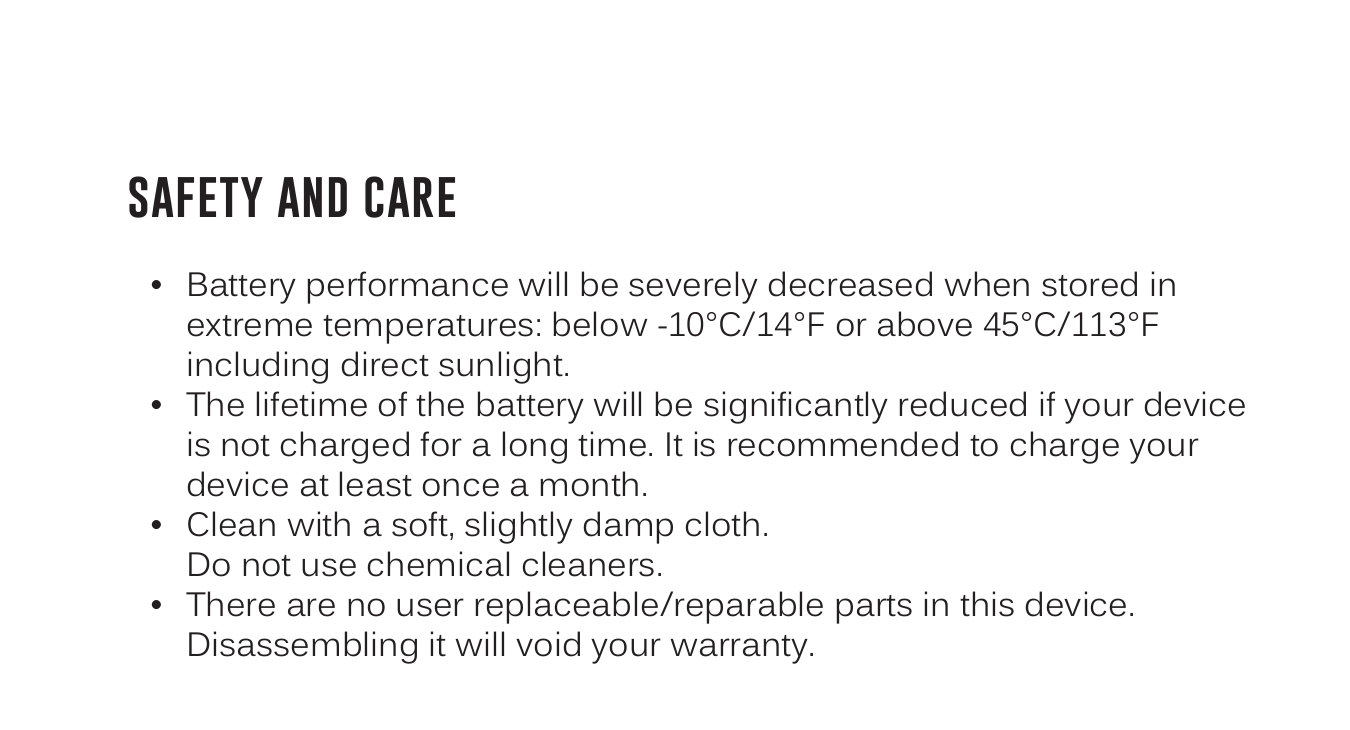
- Battery performance will be severely decreased when stored in extreme temperatures: below -10°C/14°F or above 45°C/113°F, including direct sunlight.
- The lifetime of the battery will be significantly reduced if your device is not charged for a long time. It is recommended to charge your device at least once a month.
- Clean with a soft, slightly damp cloth. Do not use chemical cleaners.
- There are no user replaceable/reparable parts in this device. Disassembling it will void your warranty.
Warnings
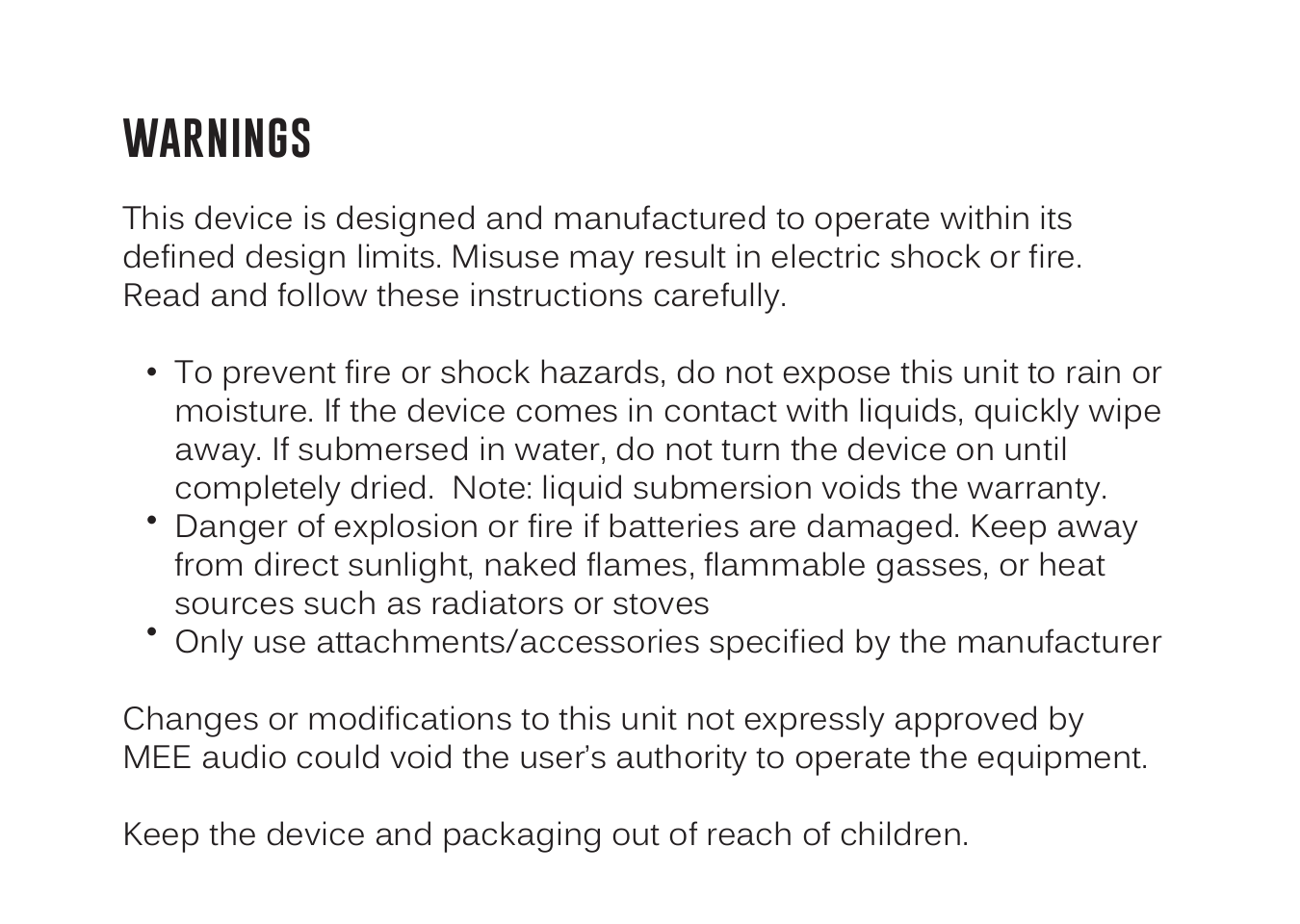
This device is designed and manufactured to operate within its defined design limits. Misuse may result in electric shock or fire. Read and follow these instructions carefully.
- To prevent fire or shock hazards, do not expose this unit to rain or moisture. If the device comes in contact with liquids, quickly wipe away. If submersed in water, do not turn the device on until completely dried. Note: liquid submersion voids the warranty.
- Danger of explosion or fire if batteries are damaged. Keep away from direct sunlight, naked flames, flammable gasses, or heat sources such as radiators or stoves.
- Only use attachments/accessories specified by the manufacturer.
- Changes or modifications to this unit not expressly approved by MEE audio could void the user's authority to operate the equipment.
- Keep the device and packaging out of reach of children.
Warranty
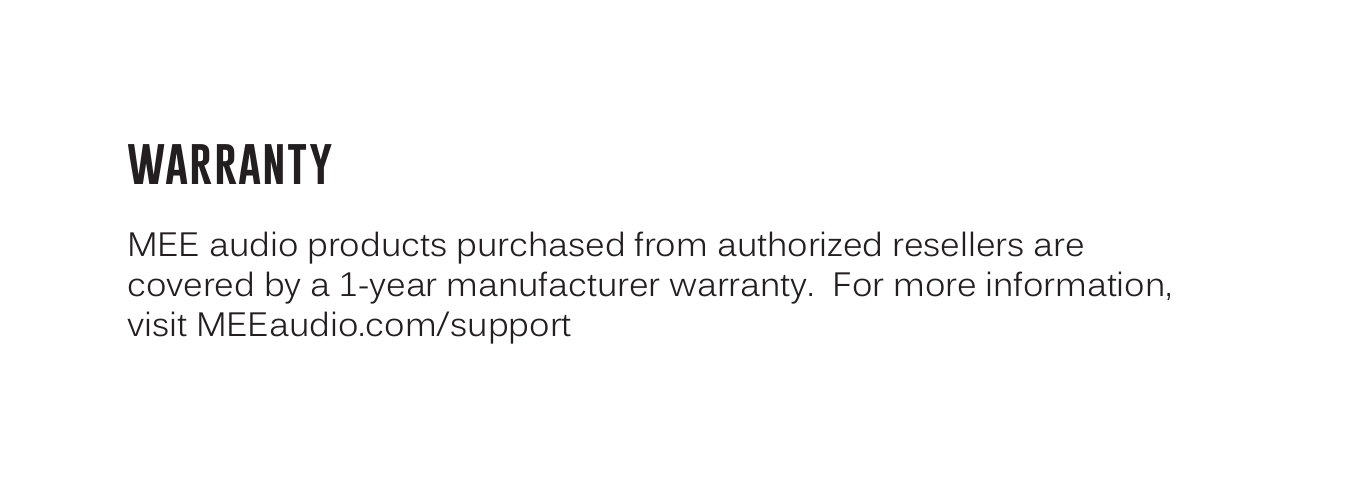
MEE audio products purchased from authorized resellers are covered by a 1-year manufacturer warranty. For more information, visit MEEaudio.com/support.
↑ Back to topFor Additional Support
View Our Video Setup Guide
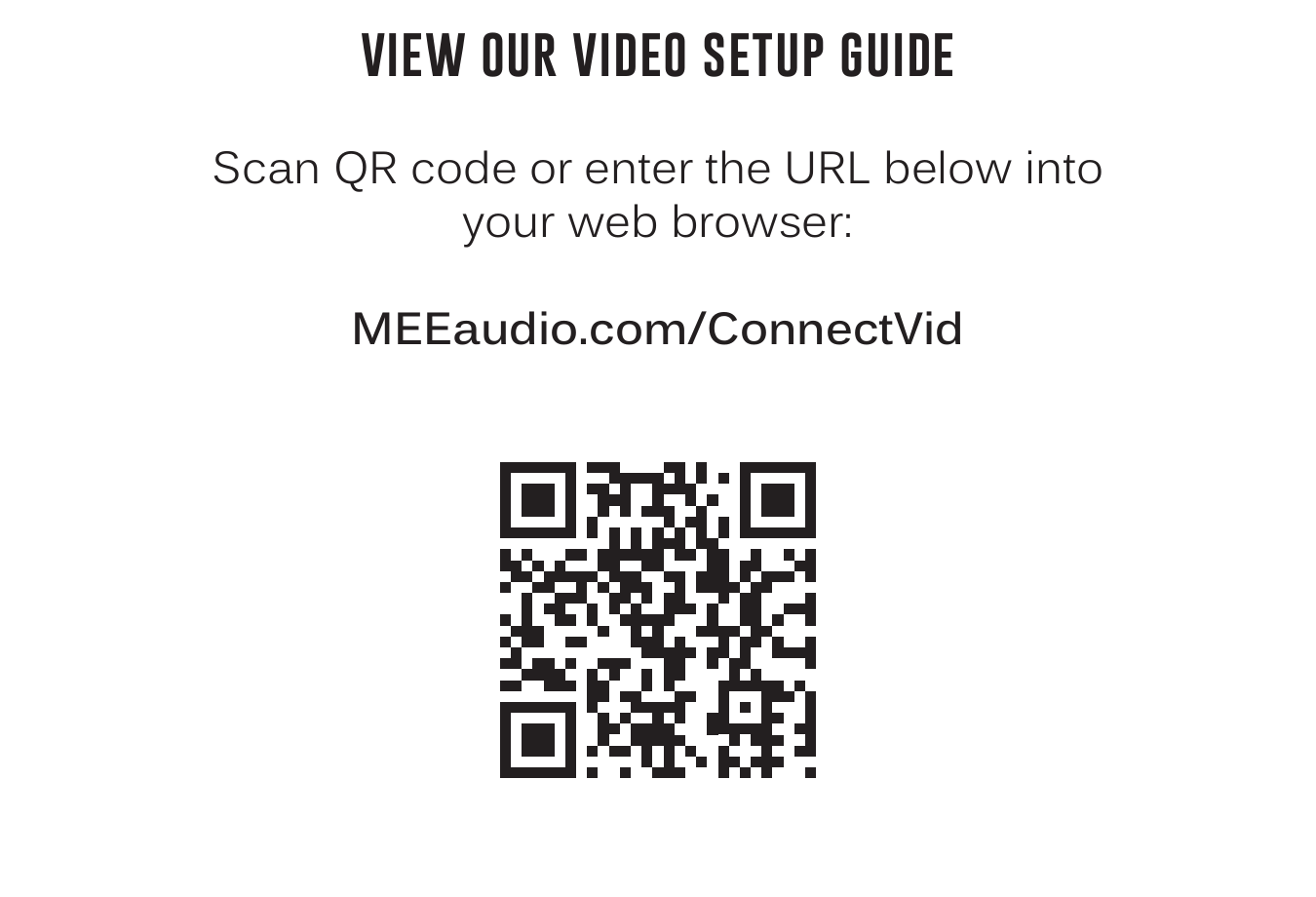
Scan the QR code on the cover page or enter the URL below into your web browser:
Questions?
Get answers at MEEaudio.com/ConnectHelp
We're Here to Help!
Phone Support: 626-965-1008 x31
Monday – Friday, 9am to 5:00pm PST
Email Support: support@MEEaudio.com
All emails are responded to within 2 business days.
Compliance Information
FCC Statement
This device complies with part 15 of the FCC Rules. Operation is subject to the following two conditions: (1) This device may not cause harmful interference, and (2) this device must accept any interference received, including interference that may cause undesired operation.
FCC Rules
This equipment has been tested and found to comply with the limits for a Class B digital device, pursuant to part 15 of the FCC Rules. These limits are designed to provide reasonable protection against harmful interference in a residential installation. This equipment generates, uses and can radiate radio frequency energy and, if not installed and used in accordance with the instruction manual, may cause harmful interference to radio communications.
However, there is no guarantee that interference will not occur in a particular installation. If this equipment does cause harmful interference to radio or television reception, which can be determined by turning the equipment off and on, the user is encouraged to try to correct the interference by one or more of the following measures:
- Relocate the receiving antenna.
- Increase the separation between equipment and receiver.
- Connect the equipment into an outlet on a circuit different from that to which the receiver is connected.
- Consult the dealer or an experienced radio/TV technician for help.
FCC ID: Z63AFCONNECT01
↑ Back to topDisposal and Recycling
Dispose of this product in accordance with all local laws and regulations. Because this product contains electronic components and a battery, it must be disposed of separately from household waste. Contact local authorities to learn about disposal and recycling options.
↑ Back to top