Connect Hub Quickstart Guide
MEE audio AF-CH — Universal Dual HD Bluetooth® Wireless Audio Transmitter for Headphones and Speakers
Video setup guide: MEEaudio.com/HubVid | Product page: MEEaudio.com/ConnectHub
Package Contents & Product Overview
Package Contents
- Connect Hub
- Micro-USB power cable
- Digital optical S/PDIF audio cable
- 3.5 mm audio cable
- RCA audio cable
Product Overview
- RX / TX switch — toggles between Receiver (RX) and Transmitter (TX) modes
- Micro-USB POWER port — powers the Connect Hub
- OPTICAL audio OUTPUT — optical audio out (used in pass-through or RX mode)
- OPTICAL audio INPUT — optical audio in from TV (TX mode)
- ANALOG audio OUTPUT — 3.5 mm audio out (RX mode or pass-through)
- ANALOG audio INPUT — 3.5 mm audio in from TV (TX mode)
- BLUETOOTH button — press and hold to pair; tap to reconnect
- POWER button — powers the unit on/off
- VOLUME BOOST (VOLUME+) button — amplifies audio signal; hold 7s to disable/enable voice prompts
- MODE button — cycles between Optical and Analog audio input/output; hold 5s to factory reset
TX Transmitter Mode — Stream from TV to Headphones
Use TX (Transmitter) Mode to stream audio from your TV to Bluetooth headphones or speakers.
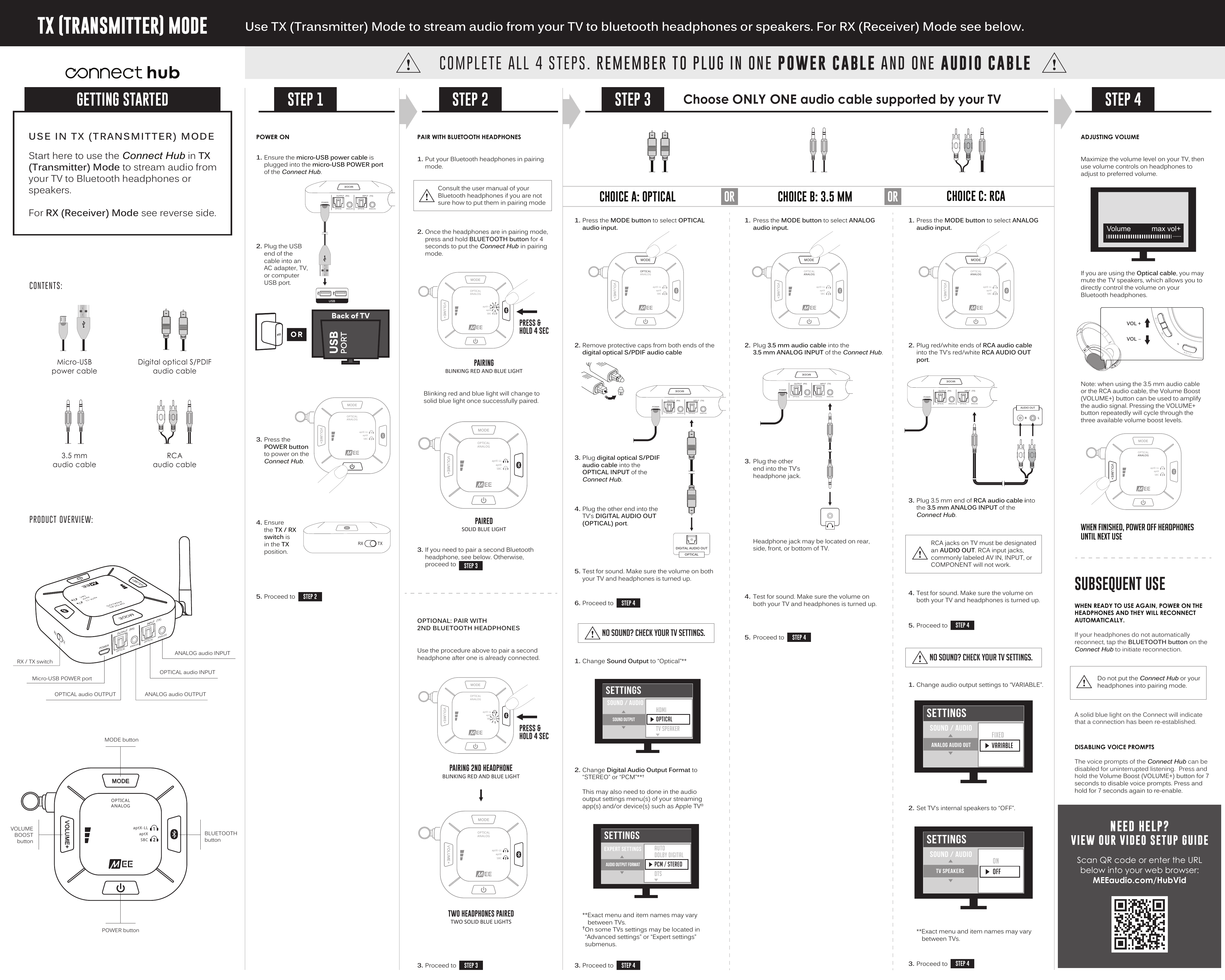
Important: Complete all 4 steps. Remember to plug in one power cable and one audio cable.
Step 1 — Power On
- Plug the micro-USB power cable into the micro-USB POWER port of the Connect Hub.
- Plug the USB end of the cable into an AC adapter, TV, or computer USB port.
- Press the POWER button to power on the Connect Hub.
- Ensure the TX / RX switch is in the TX position.
- Proceed to Step 2.
Step 2 — Pair with Bluetooth Headphones
- Put your Bluetooth headphones in pairing mode. Consult the user manual of your Bluetooth headphones if you are unsure how.
- Once the headphones are in pairing mode, press and hold the BLUETOOTH button for 4 seconds to put the Connect Hub in pairing mode. The indicator light will blink red and blue.
- The blinking red and blue light will change to a solid blue light once successfully paired.
- If you need to pair a second Bluetooth headphone, use the same procedure above after one is already connected. Otherwise, proceed to Step 3.
Step 3 — Connect Audio Cable to TV (Choose ONE)
Choose only one audio cable supported by your TV.
CHOICE A Optical (Recommended)
- Press the MODE button to select OPTICAL audio input.
- Remove protective caps from both ends of the digital optical S/PDIF audio cable.
- Plug into the OPTICAL INPUT of the Connect Hub.
- Plug the other end into the TV's DIGITAL AUDIO OUT (OPTICAL) port.
- In TV settings, set Sound Output to "Optical" and Digital Audio Output Format to "STEREO" or "PCM". This may also need to be done in the audio settings of your streaming app(s) or device(s) such as Apple TV®.
- Proceed to Step 4.
No sound? Check TV settings — ensure Digital Audio Output Format is set to Stereo or PCM. Menu names may vary between TVs. Some TVs have these in "Advanced settings" or "Expert settings" submenus.
CHOICE B 3.5 mm
- Press the MODE button to select ANALOG audio input.
- Plug the 3.5 mm audio cable into the 3.5 mm ANALOG INPUT of the Connect Hub.
- Plug the other end into the TV's headphone jack (may be on the rear, side, front, or bottom of TV).
- In TV settings, change audio output to "VARIABLE" and set TV internal speakers to "OFF".
- Proceed to Step 4.
No sound? Check TV settings — ensure Analog Audio Out is set to Variable, not Fixed.
CHOICE C RCA
- Press the MODE button to select ANALOG audio input.
- Plug the red/white ends of the RCA audio cable into the TV's red/white RCA AUDIO OUT ports.
- Plug the 3.5 mm end of the RCA cable into the 3.5 mm ANALOG INPUT of the Connect Hub.
- In TV settings, change audio output to "VARIABLE" and set TV internal speakers to "OFF".
- Proceed to Step 4.
Note: RCA jacks on TV must be designated AUDIO OUT. RCA input jacks commonly labelled AV IN, INPUT, or COMPONENT will not work.
Step 4 — Adjusting Volume & Subsequent Use
Adjusting Volume
Maximize the volume level on your TV, then use the volume controls on your headphones to adjust to your preferred level.
If you are using the Optical cable, you may mute the TV speakers to directly control the volume on your Bluetooth headphones.
Volume Boost: When using the 3.5 mm or RCA audio cable, the VOLUME+ button can amplify the audio signal. Press it repeatedly to cycle through three available volume boost levels.
Subsequent Use
When finished listening, power off headphones until next use.
When ready to use again, power on the headphones and they will reconnect automatically. If your headphones do not automatically reconnect, tap the BLUETOOTH button on the Connect Hub to initiate reconnection.
Do not put the Connect Hub or your headphones into pairing mode during subsequent use. A solid blue light on the Connect Hub confirms reconnection.
Disabling Voice Prompts
Press and hold the VOLUME+ button for 7 seconds to disable voice prompts. Press and hold for 7 seconds again to re-enable.
↑ Back to topRX Receiver Mode — Stream from Phone/Tablet to Speaker
Use RX (Receiver) Mode to stream audio from your phone or tablet to any wired speaker or other audio device.
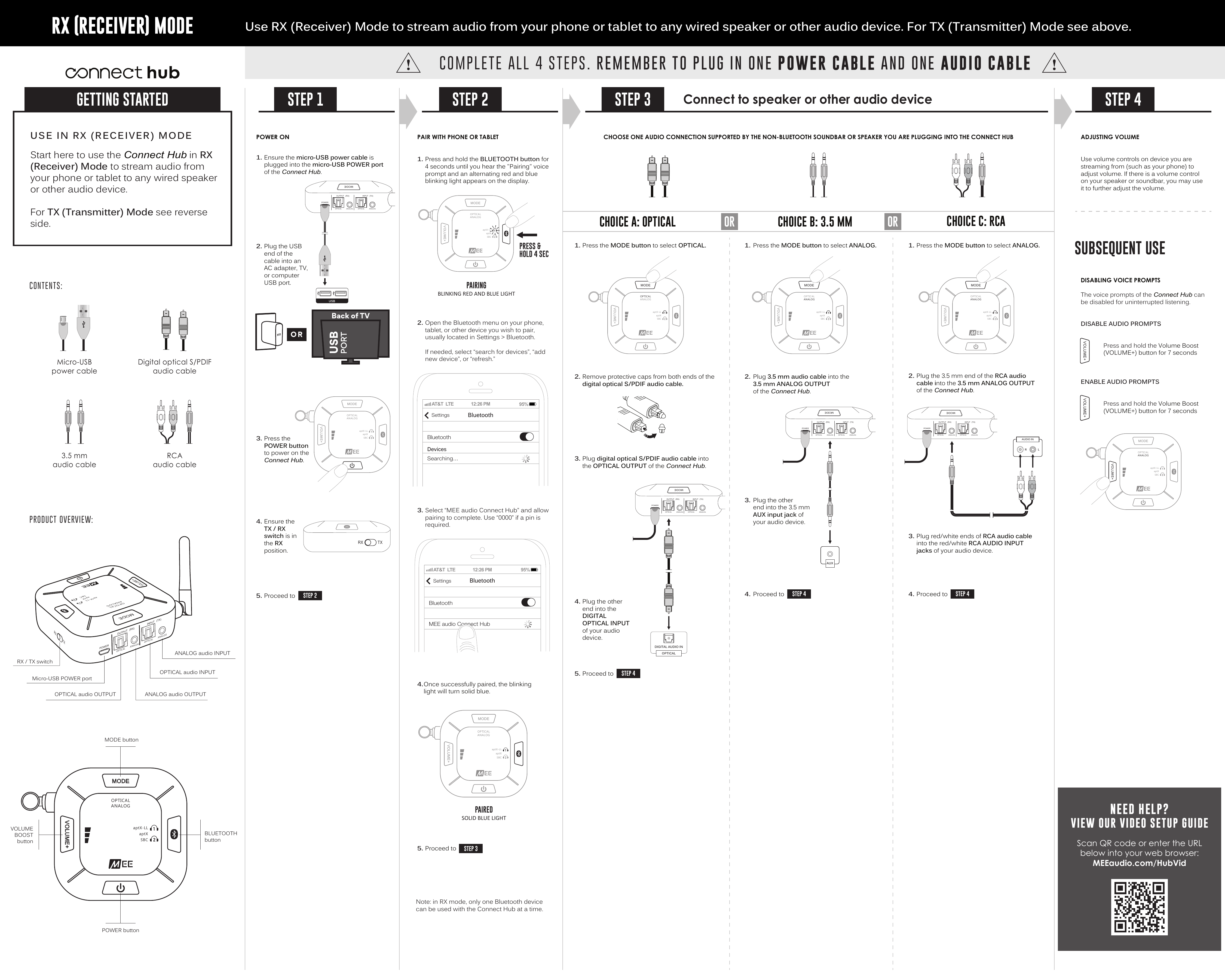
Important: Complete all 4 steps. Remember to plug in one power cable and one audio cable.
Note: In RX mode, only one Bluetooth device can be used with the Connect Hub at a time.
Step 1 — Power On
- Plug the micro-USB power cable into the micro-USB POWER port of the Connect Hub.
- Plug the USB end into an AC adapter, TV, or computer USB port.
- Press the POWER button to power on the Connect Hub.
- Ensure the TX / RX switch is in the RX position.
- Proceed to Step 2.
Step 2 — Pair with Phone or Tablet
- Press and hold the BLUETOOTH button for 4 seconds until you hear the "Pairing" voice prompt and the indicator light blinks red and blue alternately.
- Open the Bluetooth menu on your phone, tablet, or other device (usually in Settings → Bluetooth). If needed, select "search for devices," "add new device," or "refresh."
- Select "MEE audio Connect Hub" and allow pairing to complete. Use "0000" if a PIN is required.
- Once successfully paired, the blinking light will turn solid blue.
- Proceed to Step 3.
Step 3 — Connect Audio Cable to Speaker (Choose ONE)
Choose only one audio connection supported by the non-Bluetooth soundbar or speaker you are plugging into the Connect Hub.
CHOICE A Optical
- Press the MODE button to select OPTICAL.
- Remove protective caps from both ends of the digital optical S/PDIF audio cable.
- Plug into the OPTICAL OUTPUT of the Connect Hub.
- Plug the other end into the DIGITAL OPTICAL INPUT of your audio device.
- Proceed to Step 4.
CHOICE B 3.5 mm
- Press the MODE button to select ANALOG.
- Plug the 3.5 mm audio cable into the 3.5 mm ANALOG OUTPUT of the Connect Hub.
- Plug the other end into the 3.5 mm AUX input jack of your audio device.
- Proceed to Step 4.
CHOICE C RCA
- Press the MODE button to select ANALOG.
- Plug the 3.5 mm end of the RCA audio cable into the 3.5 mm ANALOG OUTPUT of the Connect Hub.
- Plug the red/white ends into the red/white RCA AUDIO INPUT jacks of your audio device.
- Proceed to Step 4.
Step 4 — Adjusting Volume & Subsequent Use
Adjusting Volume
Use the volume controls on the device you are streaming from (such as your phone). If there is a volume control on your speaker or soundbar, you may use it to further adjust the volume.
Disabling Voice Prompts
- Disable Audio Prompts
- Press and hold the VOLUME+ button for 7 seconds.
- Enable Audio Prompts
- Press and hold the VOLUME+ button for 7 seconds.
Pass-Through
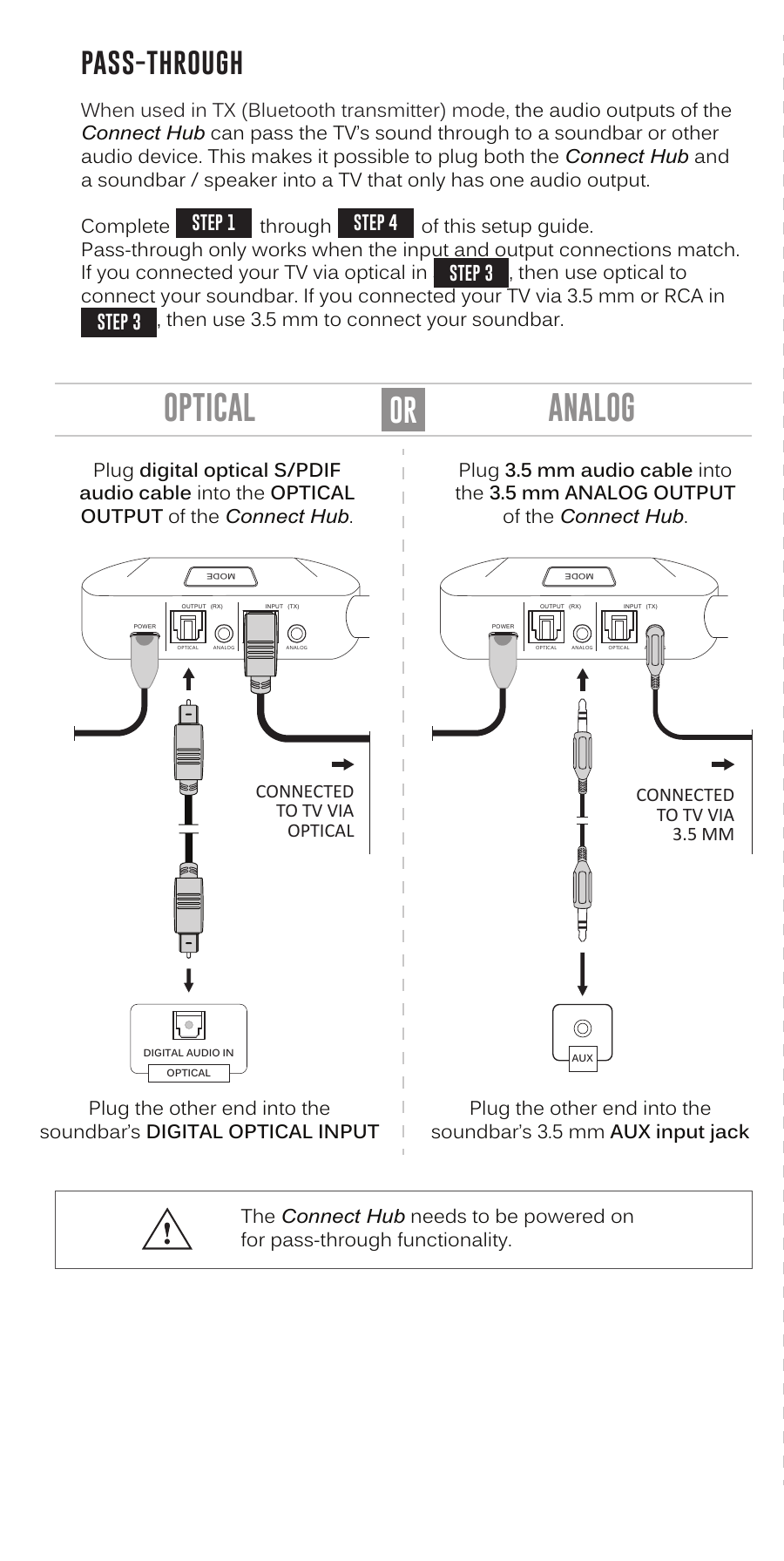
When used in TX (Bluetooth transmitter) mode, the audio outputs of the Connect Hub can pass the TV's sound through to a soundbar or other audio device. This makes it possible to plug both the Connect Hub and a soundbar/speaker into a TV that only has one audio output.
Complete Steps 1 through 4 of this setup guide first. Pass-through only works when the input and output connections match:
- If you connected your TV via Optical in Step 3, use optical to connect your soundbar — plug the digital optical S/PDIF audio cable into the OPTICAL OUTPUT of the Connect Hub and the other end into the soundbar's DIGITAL OPTICAL INPUT.
- If you connected your TV via 3.5 mm or RCA in Step 3, use 3.5 mm to connect your soundbar — plug the 3.5 mm audio cable into the 3.5 mm ANALOG OUTPUT of the Connect Hub and the other end into the soundbar's 3.5 mm AUX input jack.
Important: The Connect Hub must be powered on for pass-through functionality.
Factory Reset / Clear Memory
The Connect Hub can be reset by holding the MODE button for approximately 5 seconds, until you hear a voice prompt say "Memory cleared."
All previously paired devices will be cleared from memory and a new pairing will need to be created by following the procedure in Step 2.
↑ Back to topLED Indicator Lights
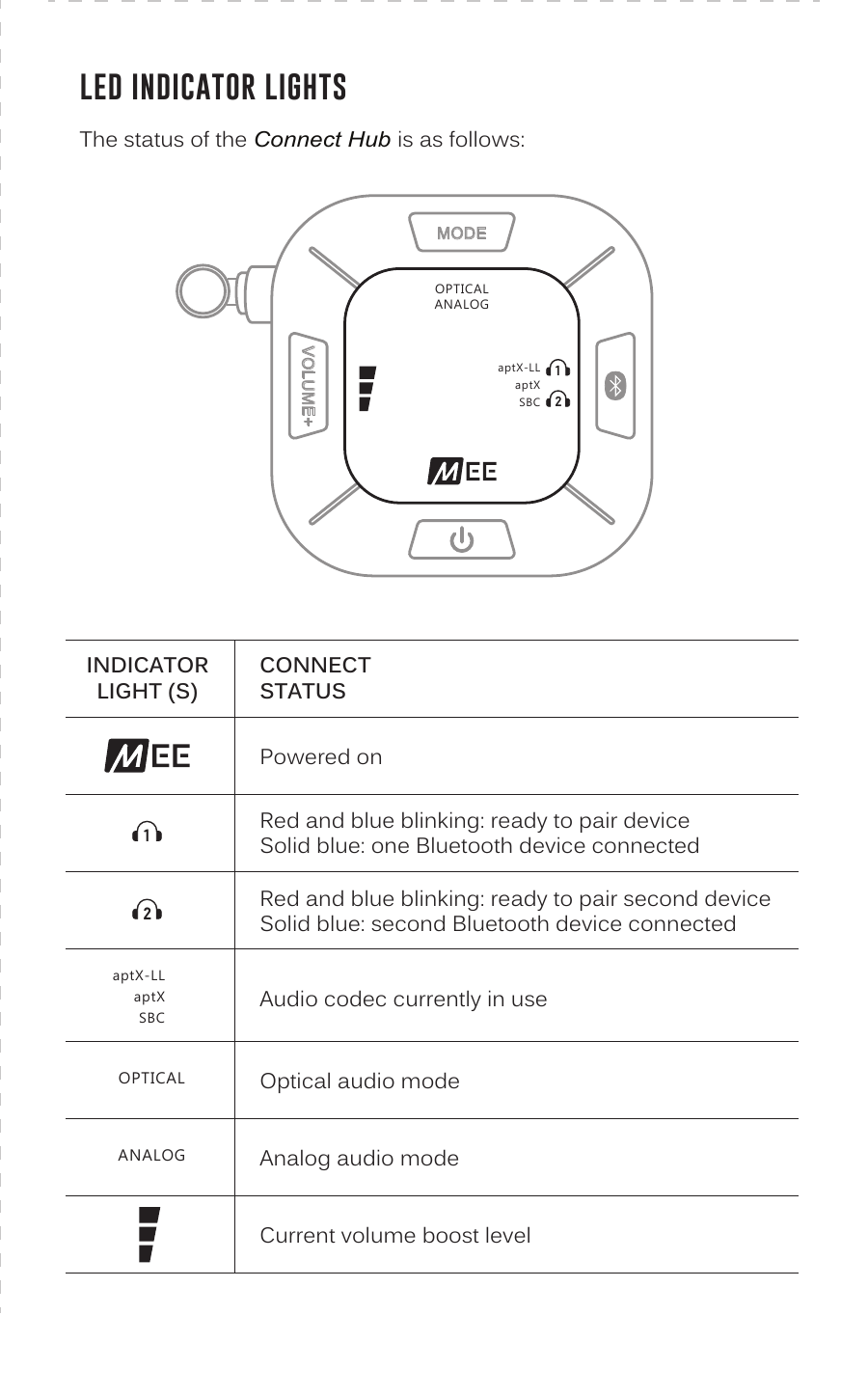
| Indicator Light(s) | Connect Hub Status |
|---|---|
| MEE audio logo lit | Powered on |
| Headphone icon 1 — red and blue blinking | Ready to pair first Bluetooth device |
| Headphone icon 1 — solid blue | One Bluetooth device connected |
| Headphone icon 2 — red and blue blinking | Ready to pair second Bluetooth device |
| Headphone icon 2 — solid blue | Second Bluetooth device connected |
| aptX-LL / aptX / SBC indicator | Audio codec currently in use |
| OPTICAL indicator | Optical audio mode selected |
| ANALOG indicator | Analog audio mode selected |
| Volume bars indicator | Current volume boost level |
Additional Support
Video Setup Guide
Scan the QR code or visit MEEaudio.com/HubVid
Online Help
Contact Support
Phone: 626-965-1008
Hours: Monday – Friday, 9:00 am – 5:00 pm PST
Email: support@MEEaudio.com — all emails responded to within 2 business days
FCC Rules & Compliance
Compliance Information
This device complies with part 15 of the FCC Rules. Operation is subject to the following two conditions: (1) This device may not cause harmful interference, and (2) this device must accept any interference received, including interference that may cause undesired operation.
FCC Rules
This equipment has been tested and found to comply with the limits for a Class B digital device, pursuant to part 15 of the FCC Rules. These limits are designed to provide reasonable protection against harmful interference in a residential installation.
If this equipment does cause harmful interference to radio or television reception, the user is encouraged to correct the interference by one or more of the following measures:
- Relocate the receiving antenna.
- Increase the separation between equipment and receiver.
- Connect the equipment into an outlet on a circuit different from that to which the receiver is connected.
- Consult the dealer or an experienced radio/TV technician for help.
Disposal and Recycling
Dispose of this product in accordance with all local laws and regulations. Because this product contains electronic components and a battery, it must be disposed of separately from household waste. Contact local authorities to learn about disposal and recycling options.
MEE audio and its logo are registered trademarks of S2E, Inc. All rights reserved. The Bluetooth® word mark and logos are registered trademarks owned by Bluetooth SIG, Inc. Qualcomm® aptX™ is a product of Qualcomm Technologies International, Ltd. Apple TV® is a registered trademark of Apple Inc.
↑ Back to top