Package Contents
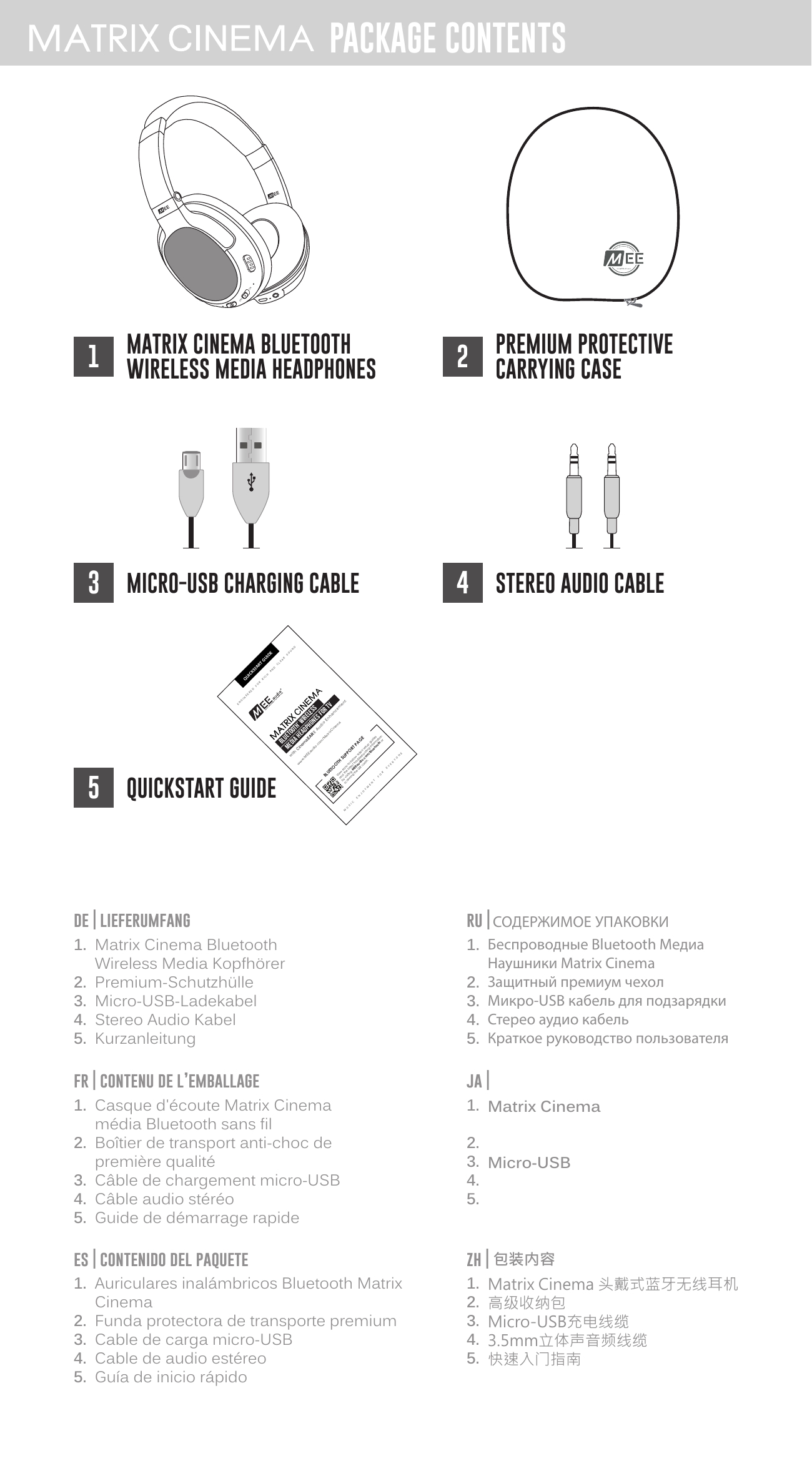
- Matrix Cinema Bluetooth Wireless Media Headphones
- Premium Protective Carrying Case
- Micro-USB Charging Cable
- Stereo Audio Cable
- Quickstart Guide
Product Overview
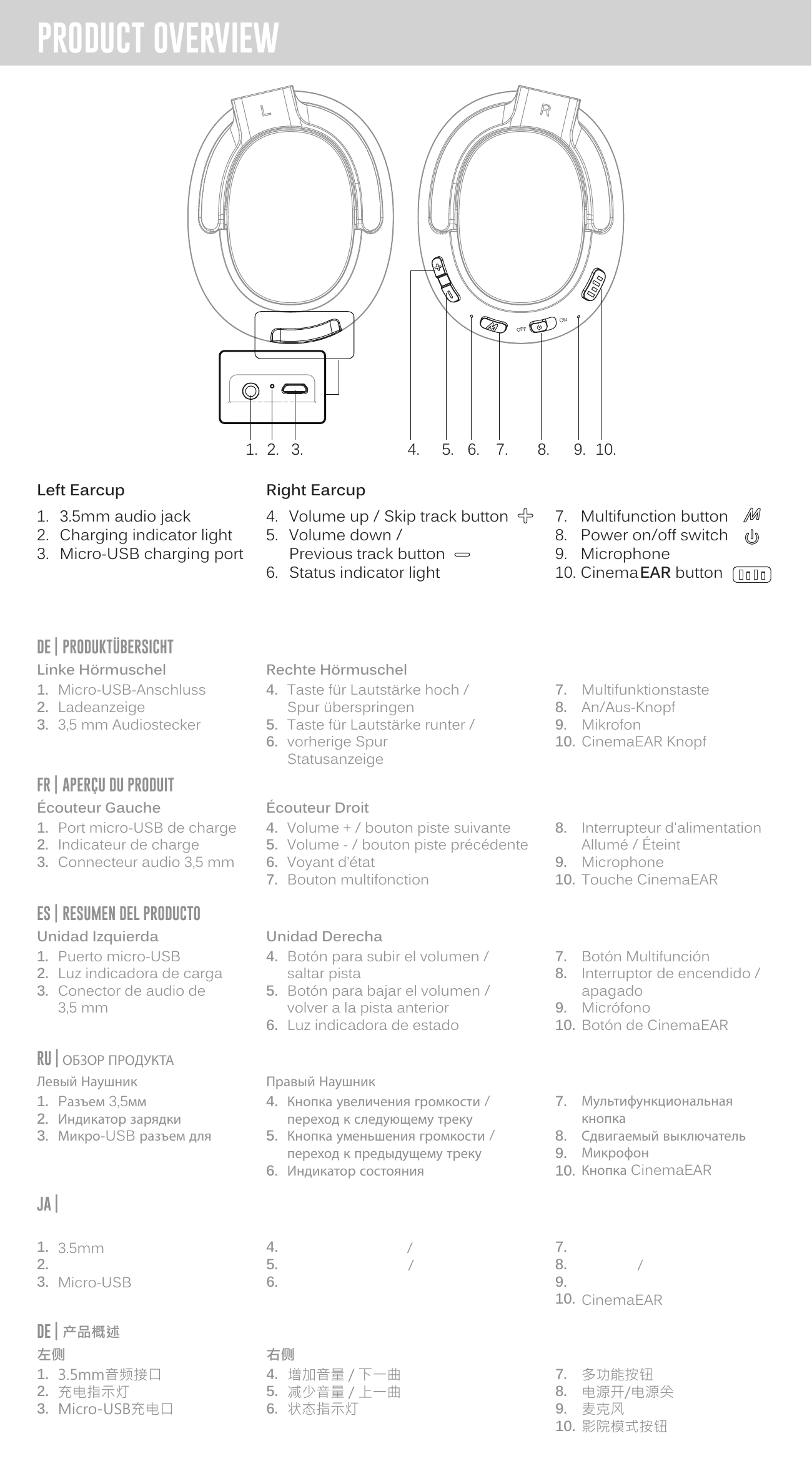
Left Earcup:
- 1. 3.5 mm audio jack
- 2. Charging indicator light
- 3. Micro-USB charging port
Right Earcup:
- 4. Volume Up / Skip Track button
- 5. Volume Down / Previous Track button
- 6. Status indicator light
- 7. Multifunction button
- 8. Power On/Off switch
- 9. Microphone
- 10. CinemaEAR button
Charging
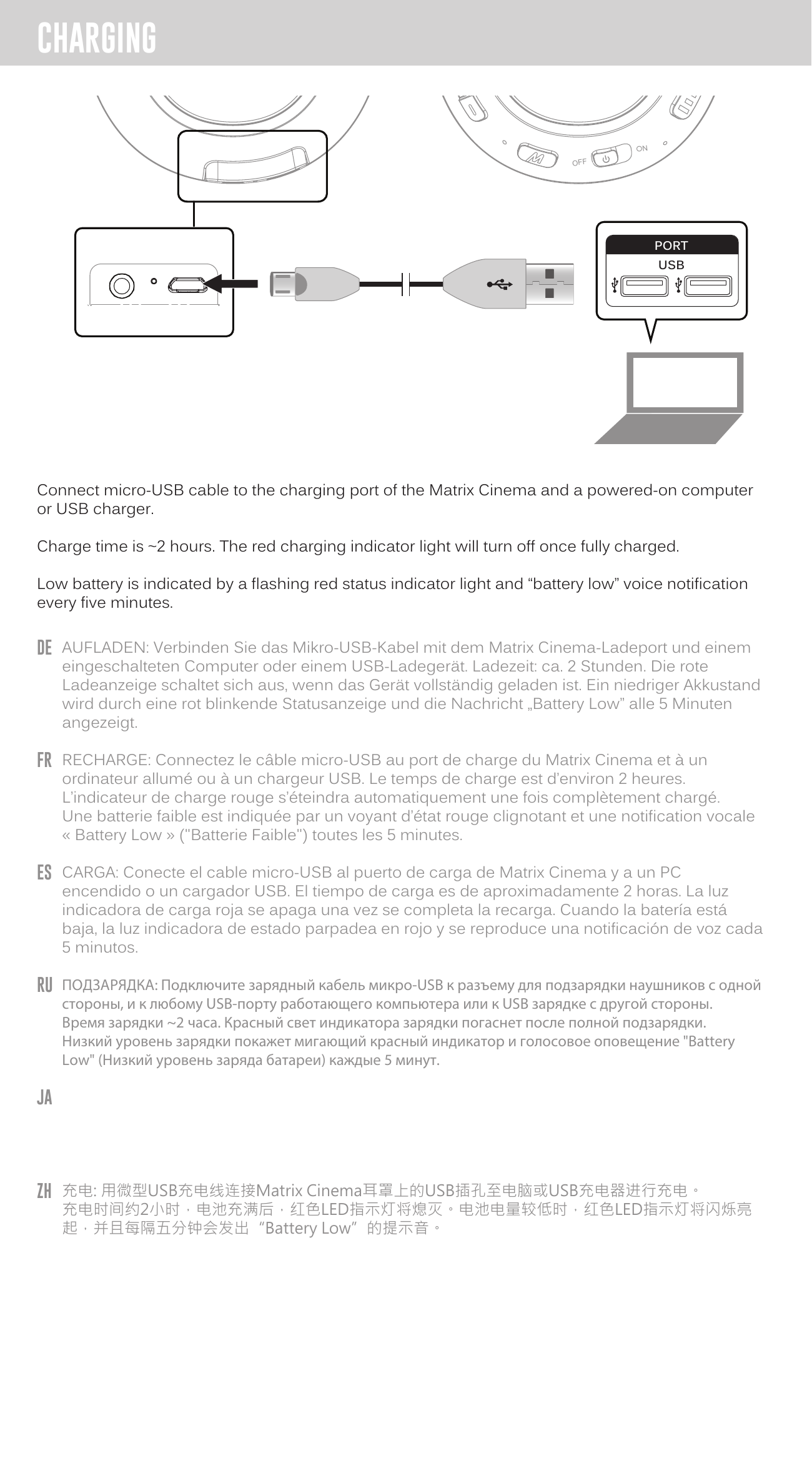
Connect the micro-USB cable to the charging port of the Matrix Cinema and a powered-on computer or USB charger.
Charge time is approximately 2 hours. The red charging indicator light will turn off once fully charged.
Low battery is indicated by a flashing red status indicator light and a "battery low" voice notification every five minutes.
↑ Back to topPairing via Bluetooth
Pages also available in: DE, FR, ES, RU, JA, ZH
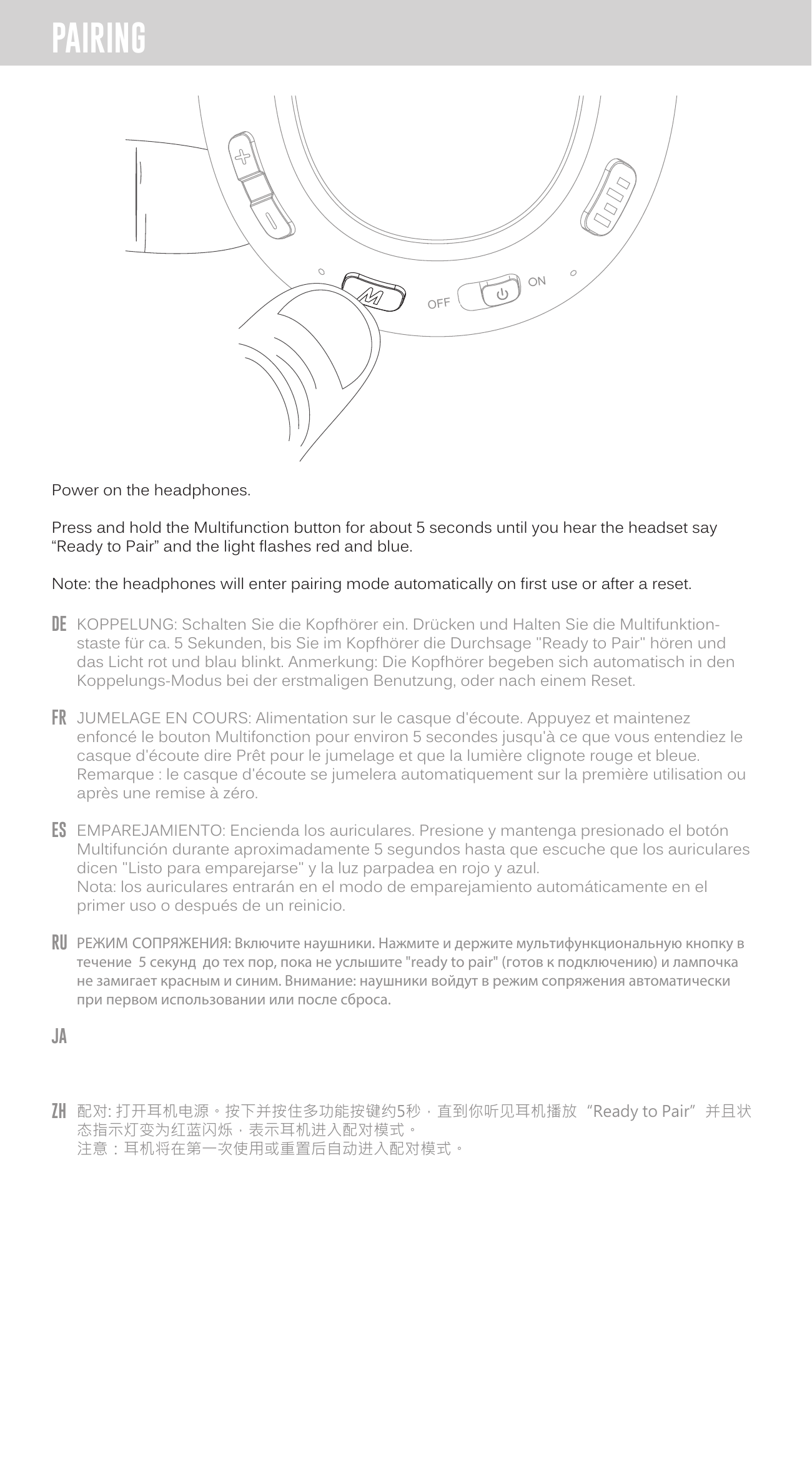
- Power on the headphones.
- Press and hold the Multifunction button for about 5 seconds until you hear the headset say "Ready to Pair" and the light flashes red and blue.
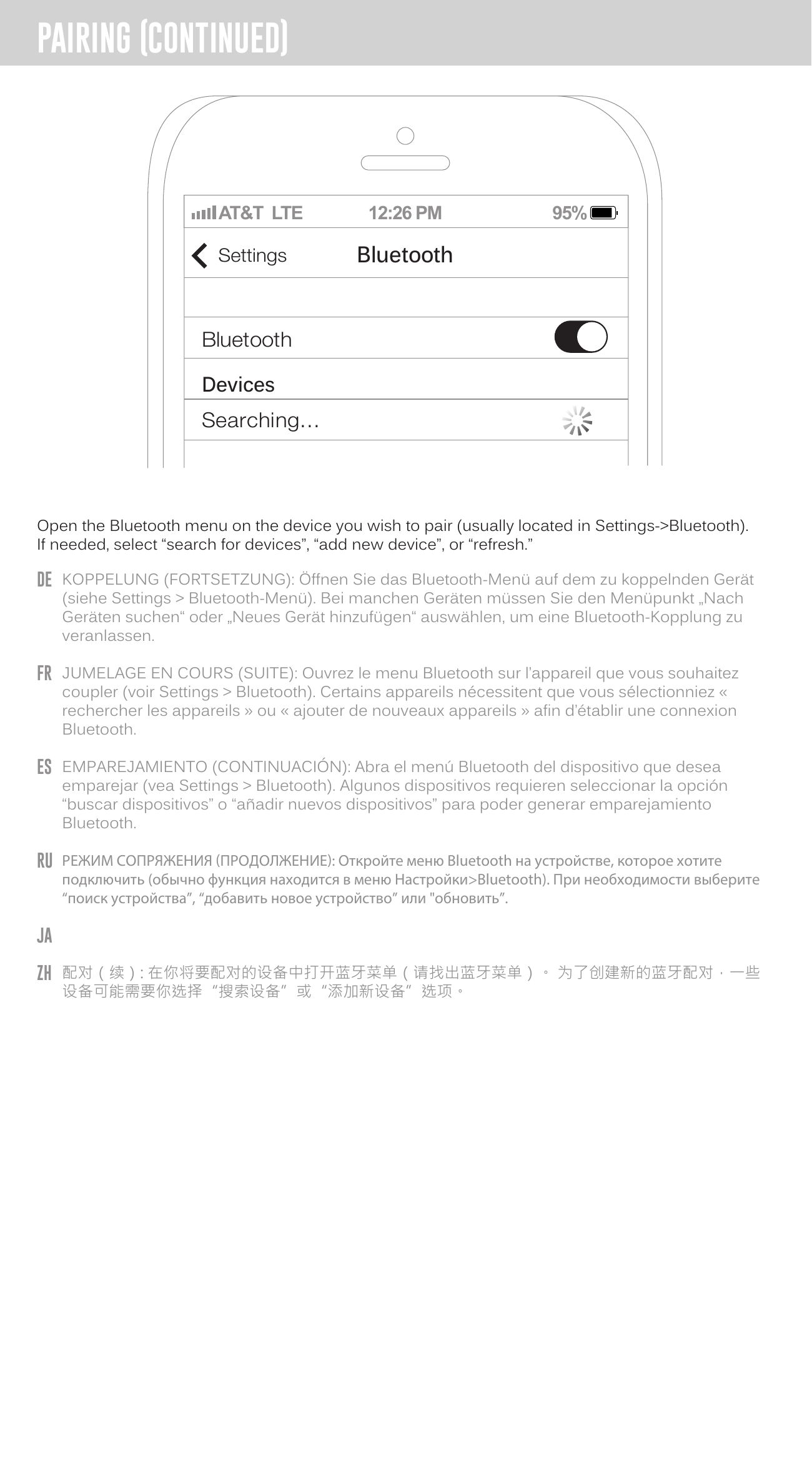
- Open the Bluetooth menu on the device you wish to pair (usually located in Settings → Bluetooth). If needed, select "search for devices," "add new device," or "refresh."
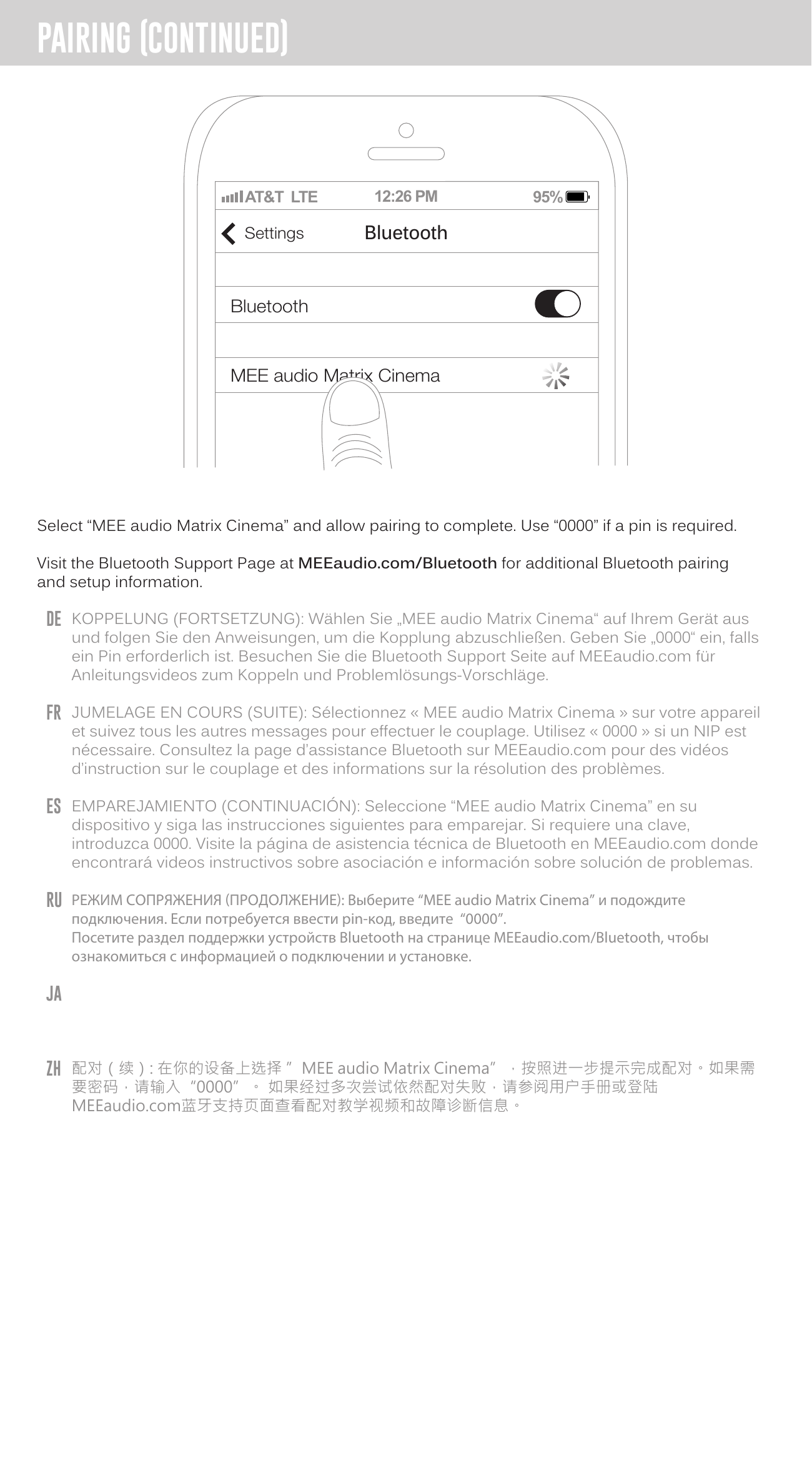
- Select "MEE audio Matrix Cinema" and allow pairing to complete. Use "0000" if a PIN is required.
Note: The headphones will enter pairing mode automatically on first use or after a reset.
For additional Bluetooth pairing and setup information, visit the Bluetooth Support Page at MEEaudio.com/Bluetooth.
↑ Back to topBasic Functionality & Controls
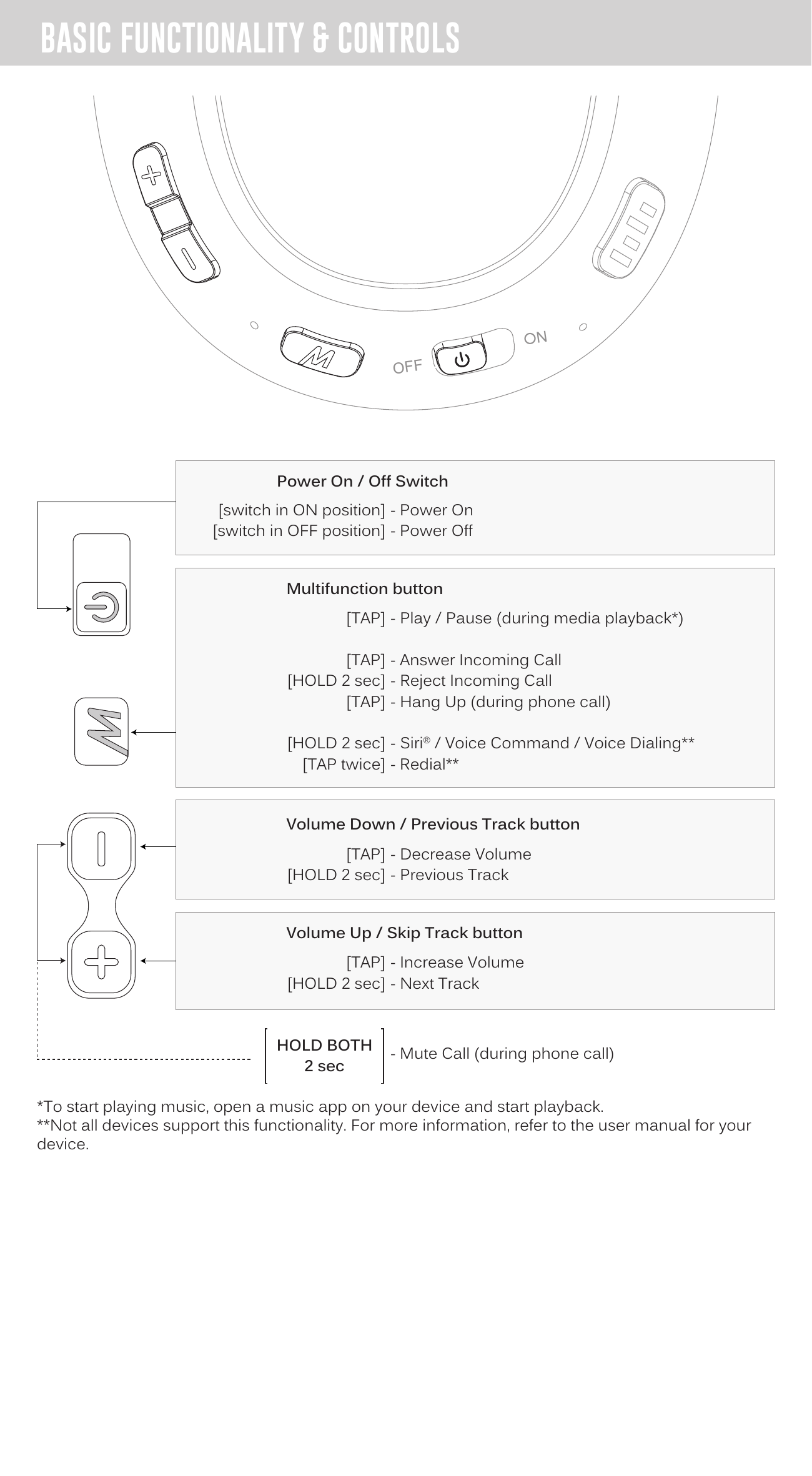
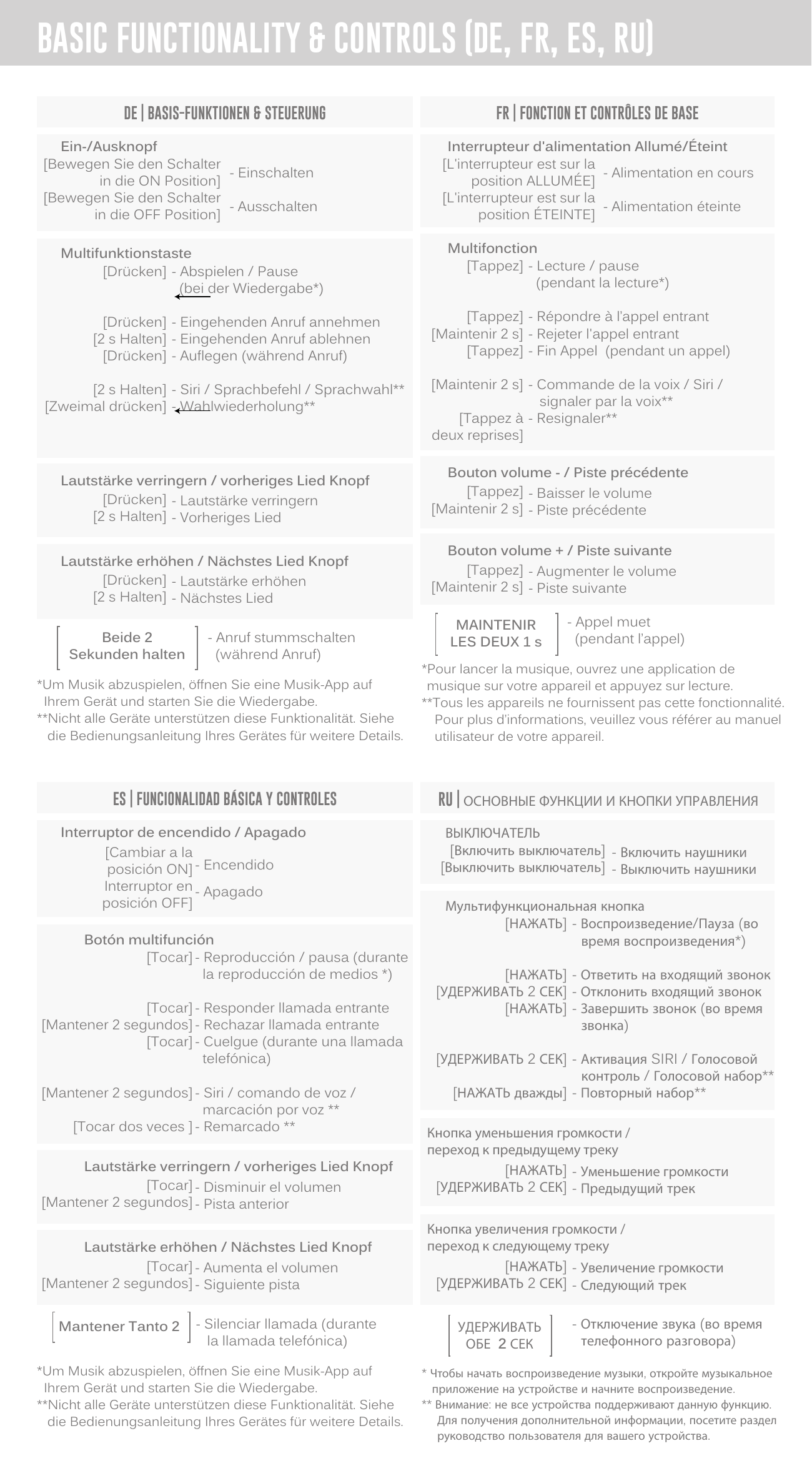
Power On / Off Switch
- Switch in ON position → Power On
- Switch in OFF position → Power Off
Multifunction Button
- [TAP] — Play / Pause (during media playback)
- [TAP] — Answer Incoming Call
- [HOLD 2 sec] — Reject Incoming Call
- [TAP] — Hang Up (during phone call)
- [HOLD 2 sec] — Siri® / Voice Command / Voice Dialing
- [TAP twice] — Redial
- [HOLD BOTH Multifunction + Volume Down, 2 sec] — Mute Call (during phone call)
Volume Down / Previous Track Button
- [TAP] — Decrease Volume
- [HOLD 2 sec] — Previous Track
Volume Up / Skip Track Button
- [TAP] — Increase Volume
- [HOLD 2 sec] — Next Track
*To start playing music, open a music app on your device and start playback.
**Not all devices support this functionality. Refer to the user manual for your device.
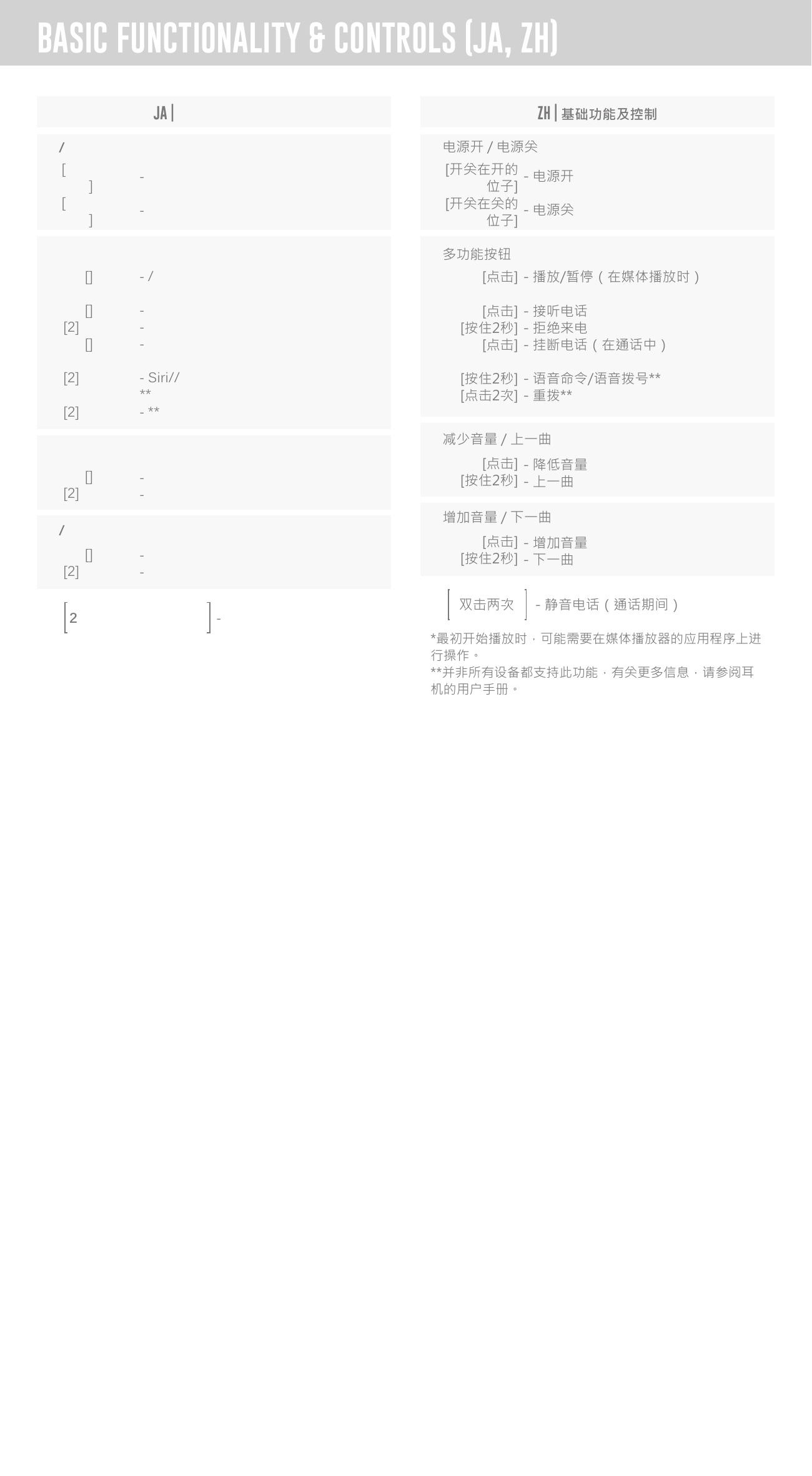
Also available in: DE, FR, ES, RU, JA, ZH
 ↑ Back to top
CinemaEAR Audio Enhancement
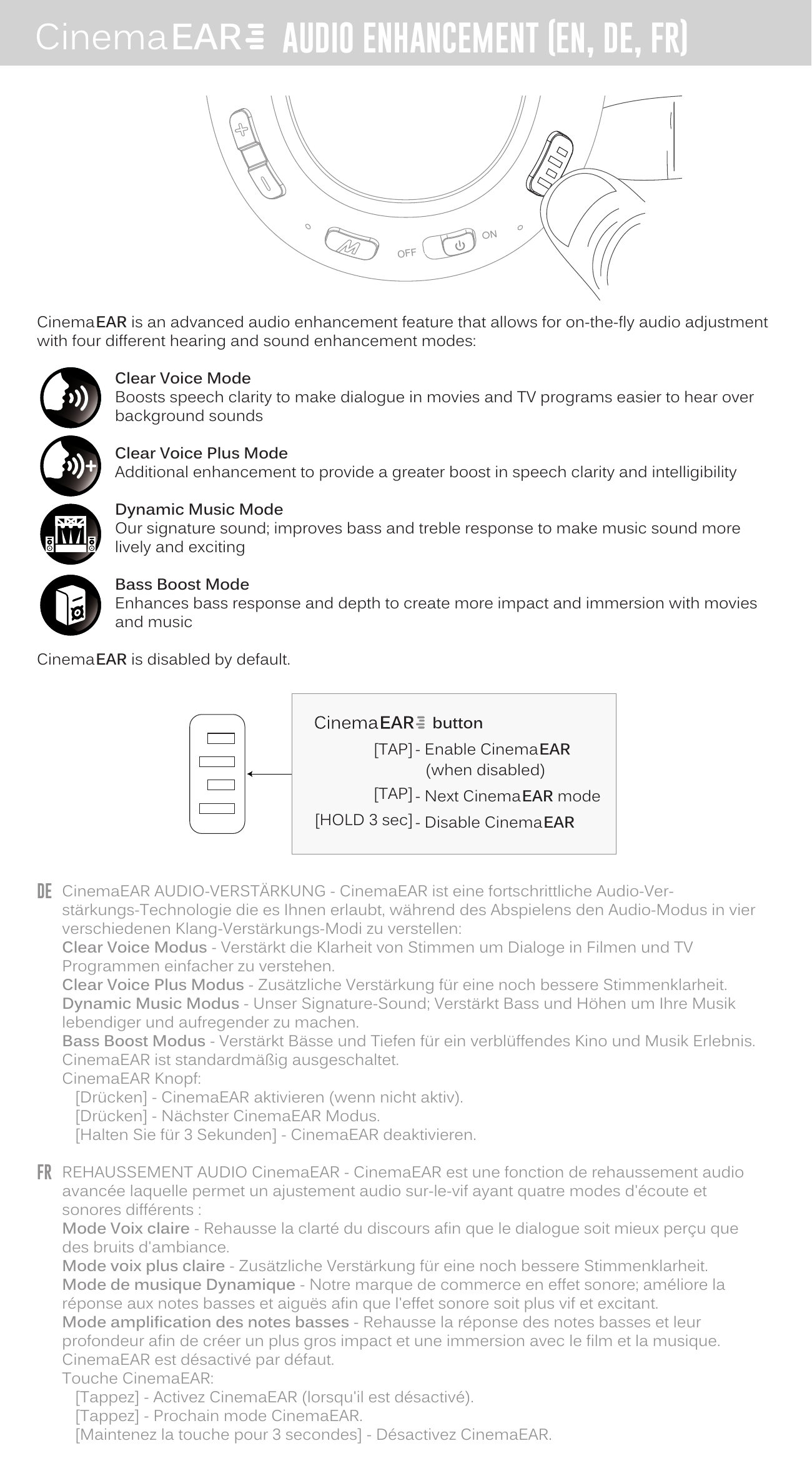
CinemaEAR is an advanced audio enhancement feature that allows for on-the-fly audio adjustment with four different hearing and sound enhancement modes:
- Clear Voice Mode: Boosts speech clarity to make dialogue in movies and TV programs easier to hear over background sounds.
- Clear Voice Plus Mode: Additional enhancement to provide a greater boost in speech clarity and intelligibility.
- Dynamic Music Mode: Our signature sound — improves bass and treble response to make music sound more lively and exciting.
- Bass Boost Mode: Enhances bass response and depth to create more impact and immersion with movies and music.
CinemaEAR is disabled by default.
CinemaEAR button controls:
- [TAP] — Enable CinemaEAR (when disabled)
- [TAP] — Next CinemaEAR mode
- [HOLD 3 sec] — Disable CinemaEAR
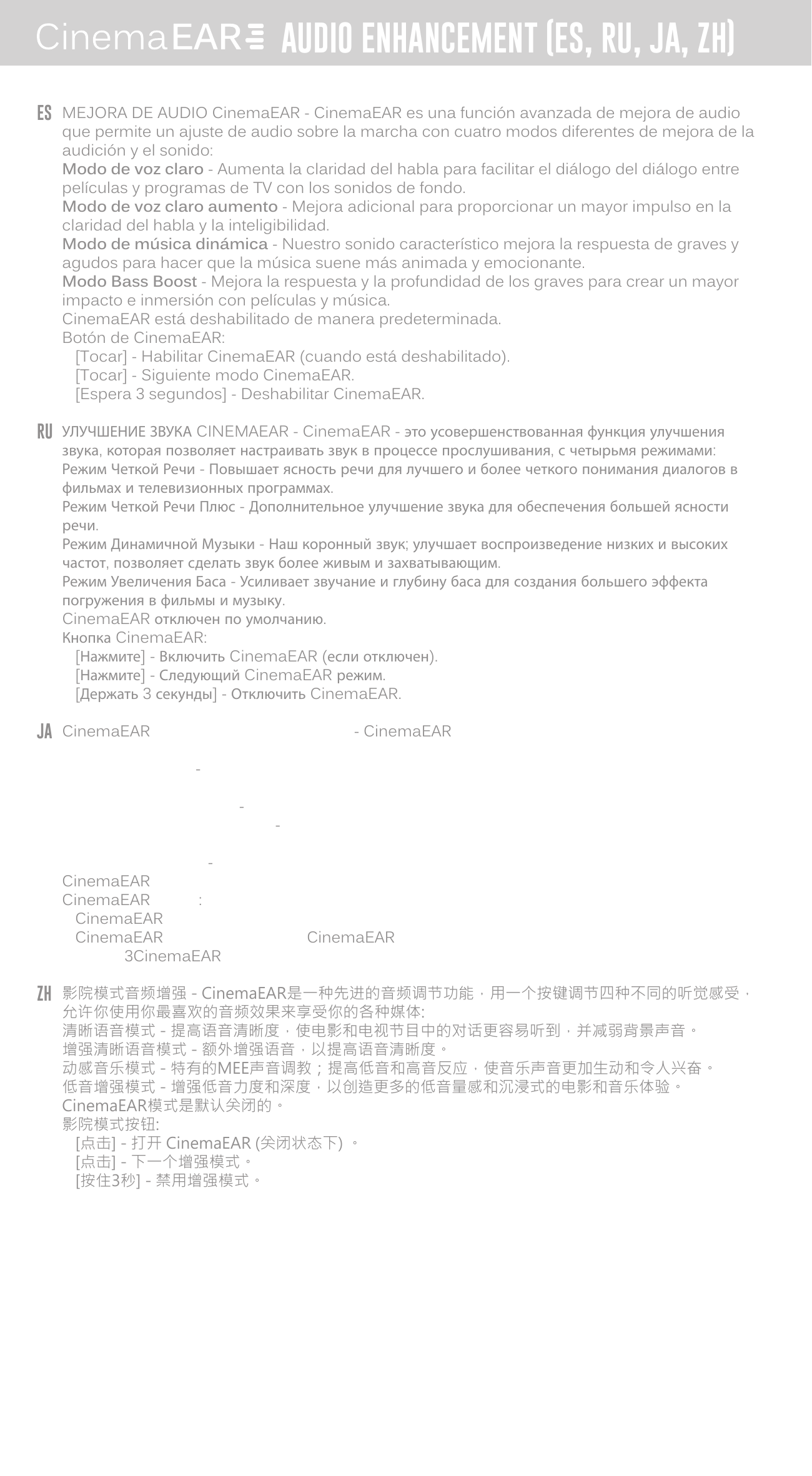
Also available in: DE, FR, ES, RU, JA, ZH
 ↑ Back to top
Bluetooth Multipoint
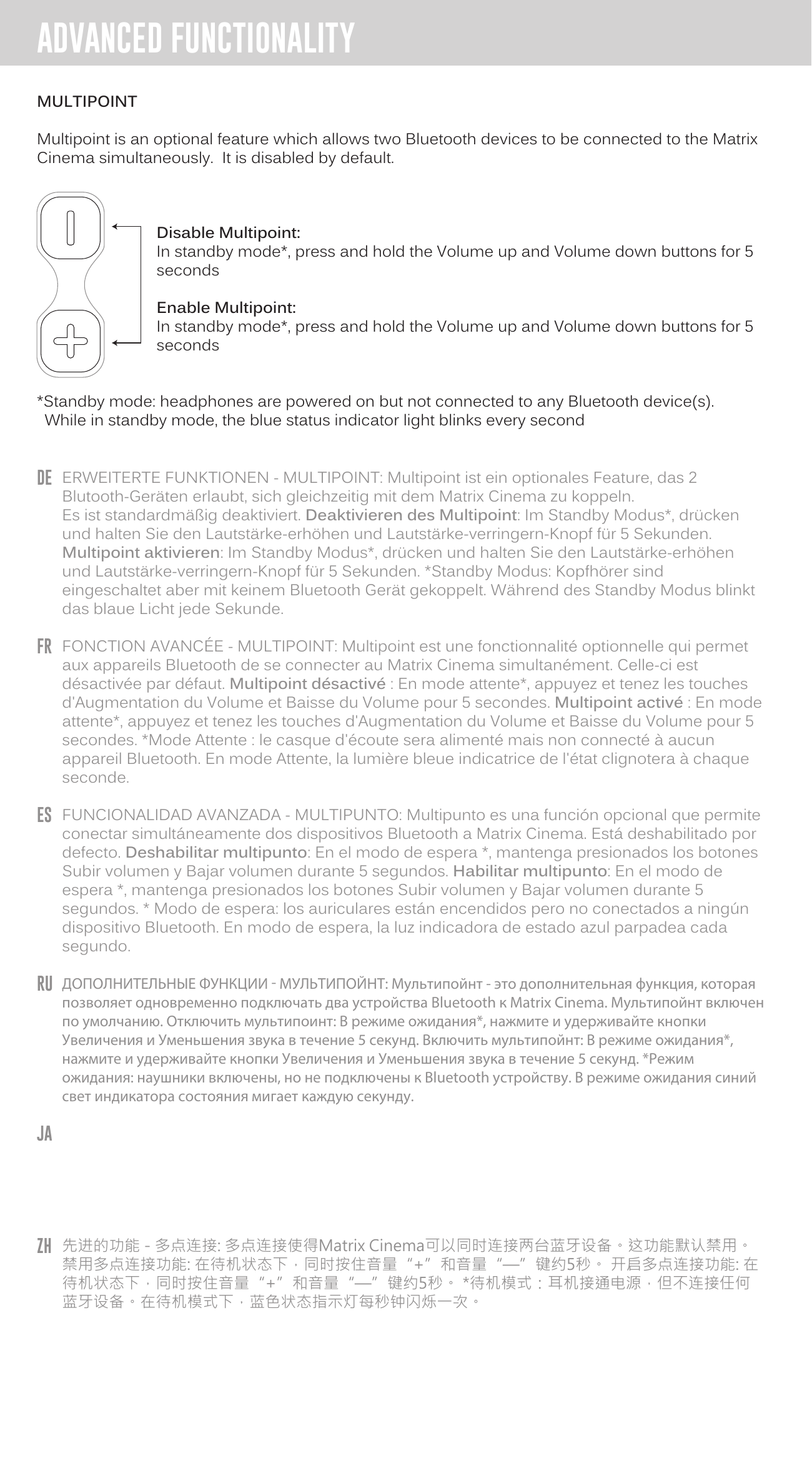
Multipoint is an optional feature which allows two Bluetooth devices to be connected to the Matrix Cinema simultaneously. It is disabled by default.
Disable / Enable Multipoint: In standby mode*, press and hold the Volume Up and Volume Down buttons for 5 seconds.
*Standby mode: headphones are powered on but not connected to any Bluetooth device(s). While in standby mode, the blue status indicator light blinks every second.
↑ Back to topDisabling Audio Prompts
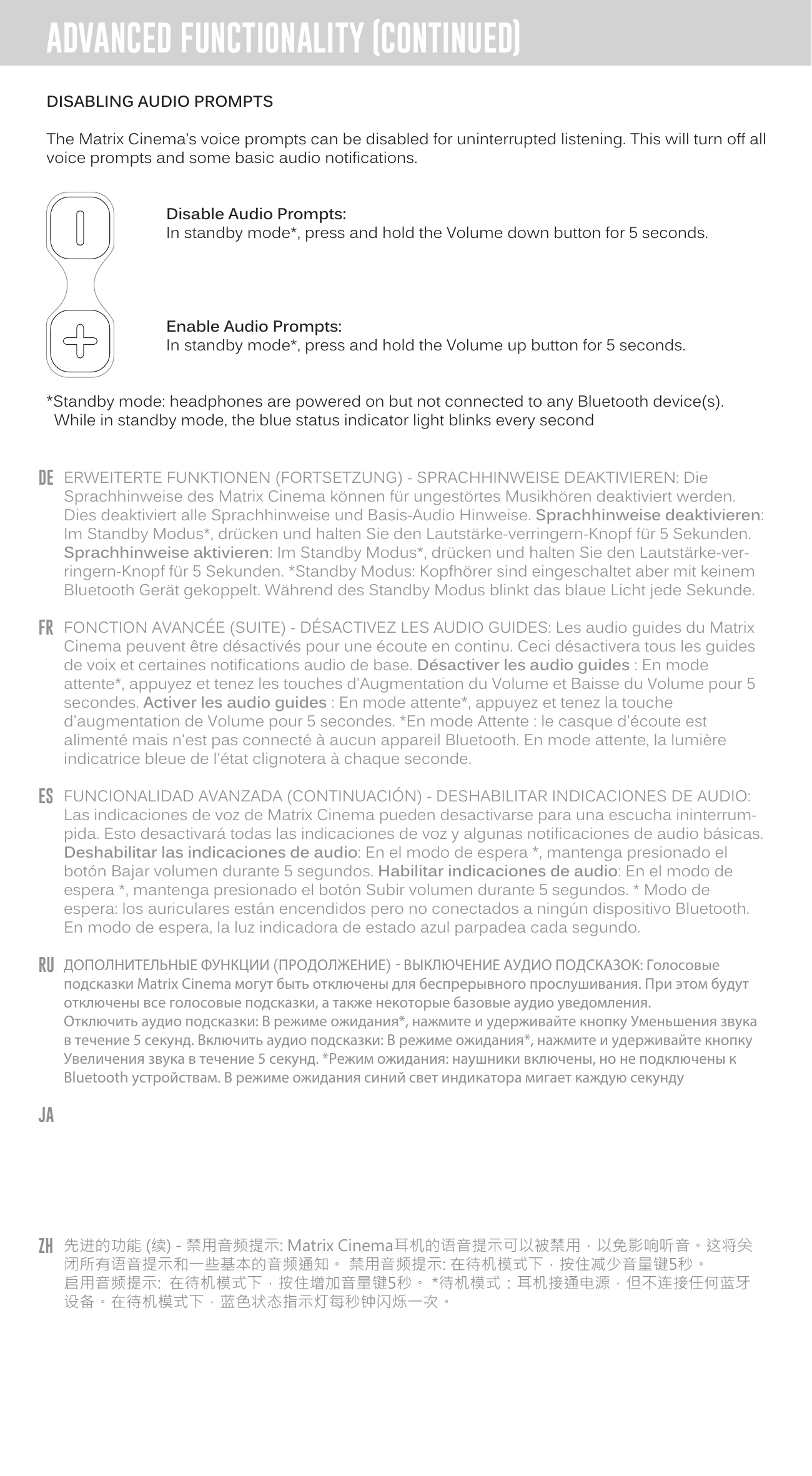
The Matrix Cinema's voice prompts can be disabled for uninterrupted listening. This will turn off all voice prompts and some basic audio notifications.
- Disable Audio Prompts: In standby mode*, press and hold the Volume Down button for 5 seconds.
- Enable Audio Prompts: In standby mode*, press and hold the Volume Up button for 5 seconds.
*Standby mode: headphones are powered on but not connected to any Bluetooth device(s). While in standby mode, the blue status indicator light blinks every second.
↑ Back to topDisabling Status Indicator Light
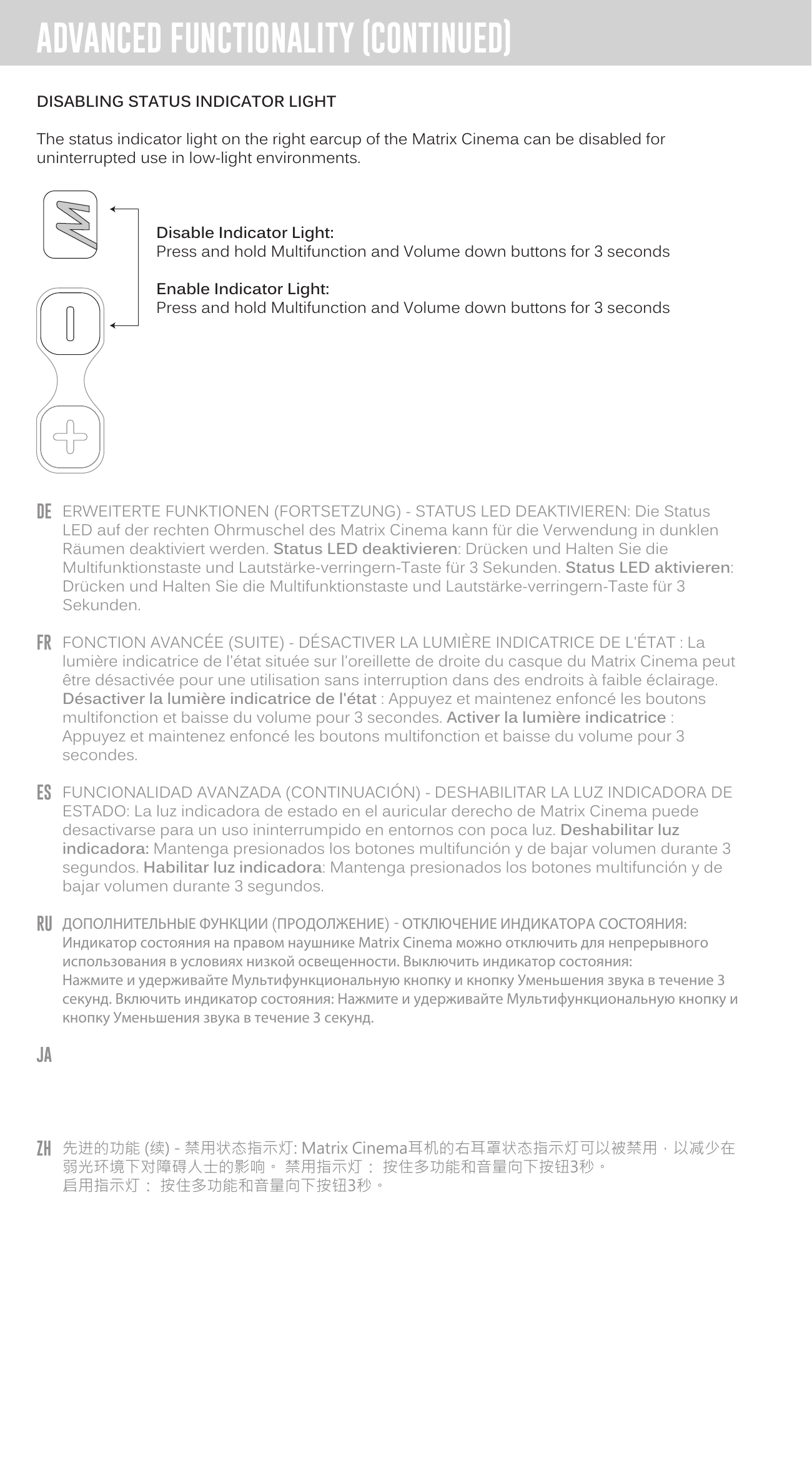
The status indicator light on the right earcup of the Matrix Cinema can be disabled for uninterrupted use in low-light environments.
- Disable Indicator Light: Press and hold Multifunction and Volume Down buttons for 3 seconds.
- Enable Indicator Light: Press and hold Multifunction and Volume Down buttons for 3 seconds.
Use as Wired Headphone
The Matrix Cinema can be used as a wired headphone with the included 3.5 mm stereo audio cable. This allows use when the battery is depleted and with devices that do not have Bluetooth (such as in-flight entertainment systems) or aren't paired.
Note: The microphone, remote controls, and CinemaEAR audio enhancement functionality will not work when the headphones are used in wired mode.
Troubleshooting
Clear Memory (Delete Paired Devices)
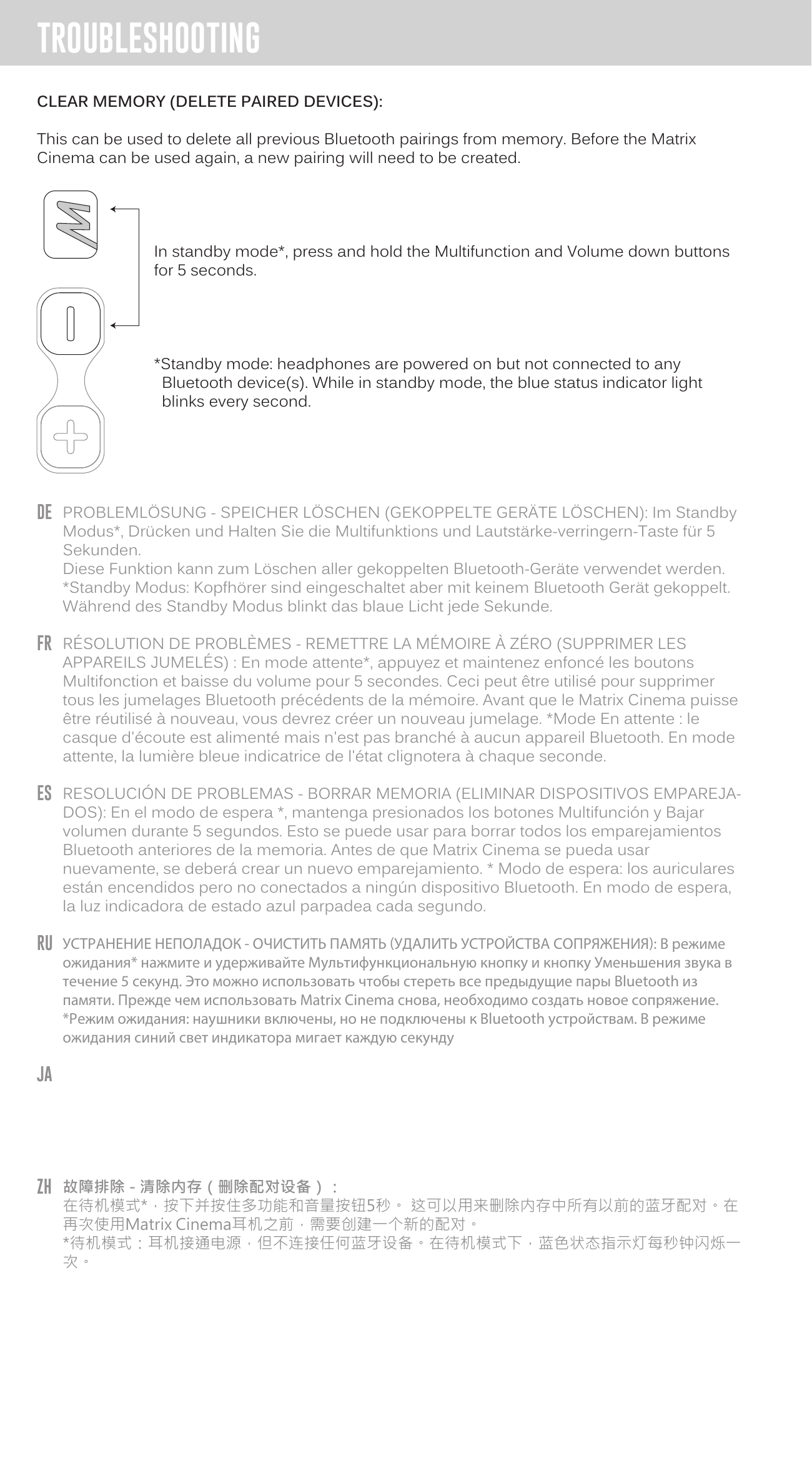
This can be used to delete all previous Bluetooth pairings from memory. Before the Matrix Cinema can be used again, a new pairing will need to be created.
In standby mode*, press and hold the Multifunction and Volume Down buttons for 5 seconds.
*Standby mode: headphones are powered on but not connected to any Bluetooth device(s). While in standby mode, the blue status indicator light blinks every second.
Hard Reboot
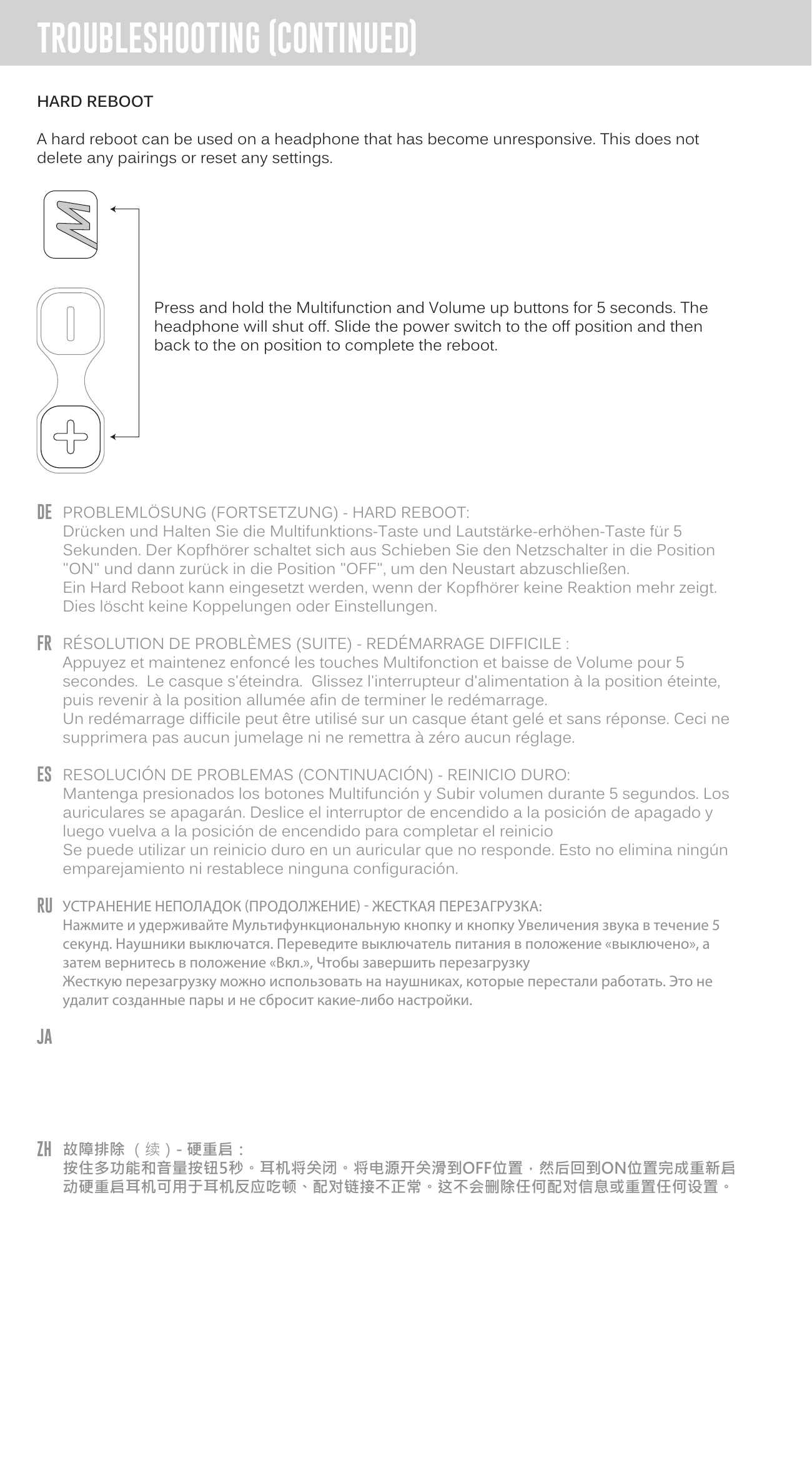
A hard reboot can be used on a headphone that has become unresponsive. This does not delete any pairings or reset any settings.
- Press and hold the Multifunction and Volume Up buttons for 5 seconds. The headphone will shut off.
- Slide the power switch to the OFF position and then back to the ON position to complete the reboot.
Factory Reset
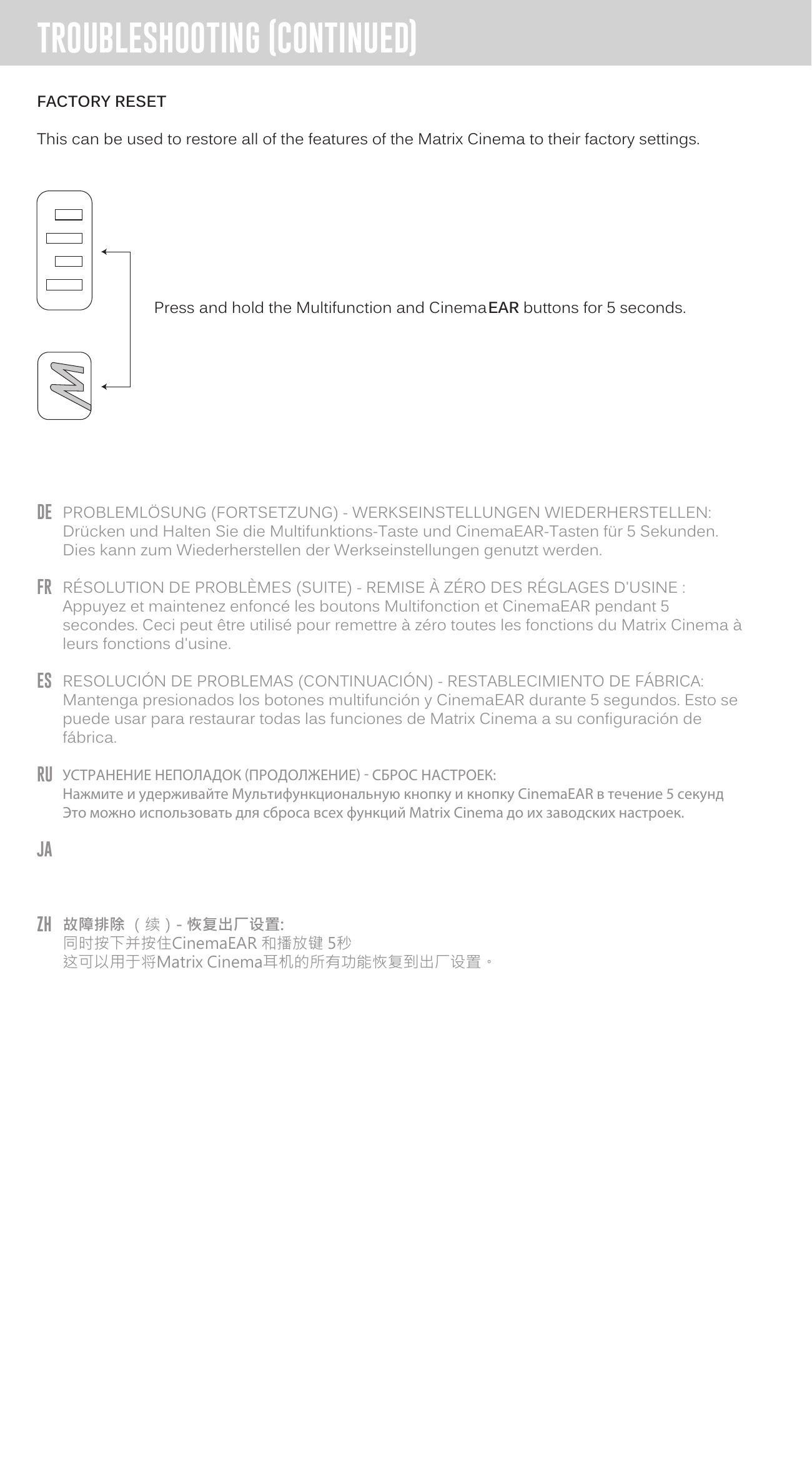
This can be used to restore all of the features of the Matrix Cinema to their factory settings.
Press and hold the Multifunction and CinemaEAR buttons for 5 seconds.
Warning
Keep the device and packaging out of reach of children.
↑ Back to topSafety and Care
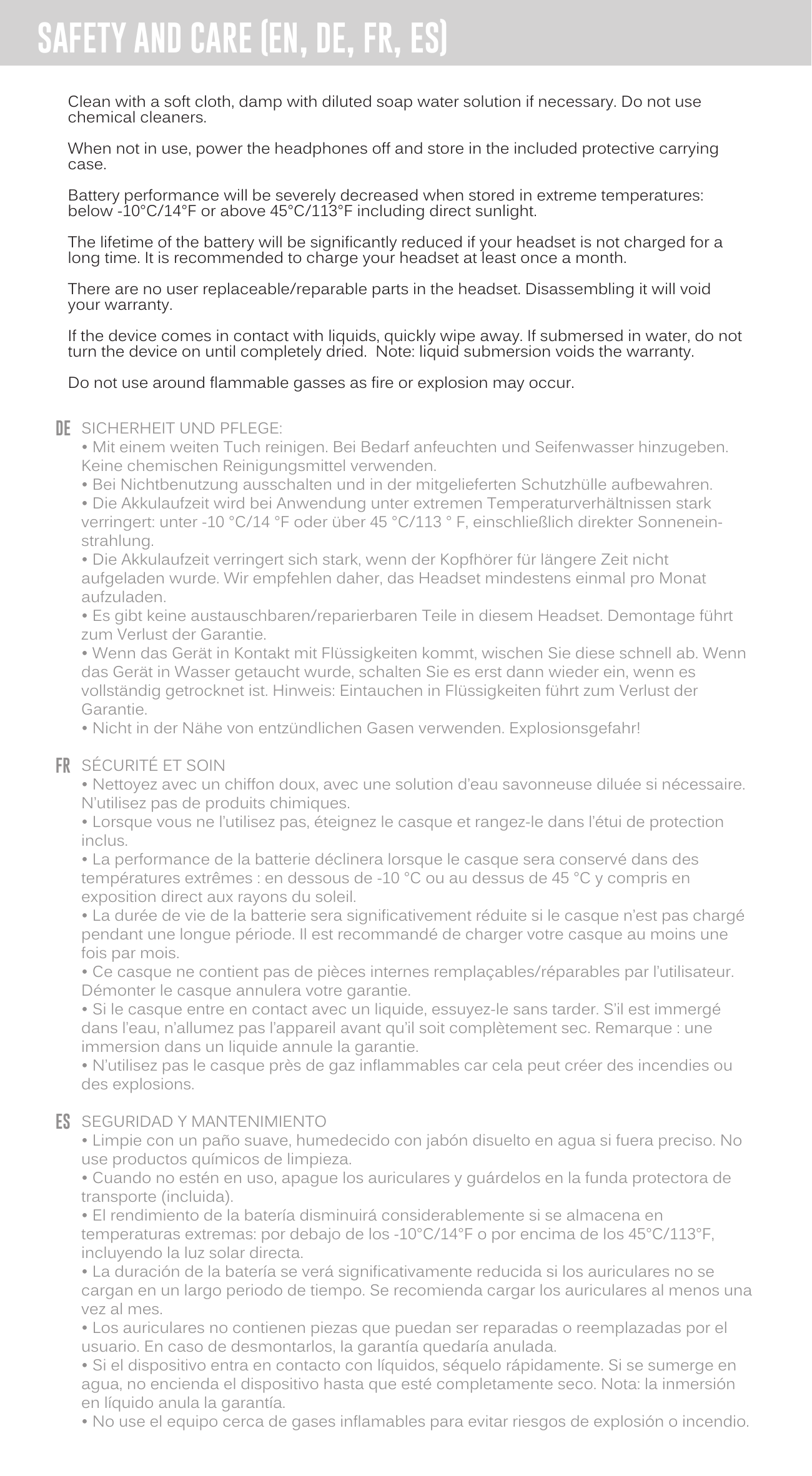
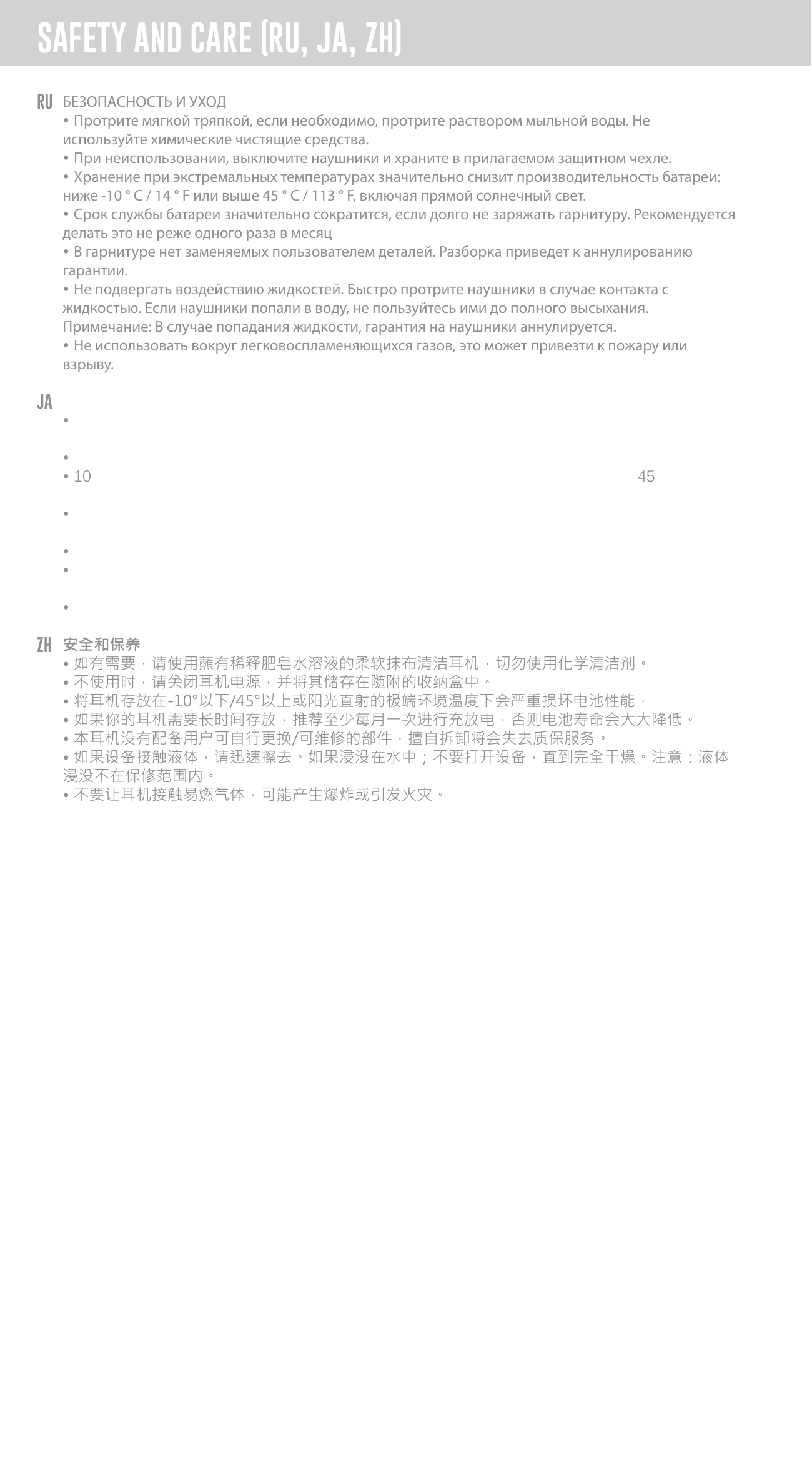
- Clean with a soft cloth, damp with diluted soap water solution if necessary. Do not use chemical cleaners.
- When not in use, power the headphones off and store in the included protective carrying case.
- Battery performance will be severely decreased when stored in extreme temperatures: below −10°C/14°F or above 45°C/113°F including direct sunlight.
- The lifetime of the battery will be significantly reduced if your headset is not charged for a long time. Charge at least once a month.
- There are no user replaceable/reparable parts in the headset. Disassembling it will void your warranty.
- If the device comes in contact with liquids, quickly wipe away. If submerged in water, do not turn the device on until completely dried. Liquid submersion voids the warranty.
- Do not use around flammable gasses as fire or explosion may occur.
Additional Support

- Download the full user manual at MEEaudio.com/MatrixCinema or by scanning the QR code.
- Visit our Bluetooth Support Page at MEEaudio.com/Bluetooth for easy-to-follow video setup guides and the latest troubleshooting information.
- Contact us at support@MEEaudio.com
Questions? We're Here to Help!
Phone Support: 626-965-1008 x31
Monday – Friday 9:00 am to 5:30 pm PST
Email Support: support@MEEaudio.com
All emails are responded to within 2 business days.
Warranty
MEE audio products purchased from authorized resellers are covered by a 1-year manufacturer warranty. For more information, contact your local MEE audio dealer or visit MEEaudio.com/Support.
MEE audio and its logo are registered trademarks of S2E, Inc. All rights reserved. iPhone®, iPad®, iPod®, and Siri® are registered trademarks of Apple Inc. The Bluetooth® word mark and logos are registered trademarks owned by Bluetooth SIG, Inc. and any use of such marks by MEE audio is under license. Qualcomm® aptX™ is a product of Qualcomm Technologies International, Ltd.
↑ Back to top