AirHooks Pro
Open Ear Directional Audio Headphones
User Manual
1. How to Wear
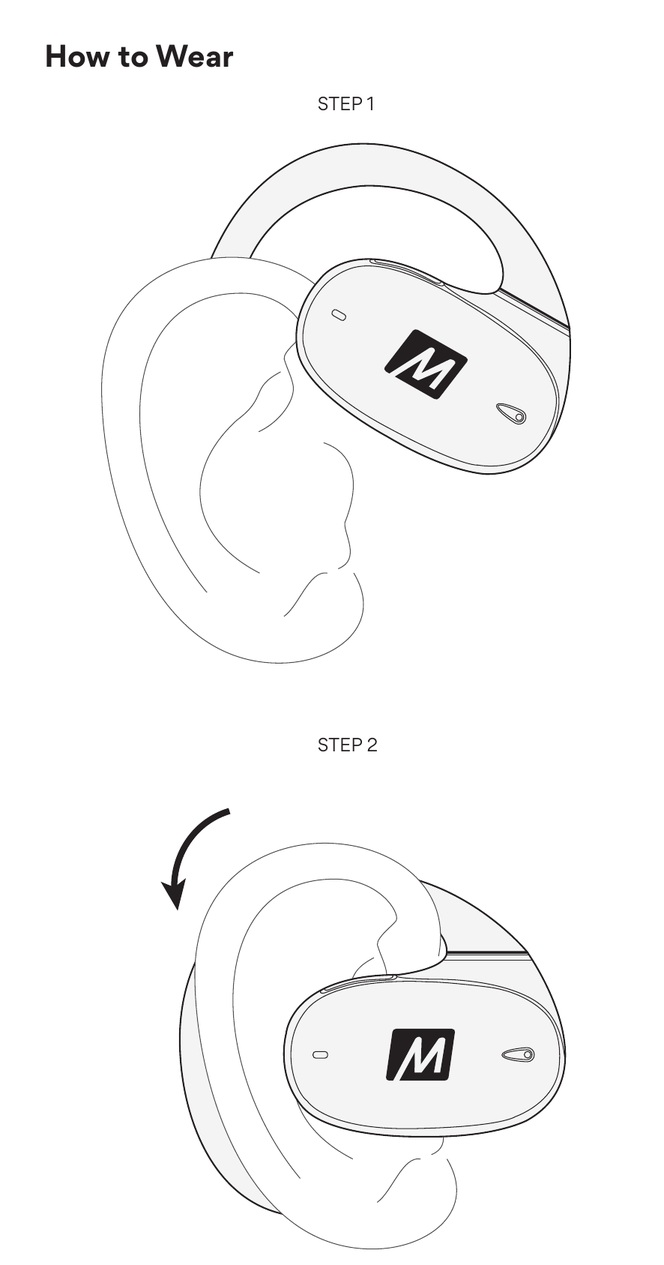
- Hold the earpiece with the MEE audio logo facing outward and position the earhook over the top of your ear.
- Rotate the earpiece downward and inward so it rests comfortably against the side of your head with the earhook secured behind your ear.
2. Replacing the Earhooks
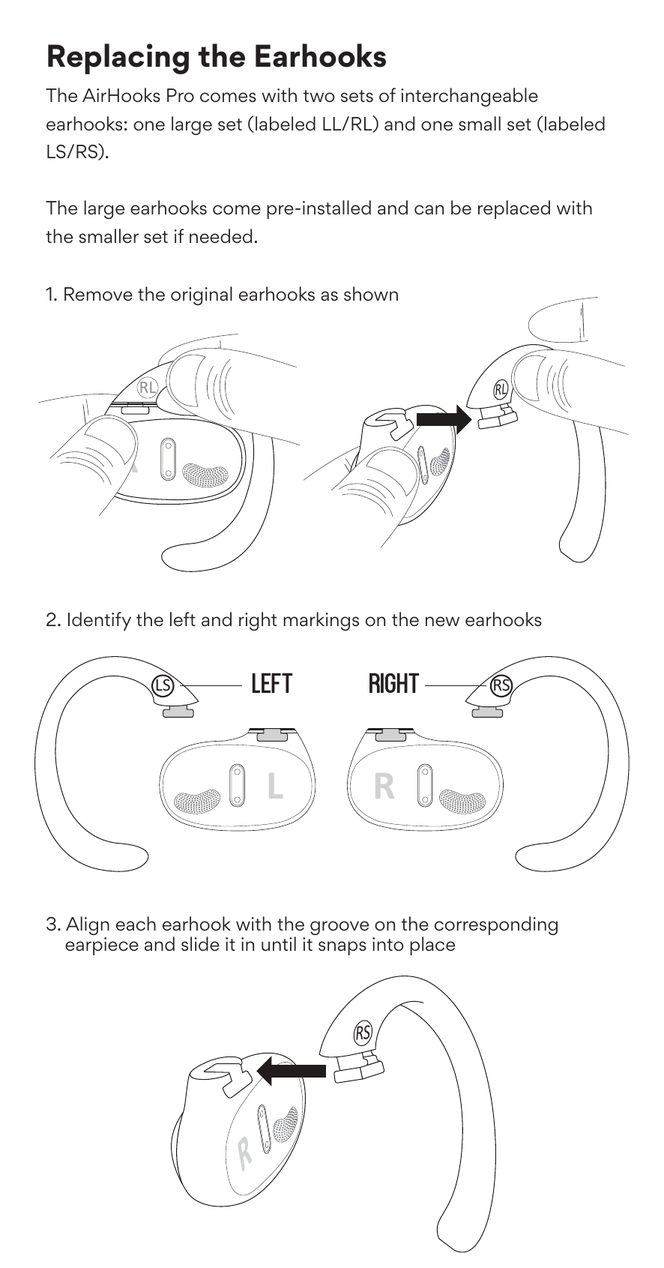
The AirHooks Pro comes with two sets of interchangeable earhooks: one large set (labeled LL/RL) and one small set (labeled LS/RS). The large earhooks come pre-installed and can be replaced with the smaller set if needed.
- Remove the original earhooks as shown in the diagram.
- Identify the left (LS) and right (RS) markings on the new earhooks.
- Align each earhook with the groove on the corresponding earpiece and slide it in until it snaps into place.
3. Functionality & Controls
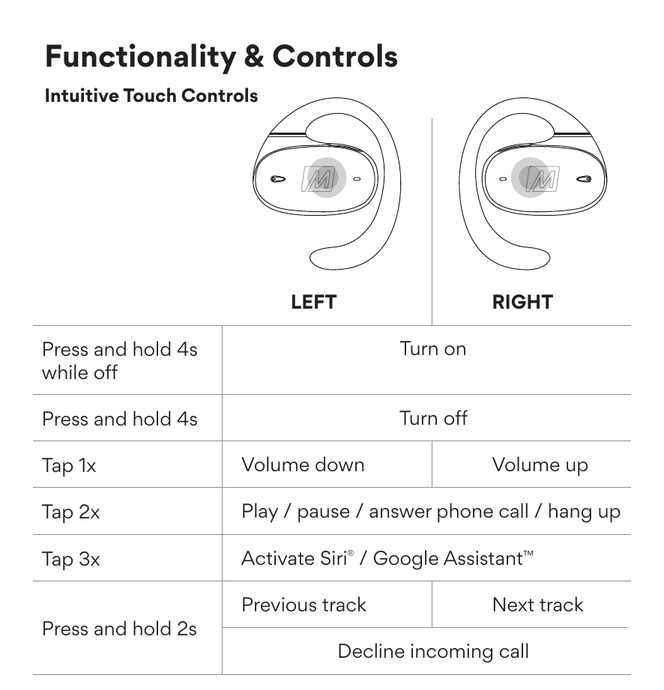
Intuitive Touch Controls
| Gesture | Left | Right |
|---|---|---|
| Press and hold 4s (while off) | Turn on | |
| Press and hold 4s | Turn off | |
| Tap 1× | Volume down | Volume up |
| Tap 2× | Play / pause / answer phone call / hang up | |
| Tap 3× | Activate Siri® / Google Assistant™ | |
| Press and hold 2s | Previous track | Next track |
| Decline incoming call | ||
4. Charging the Earpieces
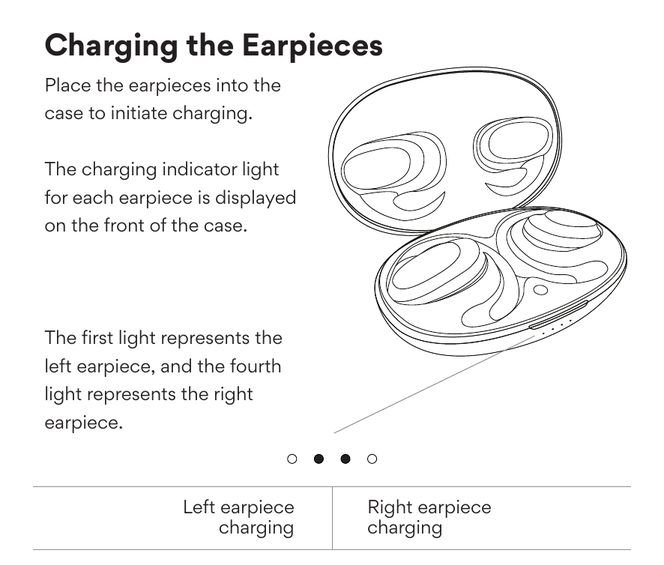
Place the earpieces into the case to initiate charging. The charging indicator light for each earpiece is displayed on the front of the case.
The first light represents the left earpiece, and the fourth light represents the right earpiece.
| Light Position | Earpiece |
|---|---|
| Light 1 (leftmost) | Left earpiece |
| Light 4 (rightmost) | Right earpiece |
5. Charging the Case
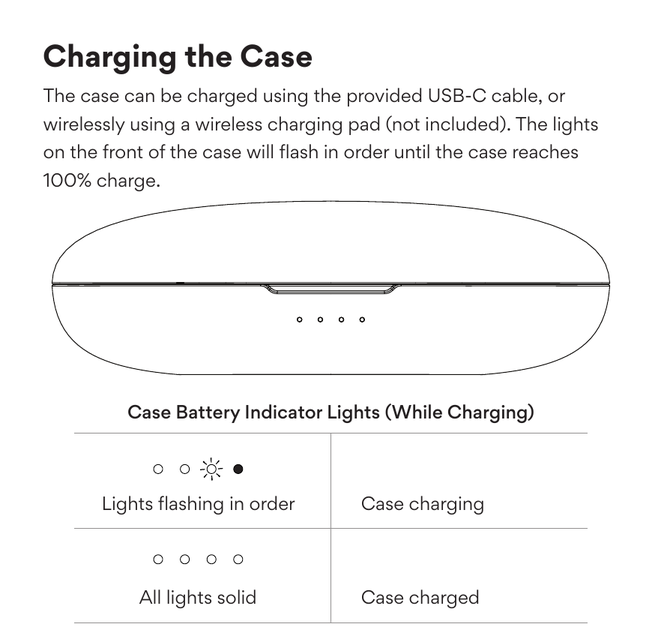
The case can be charged using the provided USB-C cable, or wirelessly using a wireless charging pad (not included). The lights on the front of the case will flash in order until the case reaches 100% charge.
| Light Pattern | Status |
|---|---|
| Lights flashing in order | Case charging |
| All lights solid | Case fully charged |
6. Case Battery Indicator
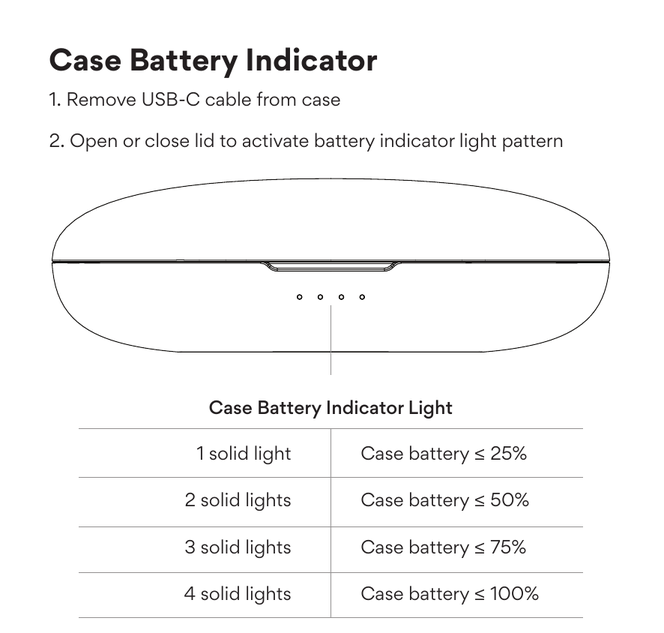
To check the case battery level when not charging:
- Remove the USB-C cable from the case.
- Open or close the lid to activate the battery indicator light pattern.
| Number of Solid Lights | Battery Level |
|---|---|
| 1 solid light | Case battery ≤ 25% |
| 2 solid lights | Case battery ≤ 50% |
| 3 solid lights | Case battery ≤ 75% |
| 4 solid lights | Case battery ≤ 100% |
7. Pairing
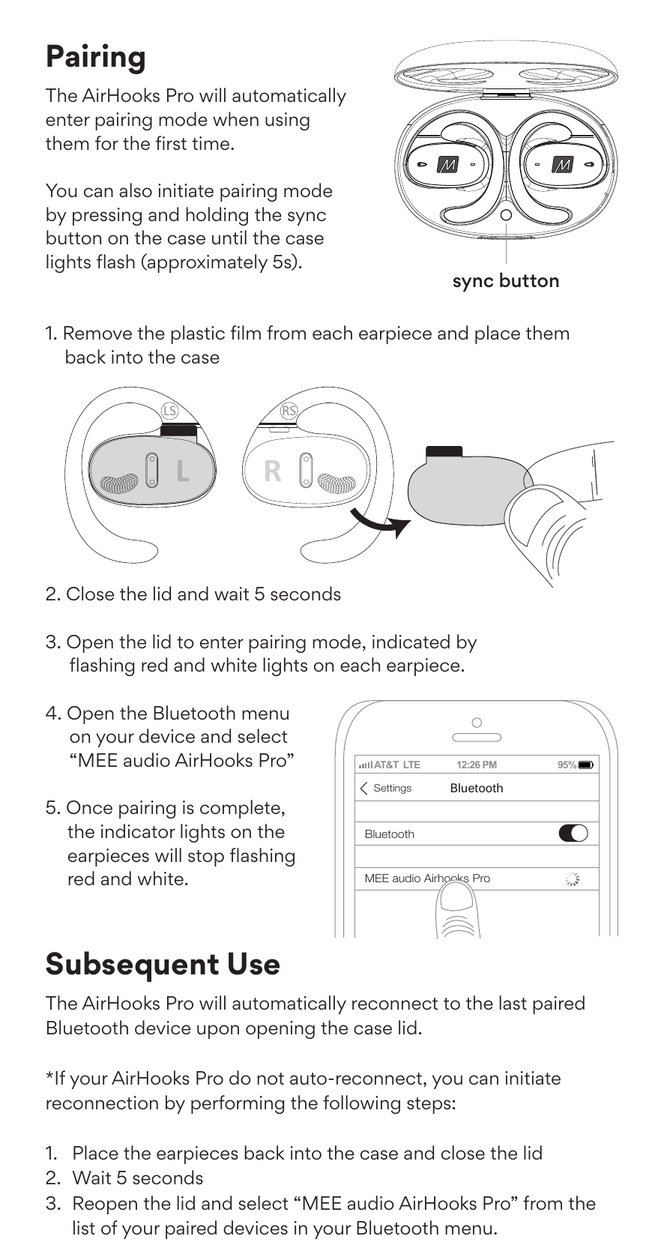
The AirHooks Pro will automatically enter pairing mode when using them for the first time. You can also initiate pairing mode by pressing and holding the sync button on the case until the case lights flash (approximately 5 seconds).
- Remove the plastic film from each earpiece and place them back into the case.
- Close the lid and wait 5 seconds.
- Open the lid to enter pairing mode, indicated by flashing red and white lights on each earpiece.
- Open the Bluetooth menu on your device and select MEE audio AirHooks Pro.
- Once pairing is complete, the indicator lights on the earpieces will stop flashing red and white.
8. Subsequent Use
The AirHooks Pro will automatically reconnect to the last paired Bluetooth device upon opening the case lid.
If your AirHooks Pro do not auto-reconnect, initiate reconnection manually:
- Place the earpieces back into the case and close the lid.
- Wait 5 seconds.
- Reopen the lid and select MEE audio AirHooks Pro from the list of your paired devices in your Bluetooth menu.
9. Factory Reset
A factory reset restores all features to their factory settings and deletes all previous Bluetooth pairings from memory.
- Place the earpieces into the case.
- Press and hold the sync button on the case until the earpieces flash red two times (approximately 10 seconds). Once the reset is complete, the earpieces will go directly into pairing mode.
10. Pairing Another Device
To pair the AirHooks Pro to a new Bluetooth device, first unpair the AirHooks Pro from your original device using its Bluetooth menu, or turn off Bluetooth on the original device altogether. The AirHooks Pro will automatically enter pairing mode if a previously paired device is not found.
Select MEE audio AirHooks Pro in the Bluetooth menu of the new device to complete the pairing process.
↑ Back to top11. Warranty
This product is covered by a 1-year manufacturer warranty. For more information, visit MEEaudio.com/support.
For setup guides and additional support, visit: MEEaudio.com/AirHooksProSupport