Product Overview
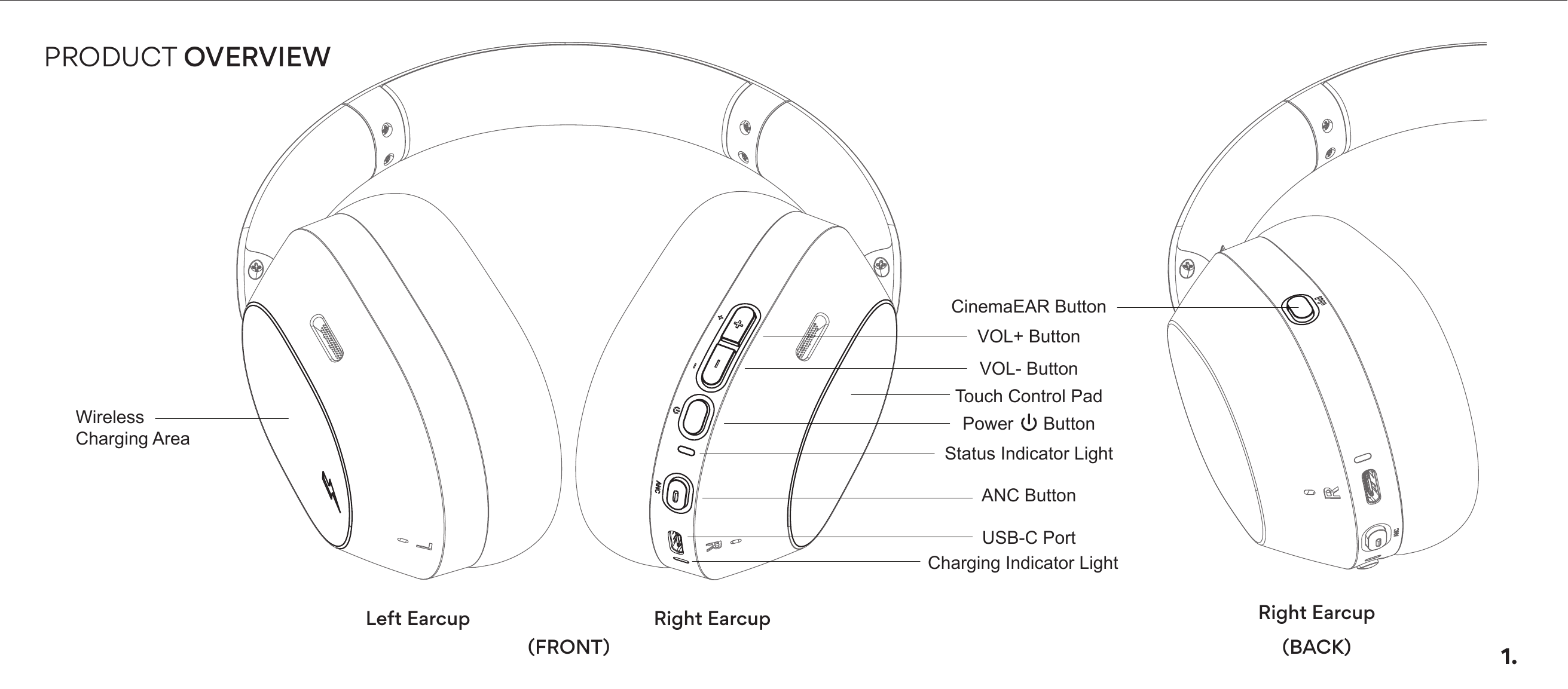
Left Earcup: Wireless Charging Area
Right Earcup (Front):
- CinemaEAR Button
- VOL+ Button
- VOL− Button
- Touch Control Pad
- Power Button
- Status Indicator Light
- ANC Button
- USB-C Port
- Charging Indicator Light
Charging
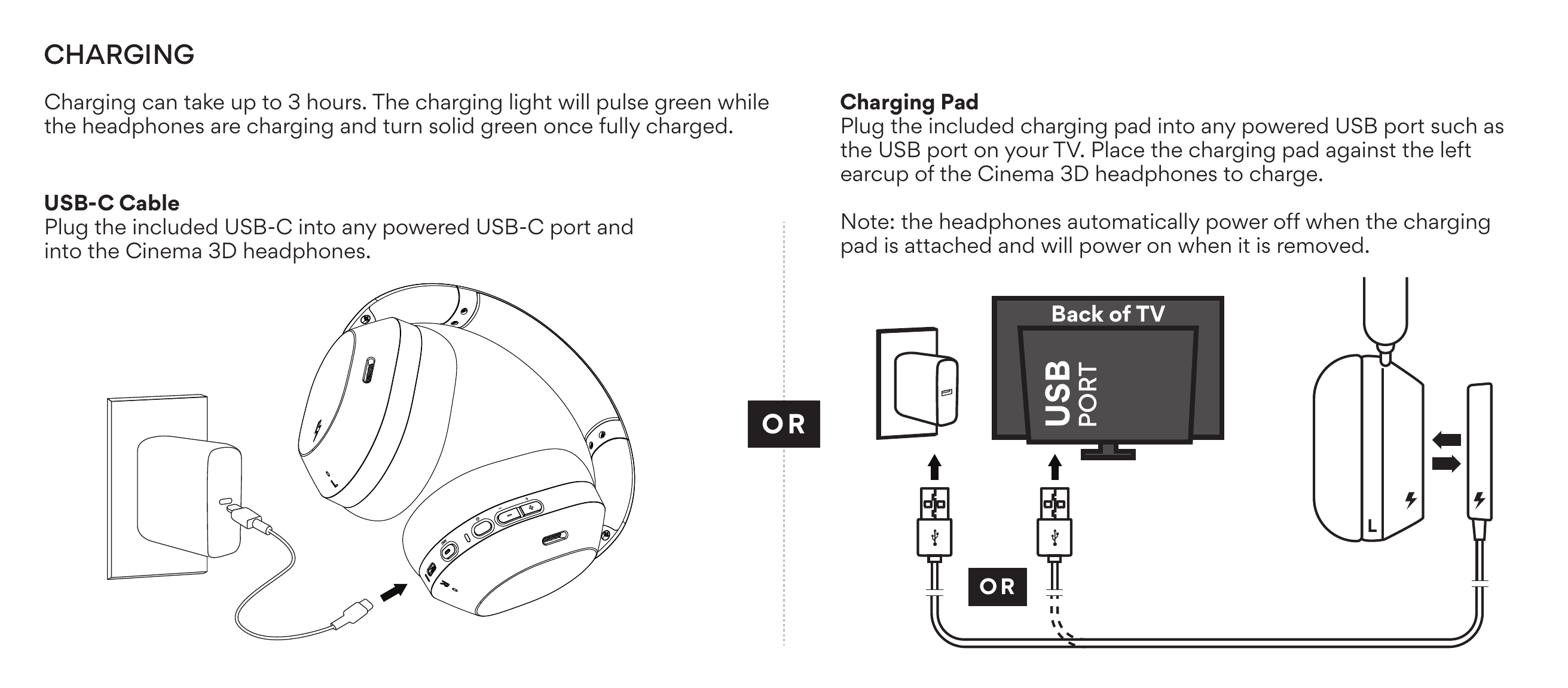
Charging can take up to 3 hours. The charging light will pulse green while the headphones are charging and turn solid green once fully charged.
USB-C Cable
Plug the included USB-C cable into any powered USB-C port and into the Cinema 3D headphones.
Charging Pad
Plug the included charging pad into any powered USB port such as the USB port on your TV. Place the charging pad against the left earcup of the Cinema 3D headphones to charge.
Note: The headphones automatically power off when the charging pad is attached and will power on when it is removed.
Powering On
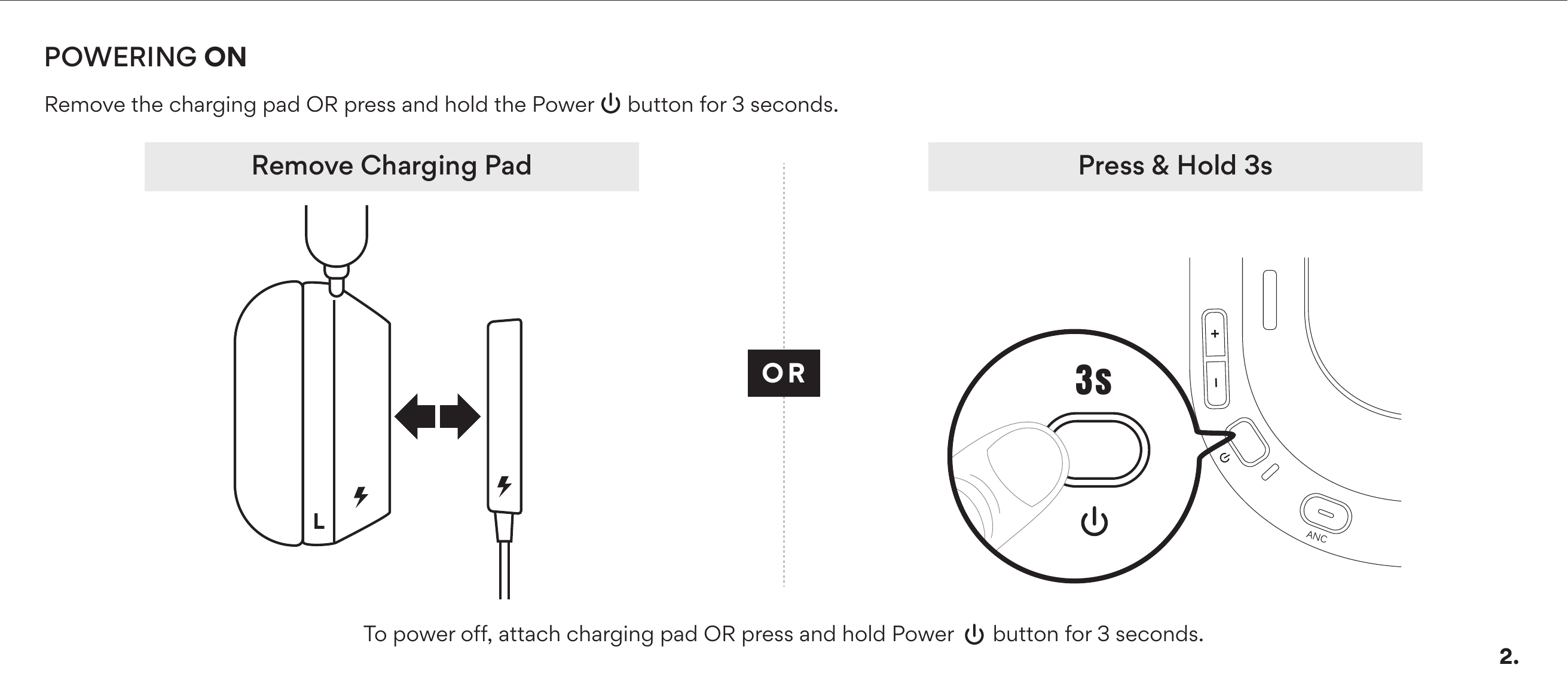
Remove the charging pad OR press and hold the Power button for 3 seconds.
To power off: Attach the charging pad OR press and hold the Power button for 3 seconds.
↑ Back to topConnecting via Bluetooth
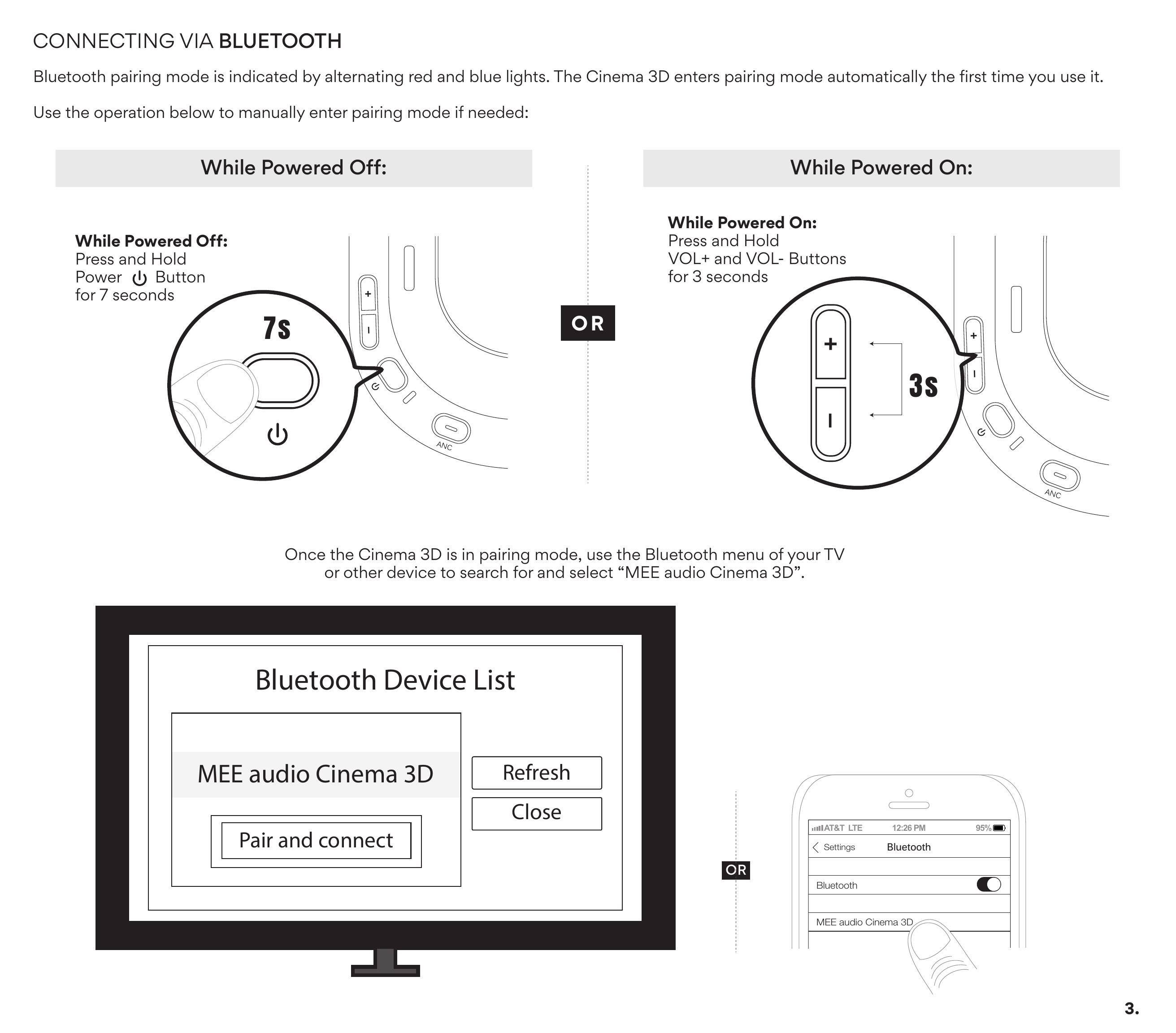
Bluetooth pairing mode is indicated by alternating red and blue lights. The Cinema 3D enters pairing mode automatically the first time you use it.
Use the operation below to manually enter pairing mode if needed:
While Powered Off
Press and hold the Power button for 7 seconds.
While Powered On
Press and hold the VOL+ and VOL− Buttons for 3 seconds.
Once the Cinema 3D is in pairing mode, use the Bluetooth menu of your TV or other device to search for and select "MEE audio Cinema 3D".
↑ Back to topMedia Controls
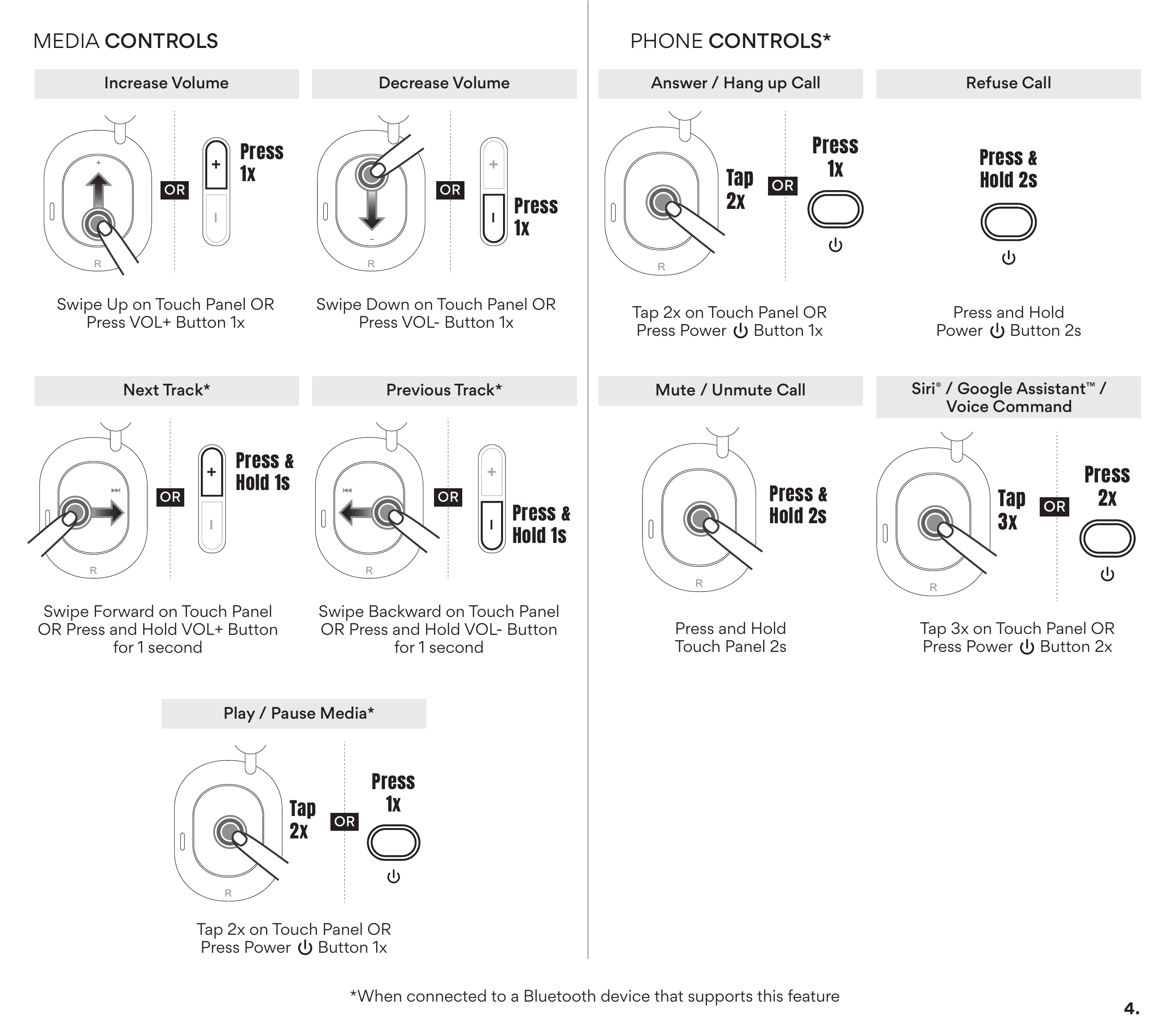
Volume
- Increase Volume: Swipe up on Touch Panel, OR press VOL+ Button 1×
- Decrease Volume: Swipe down on Touch Panel, OR press VOL− Button 1×
Playback
- Play / Pause: Tap Touch Panel 2×, OR press Power Button 1×
- Next Track: Swipe forward on Touch Panel, OR press and hold VOL+ Button for 1 second
- Previous Track: Swipe backward on Touch Panel, OR press and hold VOL− Button for 1 second
*When connected to a Bluetooth device that supports this feature.
↑ Back to topPhone Controls
- Answer / Hang up Call: Tap Touch Panel 2×, OR press Power Button 1×
- Refuse Call: Press and hold Power Button for 2 seconds
- Mute / Unmute Call: Press and hold Touch Panel for 2 seconds
- Siri® / Google Assistant™ / Voice Command: Tap Touch Panel 3×, OR press Power Button 2×
*When connected to a Bluetooth device that supports this feature.
↑ Back to topBluetooth Multipoint
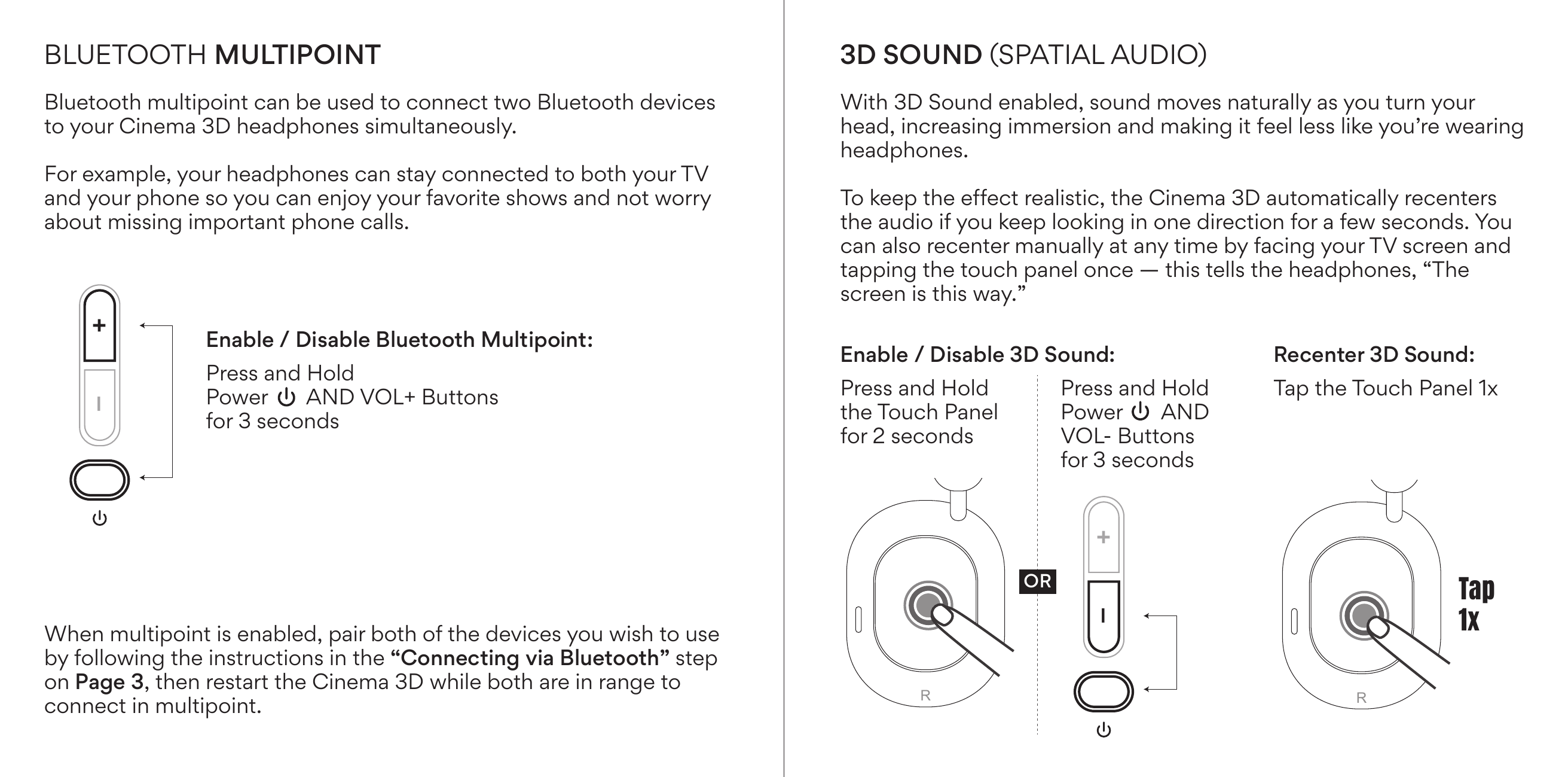
Bluetooth multipoint can be used to connect two Bluetooth devices to your Cinema 3D headphones simultaneously. For example, your headphones can stay connected to both your TV and your phone so you can enjoy your favorite shows and not worry about missing important phone calls.
Enable / Disable Bluetooth Multipoint: Press and hold Power AND VOL+ Buttons for 3 seconds.
When multipoint is enabled, pair both of the devices you wish to use by following the Connecting via Bluetooth instructions, then restart the Cinema 3D while both are in range to connect in multipoint.
↑ Back to top3D Sound (Spatial Audio)
With 3D Sound enabled, sound moves naturally as you turn your head, increasing immersion and making it feel less like you're wearing headphones.
To keep the effect realistic, the Cinema 3D automatically recenters the audio if you keep looking in one direction for a few seconds. You can also recenter manually at any time by facing your TV screen and tapping the touch panel once.
Enable / Disable 3D Sound
- Press and hold the Touch Panel for 2 seconds, OR
- Press and hold Power AND VOL− Buttons for 3 seconds.
Recenter 3D Sound
Tap the Touch Panel 1×.
↑ Back to topCinemaEAR Audio Enhancement
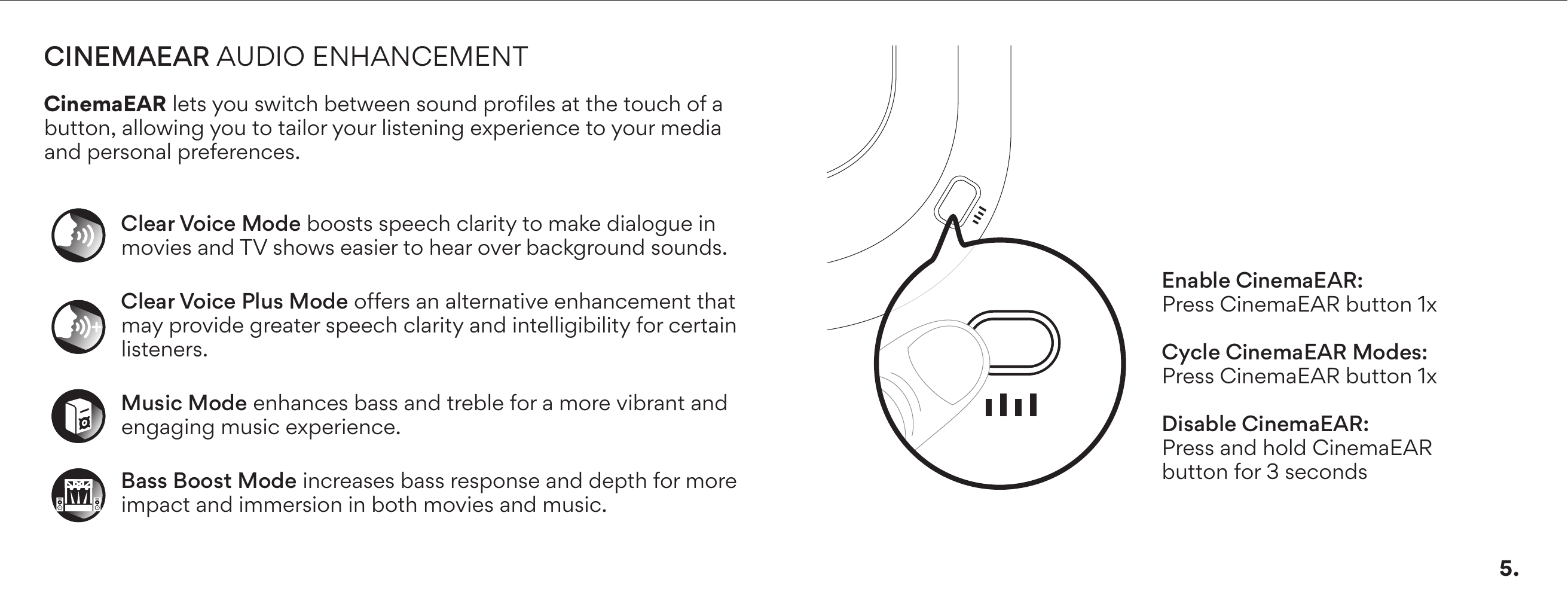
CinemaEAR lets you switch between sound profiles at the touch of a button, allowing you to tailor your listening experience to your media and personal preferences.
- Clear Voice Mode: Boosts speech clarity to make dialogue in movies and TV shows easier to hear over background sounds.
- Clear Voice Plus Mode: Offers an alternative enhancement that may provide greater speech clarity and intelligibility for certain listeners.
- Music Mode: Enhances bass and treble for a more vibrant and engaging music experience.
- Bass Boost Mode: Increases bass response and depth for more impact and immersion in both movies and music.
- Enable CinemaEAR: Press CinemaEAR button 1×
- Cycle CinemaEAR Modes: Press CinemaEAR button 1×
- Disable CinemaEAR: Press and hold CinemaEAR button for 3 seconds
Noise Canceling & Transparency
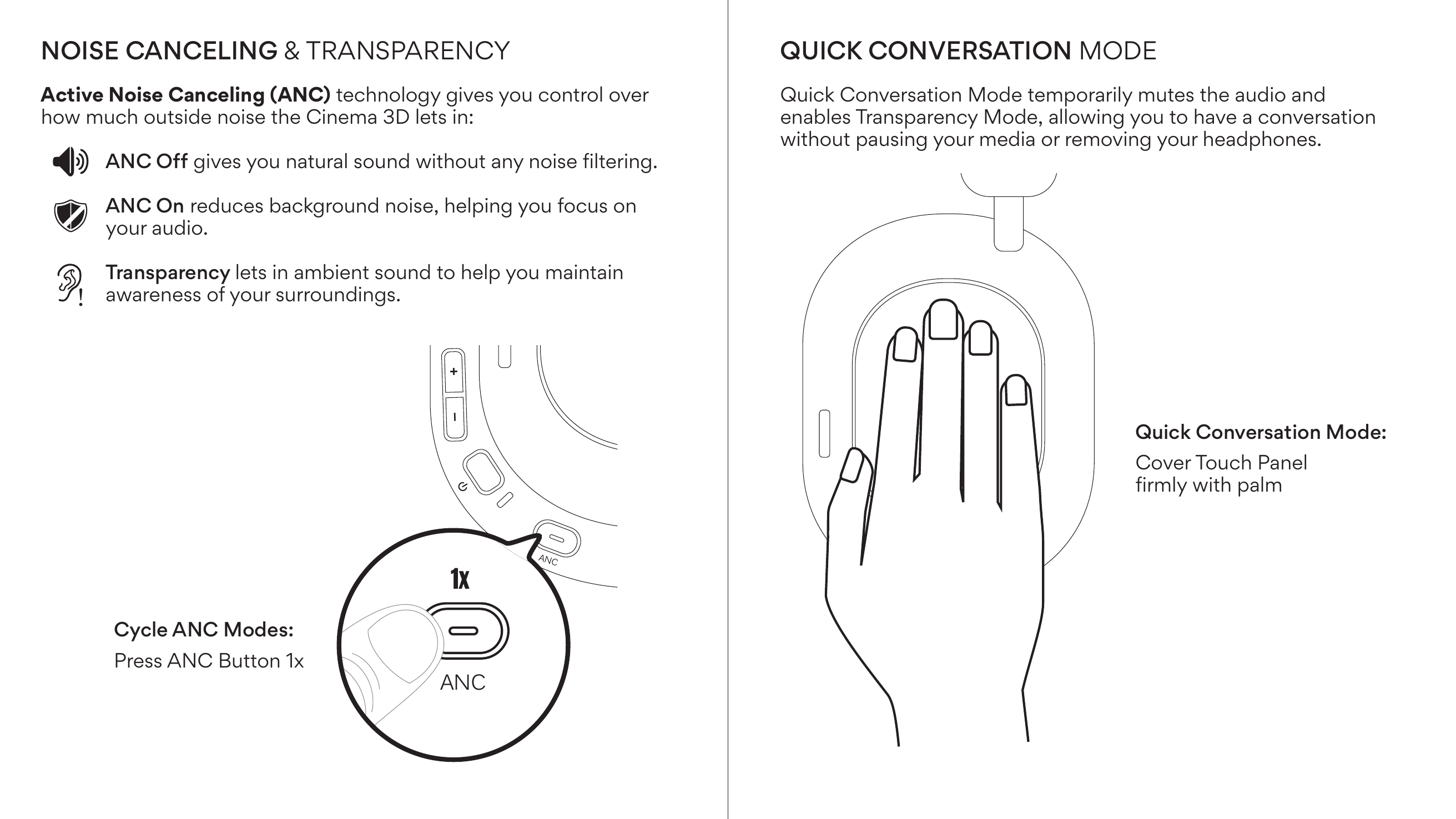
Active Noise Canceling (ANC) technology gives you control over how much outside noise the Cinema 3D lets in:
- ANC Off: Gives you natural sound without any noise filtering.
- ANC On: Reduces background noise, helping you focus on your audio.
- Transparency: Lets in ambient sound to help you maintain awareness of your surroundings.
Cycle ANC Modes: Press ANC Button 1×
↑ Back to topQuick Conversation Mode
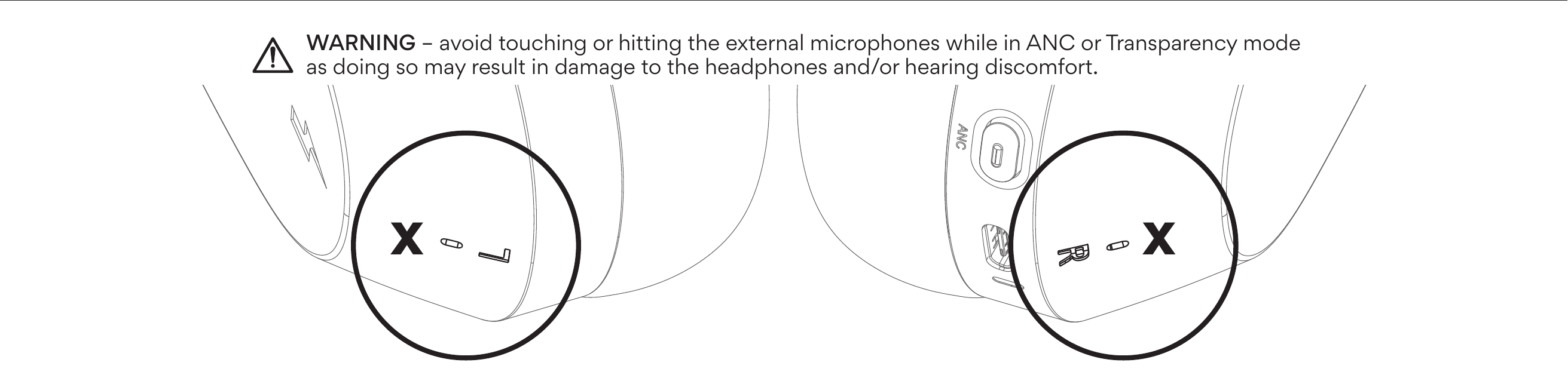
Quick Conversation Mode temporarily mutes the audio and enables Transparency Mode, allowing you to have a conversation without pausing your media or removing your headphones.
Quick Conversation Mode: Cover Touch Panel firmly with palm.
Other Connection Options
Bluetooth Auracast
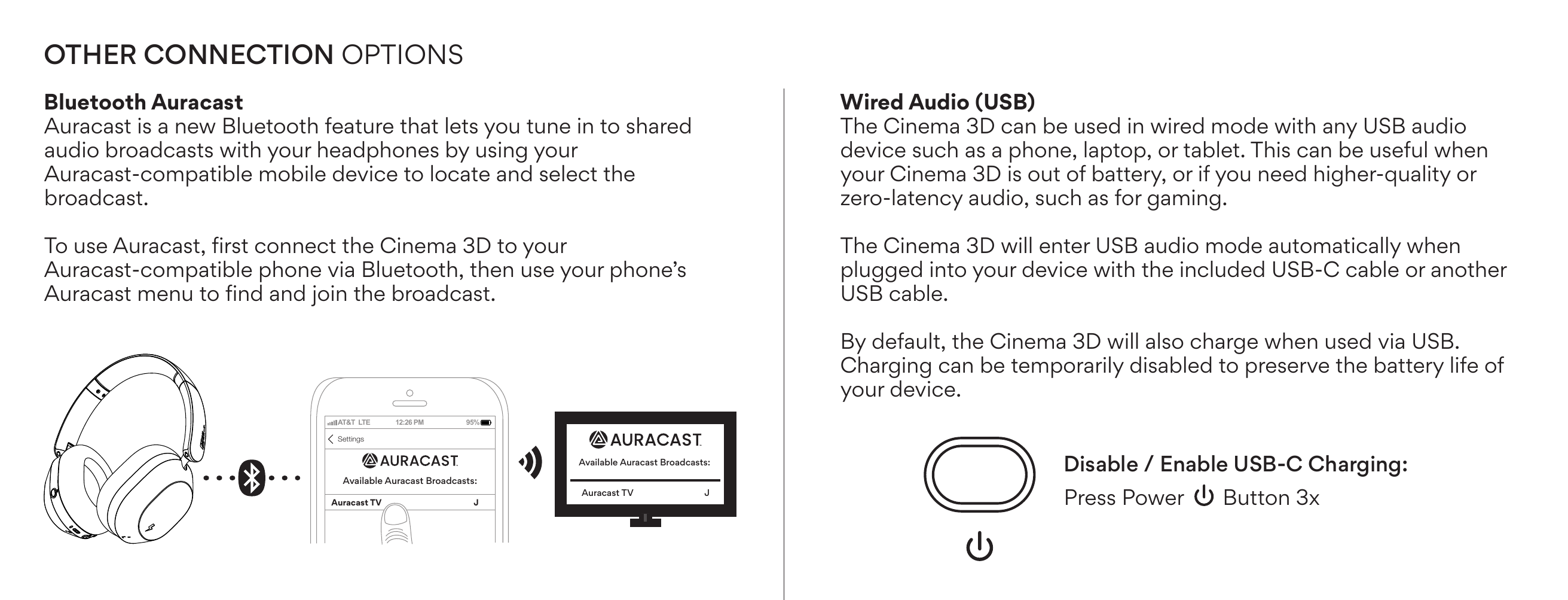
Auracast is a new Bluetooth feature that lets you tune in to shared audio broadcasts with your headphones by using your Auracast-compatible mobile device to locate and select the broadcast.
To use Auracast, first connect the Cinema 3D to your Auracast-compatible phone via Bluetooth, then use your phone's Auracast menu to find and join the broadcast.
Wired Audio (USB)
The Cinema 3D can be used in wired mode with any USB audio device such as a phone, laptop, or tablet. This can be useful when your Cinema 3D is out of battery, or if you need higher-quality or zero-latency audio, such as for gaming.
The Cinema 3D will enter USB audio mode automatically when plugged into your device with the included USB-C cable or another USB cable.
By default, the Cinema 3D will also charge when used via USB. Charging can be temporarily disabled to preserve the battery life of your device.
Disable / Enable USB-C Charging: Press Power Button 3×
MEEcast
MEEcast is a wireless broadcasting feature that does not require a smartphone, designed exclusively for use with MEE audio MEEcast-enabled transmitters. It is not compatible with standard Bluetooth or Bluetooth Auracast devices.
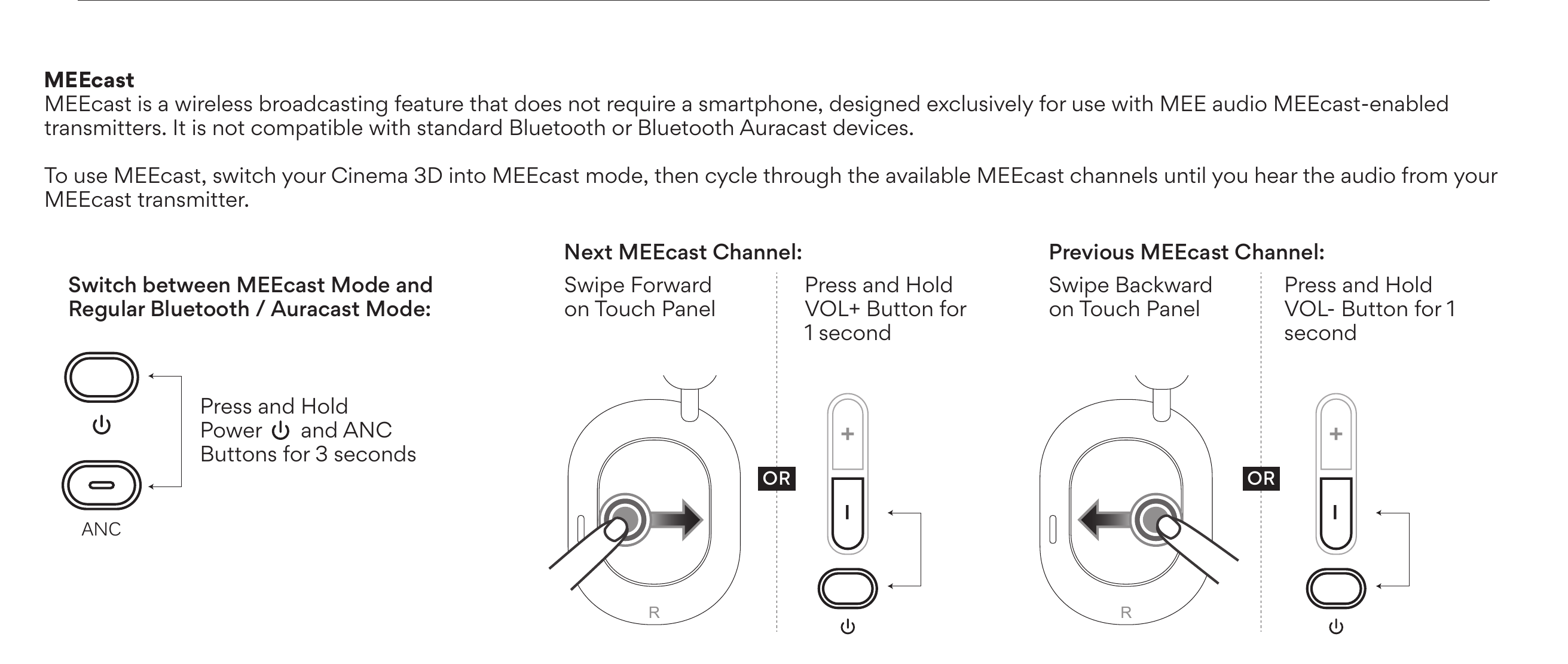
To use MEEcast, switch your Cinema 3D into MEEcast mode, then cycle through the available MEEcast channels until you hear the audio from your MEEcast transmitter.
- Switch between MEEcast Mode and Regular Bluetooth / Auracast Mode: Press and hold Power and ANC Buttons for 3 seconds.
- Next MEEcast Channel: Swipe forward on Touch Panel, OR press and hold VOL+ Button for 1 second.
- Previous MEEcast Channel: Swipe backward on Touch Panel, OR press and hold VOL− Button for 1 second.

Note: Refer to the Controls Quick Reference table for a list of features/controls available with each connection option.
Troubleshooting
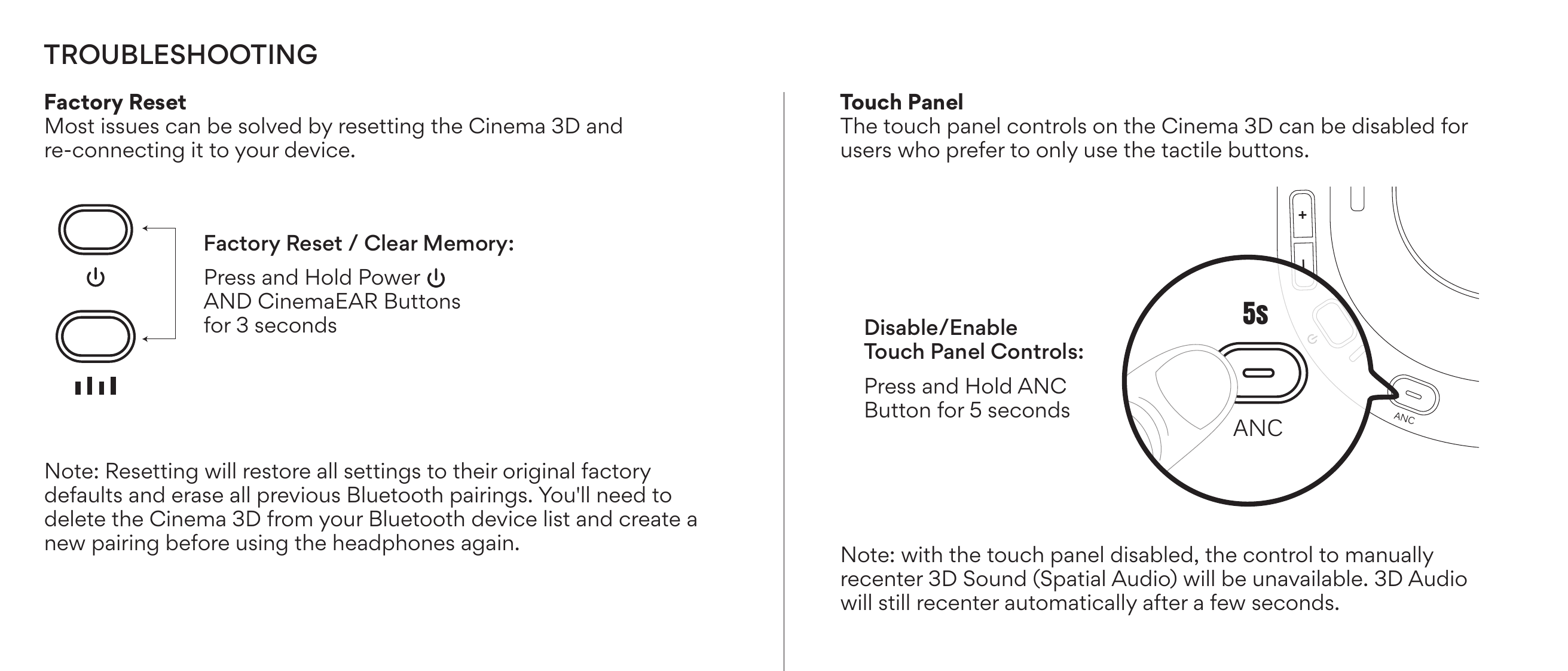
Factory Reset
Most issues can be solved by resetting the Cinema 3D and re-connecting it to your device.
Factory Reset / Clear Memory: Press and hold Power AND CinemaEAR Buttons for 3 seconds.
Note: Resetting will restore all settings to their original factory defaults and erase all previous Bluetooth pairings. You'll need to delete the Cinema 3D from your Bluetooth device list and create a new pairing before using the headphones again.
Disabling the Touch Control Panel
The touch panel controls on the Cinema 3D can be disabled for users who prefer to only use the tactile buttons.
Disable / Enable Touch Panel Controls: Press and hold ANC Button for 5 seconds.
Note: With the touch panel disabled, the control to manually recenter 3D Sound (Spatial Audio) will be unavailable. 3D Audio will still recenter automatically after a few seconds.
Additional Support
For Safety Warnings, Care Instructions, and Warranty Information, refer to the Quickstart Guide included with your headphones.
Visit our Cinema 3D support guide for the latest troubleshooting information at MEEaudio.com/Cinema3Dsupport.
Video Guide
View our video setup guide at MEEaudio.com/Cinema3DVid or by scanning the QR code in the image above.
Questions? We're Here to Help!
Phone Support: 626-965-1008
Monday – Friday 9:00am to 5:00pm PST
Email Support: support@meeaudio.com
All emails are responded to within 2 business days.
MEE audio and its logo are registered trademarks of S2E, Inc. All rights reserved. The Bluetooth® word mark and logos are registered trademarks owned by Bluetooth SIG, Inc. and any use of such marks by MEE audio is under license. The Auracast™ word mark and logos are trademarks owned by the Bluetooth SIG, Inc. LDAC and LDAC logo are trademarks of Sony Corporation. Siri is a registered trademark of Apple Inc. Google Assistant™ is a trademark of Google Inc.
↑ Back to topControls Quick Reference
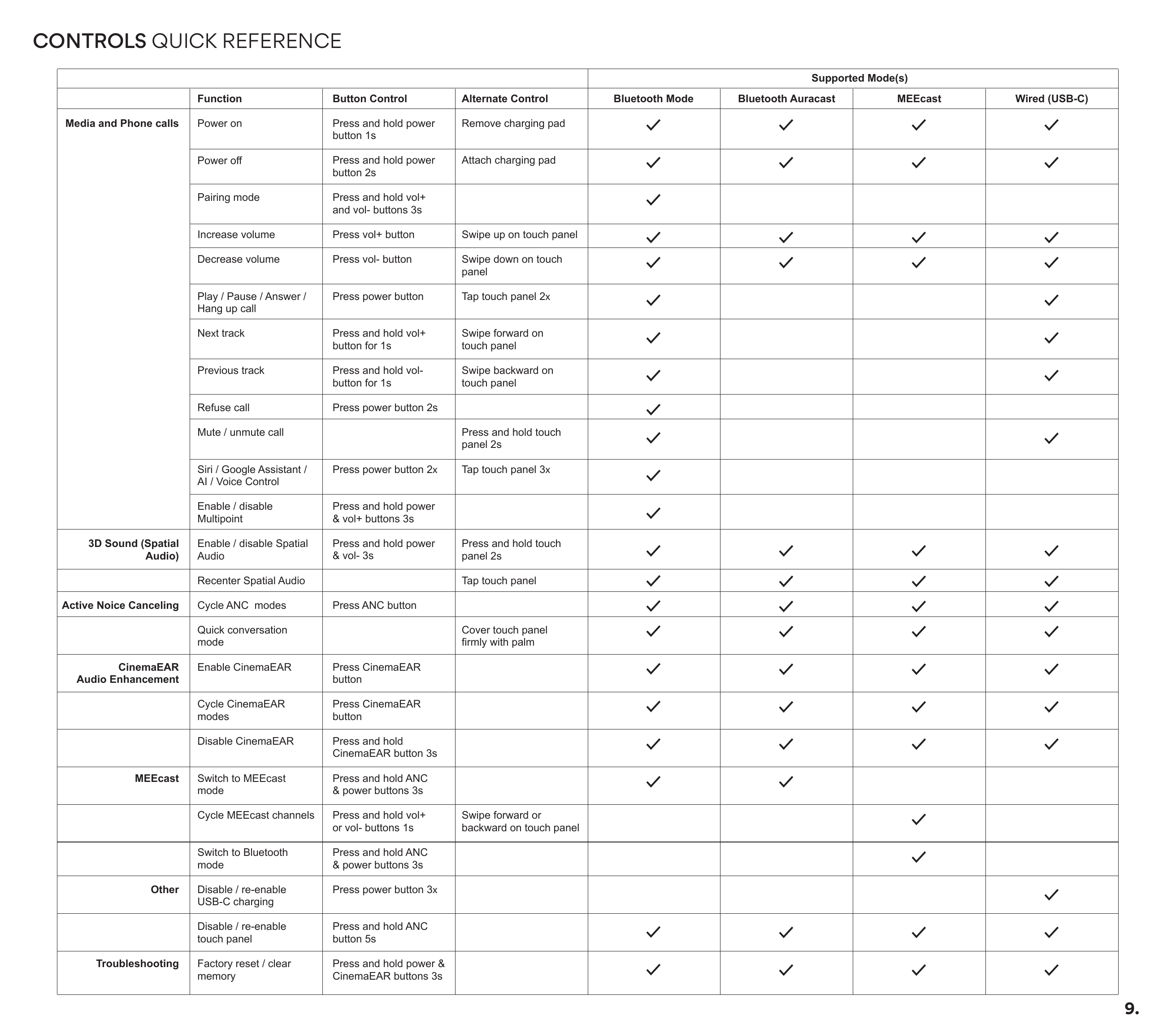
| Category | Function | Button Control | Alternate Control | Bluetooth | Auracast | MEEcast | Wired (USB-C) |
|---|---|---|---|---|---|---|---|
| Media and Phone Calls | Power on | Press and hold Power button 1s | Remove charging pad | ✓ | ✓ | ✓ | ✓ |
| Power off | Press and hold Power button 2s | Attach charging pad | ✓ | ✓ | ✓ | ✓ | |
| Pairing mode | Press and hold VOL+ and VOL− buttons 3s | ✓ | |||||
| Increase volume | Press VOL+ button | Swipe up on touch panel | ✓ | ✓ | ✓ | ✓ | |
| Decrease volume | Press VOL− button | Swipe down on touch panel | ✓ | ✓ | ✓ | ✓ | |
| Play / Pause / Answer / Hang up call | Press Power button | Tap touch panel 2× | ✓ | ✓ | |||
| Next track | Press and hold VOL+ button for 1s | Swipe forward on touch panel | ✓ | ✓ | |||
| Previous track | Press and hold VOL− button for 1s | Swipe backward on touch panel | ✓ | ✓ | |||
| Refuse call | Press Power button 2s | ✓ | |||||
| Mute / unmute call | Press and hold touch panel 2s | ✓ | ✓ | ||||
| Siri / Google Assistant / AI / Voice Control | Press Power button 2× | Tap touch panel 3× | ✓ | ||||
| Enable / disable Multipoint | Press and hold Power & VOL+ buttons 3s | ✓ | |||||
| 3D Sound (Spatial Audio) | Enable / disable Spatial Audio | Press and hold Power & VOL− 3s | Press and hold touch panel 2s | ✓ | ✓ | ✓ | ✓ |
| Recenter Spatial Audio | Tap touch panel | ✓ | ✓ | ✓ | ✓ | ||
| Active Noise Canceling | Cycle ANC modes | Press ANC button | ✓ | ✓ | ✓ | ✓ | |
| Quick conversation mode | Cover touch panel firmly with palm | ✓ | ✓ | ✓ | ✓ | ||
| CinemaEAR Audio Enhancement | Enable CinemaEAR | Press CinemaEAR button | ✓ | ✓ | ✓ | ✓ | |
| Cycle CinemaEAR modes | Press CinemaEAR button | ✓ | ✓ | ✓ | ✓ | ||
| Disable CinemaEAR | Press and hold CinemaEAR button 3s | ✓ | ✓ | ✓ | ✓ | ||
| MEEcast | Switch to MEEcast mode | Press and hold ANC & Power buttons 3s | ✓ | ✓ | |||
| Cycle MEEcast channels | Press and hold VOL+ or VOL− buttons 1s | Swipe forward or backward on touch panel | ✓ | ||||
| Switch to Bluetooth mode | Press and hold ANC & Power buttons 3s | ✓ | |||||
| Other | Disable / re-enable USB-C charging | Press Power button 3× | ✓ | ||||
| Disable / re-enable touch panel | Press and hold ANC button 5s | ✓ | ✓ | ✓ | ✓ | ||
| Troubleshooting | Factory reset / clear memory | Press and hold Power & CinemaEAR buttons 3s | ✓ | ✓ | ✓ | ✓ | |