Connect Air Pro – Setup Guide
MEE audio AF-CA2 — Bluetooth® Audio Transmitter & Receiver
Quick Reference
How do I use the Connect Air Pro with an in-flight entertainment system?
Slide the side switch to the "TX" position, pair the Connect Air Pro with your AirPods® or other headphones, then plug it into the in-flight entertainment system's headphone jack.
How do I put the Connect Air Pro into pairing mode?
Power it on, then press and hold the O button for 3 seconds.
How do I put my AirPods into pairing mode?
Place the AirPods in their case, open the lid, then press and hold the button on the back of the case for 3 seconds until the white light starts to blink.
How do I pair the Connect Air Pro with my phone?
Slide the side switch to the "RX" position, put the Connect Air Pro into pairing mode, and select "MEE audio Connect Air" in your phone's Bluetooth menu.
How do I use the Connect Air Pro with my car stereo?
Slide the side switch to the "RX" position, pair the Connect Air Pro with your phone, then plug it into the stereo's aux input jack.
How do I adjust the volume?
First raise the volume on the device you are plugging your Connect Air Pro into, then press the + and − buttons to raise and lower the volume. Press the buttons multiple times for greater adjustment. Do not press and hold.
How do I restore factory settings?
Power on the Connect Air Pro, then press the O button 6 times quickly.
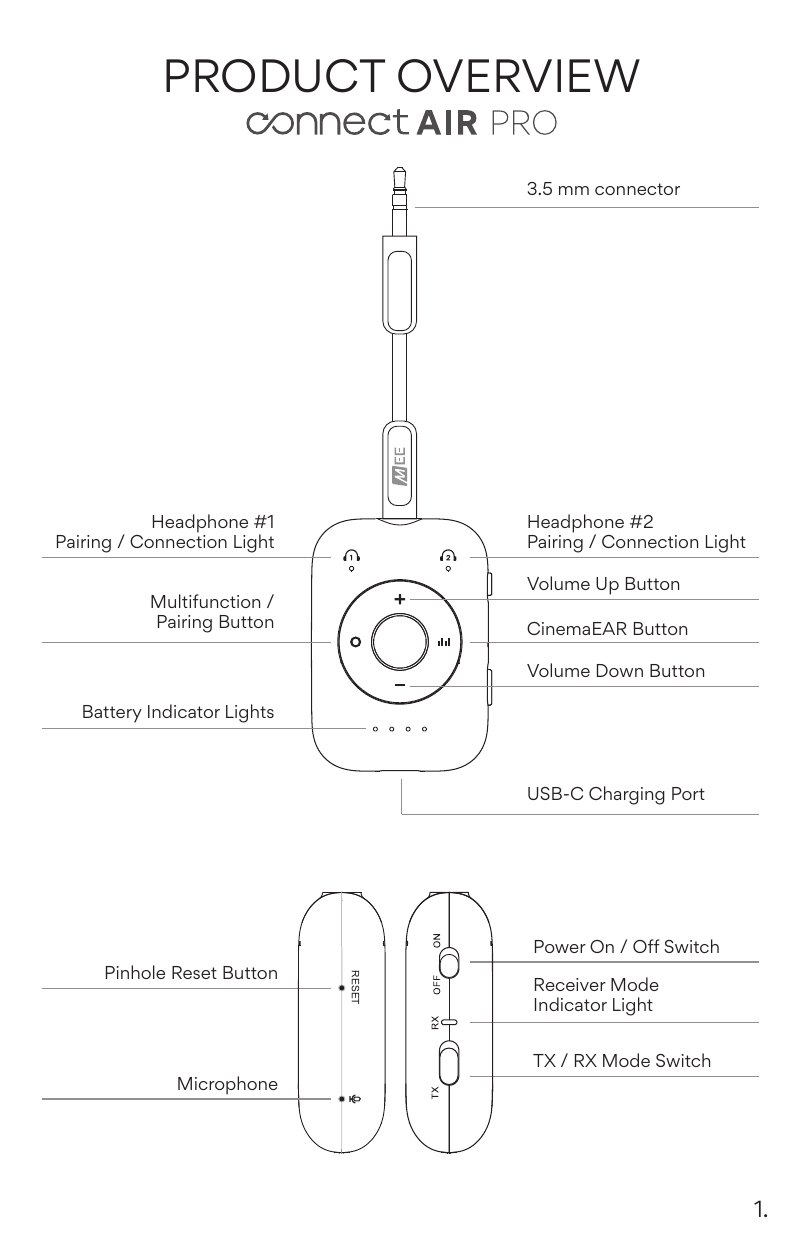
↑ Back to top1. Product Overview
 ↑ Back to top
2. Charging & Battery Indicator Lights
Charging
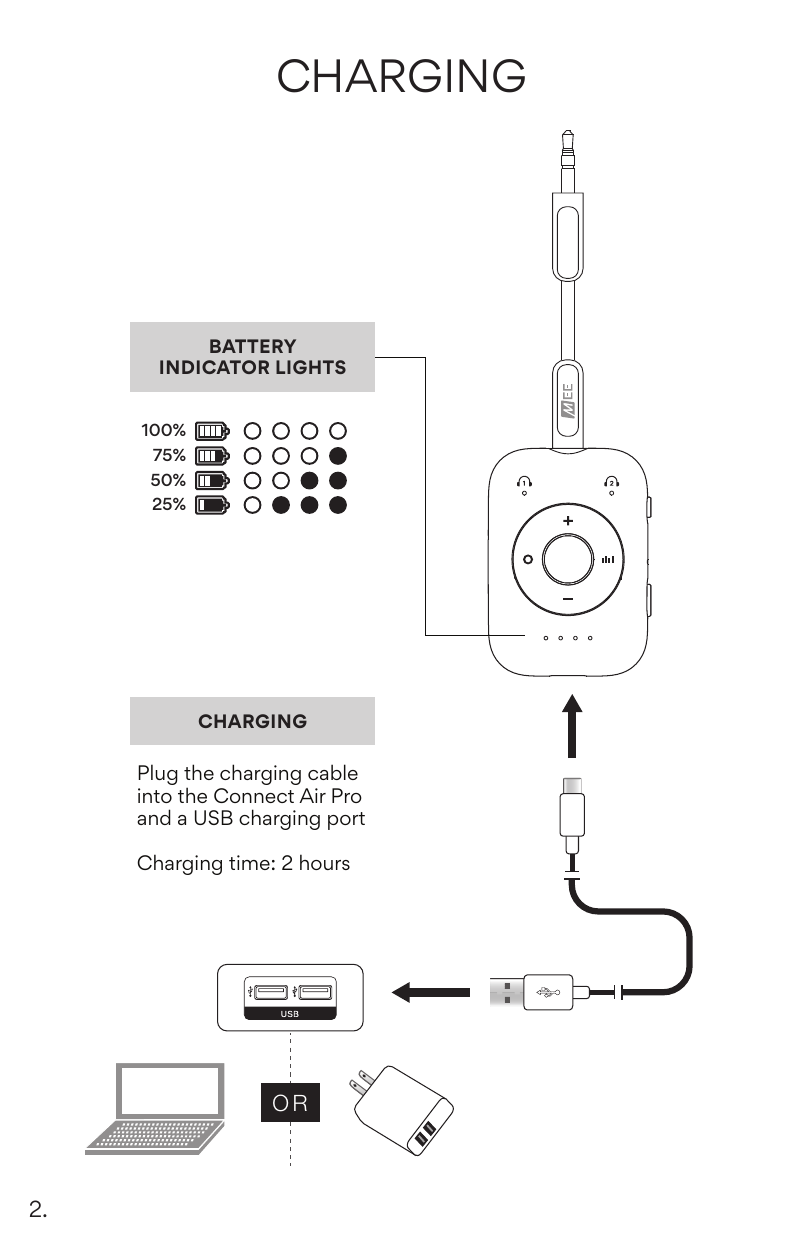
Plug the charging cable into the Connect Air Pro and a USB charging port. Charging time: 2 hours.
Battery Indicator Lights
Press any button while the Connect Air Pro is powered on to check the current battery level. The four LEDs indicate charge as follows (open circle = light on, filled circle = light off):
| Battery Level | Lights On |
|---|---|
| 100% | 4 lights on (all lit) |
| 75% | 3 lights on |
| 50% | 2 lights on |
| 25% | 1 light on |
3. Mode Selection (Transmitter / Receiver)
TX Bluetooth Transmitter Mode
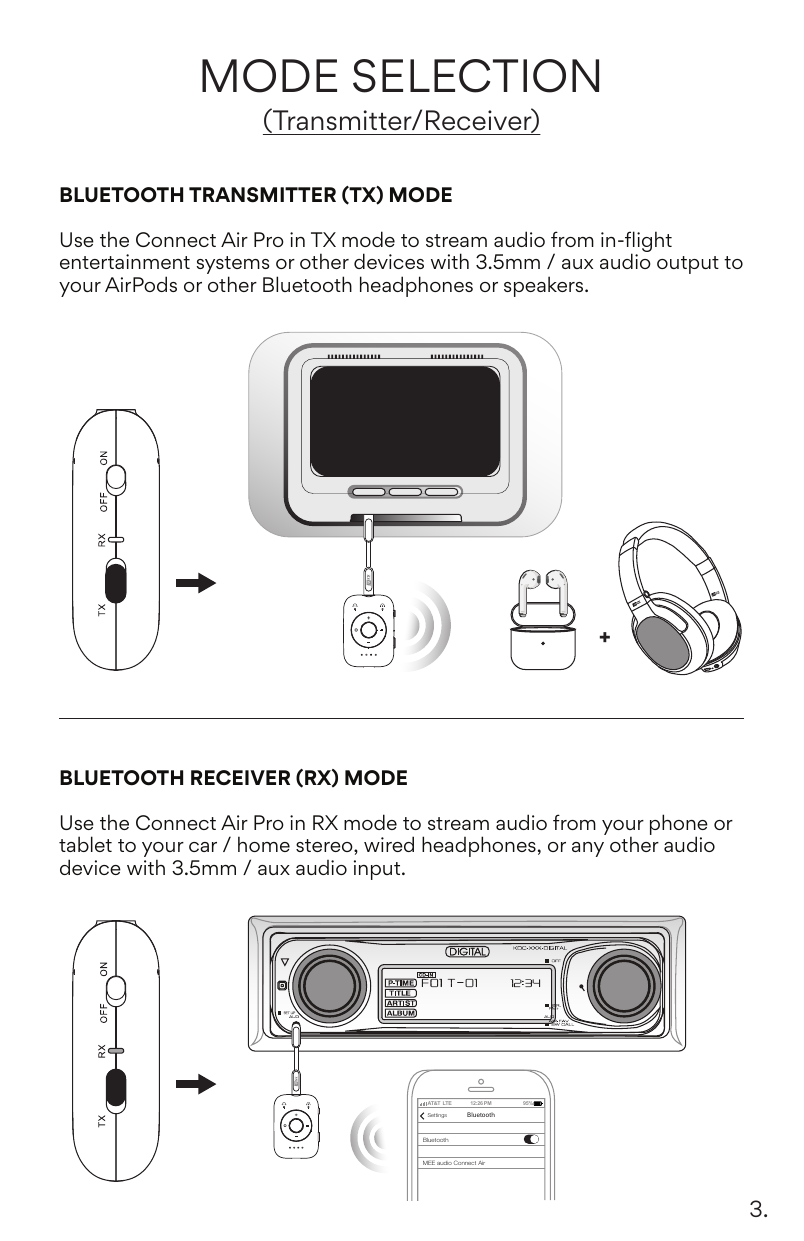
Use the Connect Air Pro in TX mode to stream audio from in-flight entertainment systems or other devices with 3.5 mm / aux audio output to your AirPods or other Bluetooth headphones or speakers.
RX Bluetooth Receiver Mode
Use the Connect Air Pro in RX mode to stream audio from your phone or tablet to your car / home stereo, wired headphones, or any other audio device with 3.5 mm / aux audio input.
↑ Back to top4. TX Bluetooth Transmitter – TX Mode Setup
Step 1 – Check the TX/RX mode switch and power on
Check that the TX/RX mode switch is in the TX position and power on the Connect Air Pro.
Step 2 – Put your headphones or speakers into pairing mode
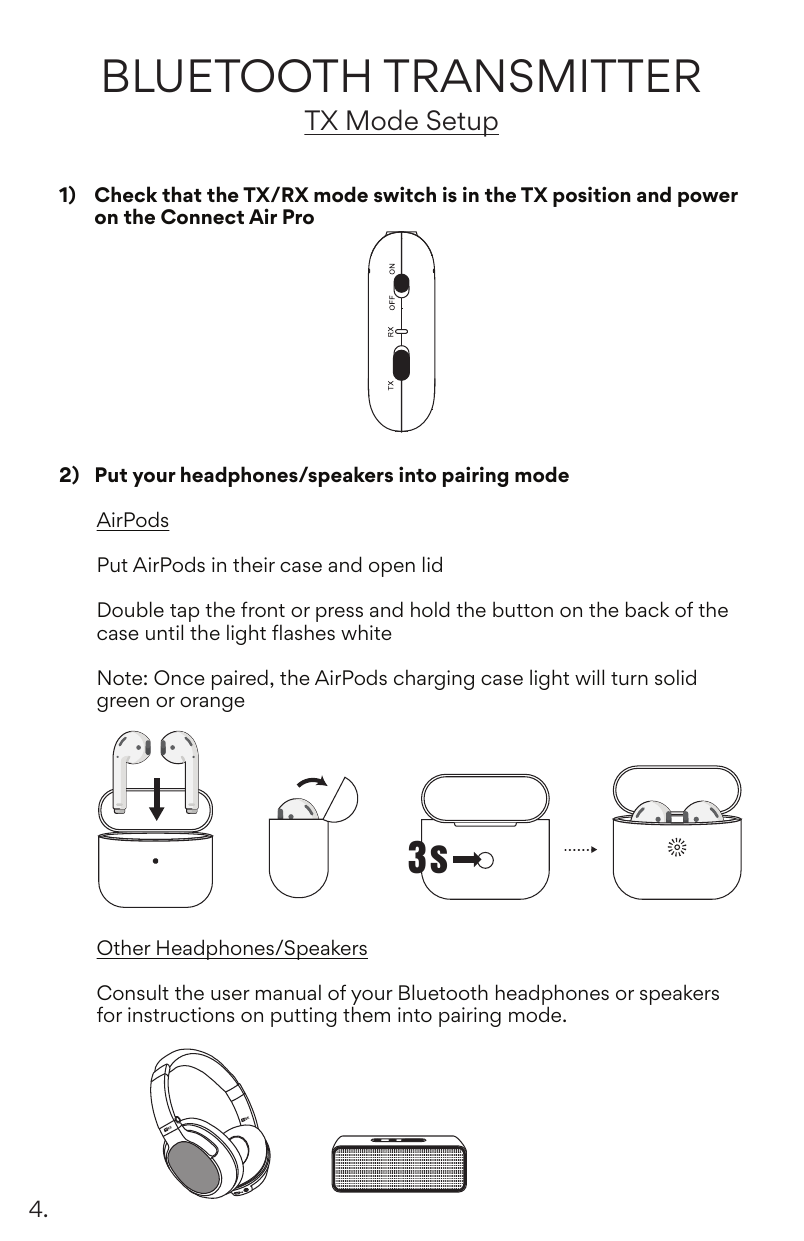
AirPods
- Put AirPods in their case and open the lid.
- Double tap the front or press and hold the button on the back of the case until the light flashes white.
Note: Once paired, the AirPods charging case light will turn solid green or orange.
Other Headphones / Speakers
Consult the user manual of your Bluetooth headphones or speakers for instructions on putting them into pairing mode.
Steps 3–4 – Put the Connect Air Pro into pairing mode and connect to audio source
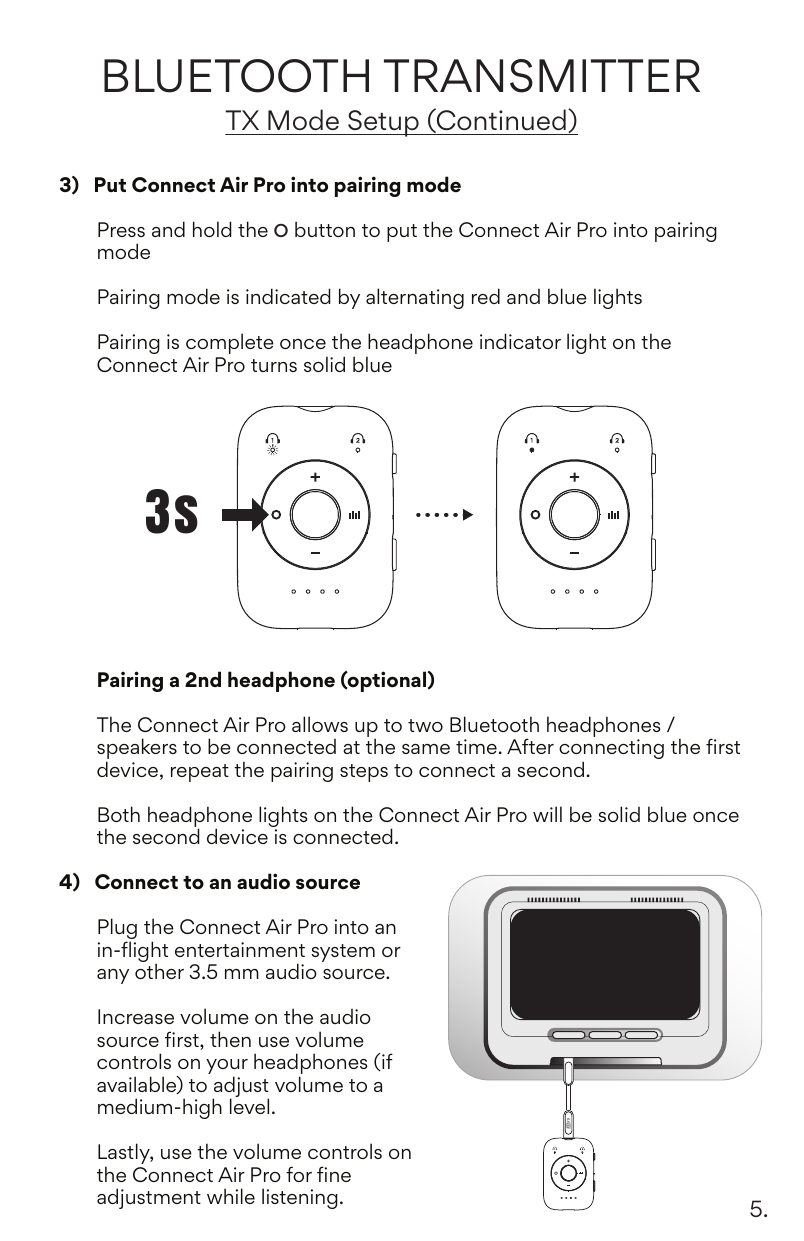
Step 3 – Put Connect Air Pro into pairing mode
Press and hold the O button to put the Connect Air Pro into pairing mode. Pairing mode is indicated by alternating red and blue lights. Pairing is complete once the headphone indicator light on the Connect Air Pro turns solid blue.
Pairing a 2nd headphone (optional)
The Connect Air Pro allows up to two Bluetooth headphones / speakers to be connected at the same time. After connecting the first device, repeat the pairing steps to connect a second. Both headphone lights on the Connect Air Pro will be solid blue once the second device is connected.
Step 4 – Connect to an audio source
Plug the Connect Air Pro into an in-flight entertainment system or any other 3.5 mm audio source. Increase volume on the audio source first, then use volume controls on your headphones (if available) to adjust volume to a medium-high level. Lastly, use the volume controls on the Connect Air Pro for fine adjustment while listening.
↑ Back to top5. Controls – TX TX Mode
| Function | Action |
|---|---|
| Power on / off | Slide the power switch to the on or off position |
| Enter Pairing mode |
Press and hold O button Pairing mode is indicated by alternating red and blue headphone lights |
| Volume Up | Tap + button once |
| Volume Down | Tap — button once |
| Change CinemaEAR Mode | Press the CinemaEAR (bar chart) button |
| Check battery status | Press any button while the Connect Air Pro is powered on |
Headphone Indicator Lights
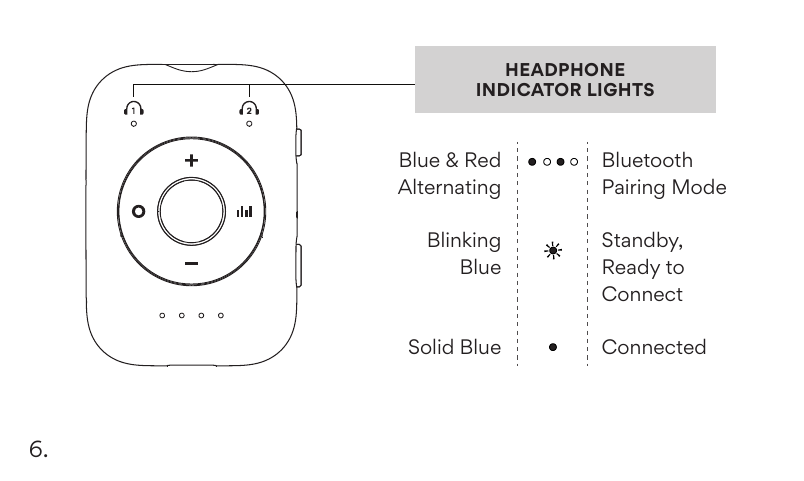
| Light Pattern | Status |
|---|---|
| Blue & Red Alternating | Bluetooth Pairing Mode |
| Blinking Blue | Standby, Ready to Connect |
| Solid Blue | Connected |
6. RX Bluetooth Receiver – RX Mode Setup
Step 1 – Check the TX/RX mode switch and power on
Check that the TX/RX mode switch is in the RX position and power on the Connect Air Pro.
Step 2 – Connect to an audio input
Connect the audio jack of the Connect Air Pro to your car stereo, home theater receiver, wired headphones, speaker, or other device.
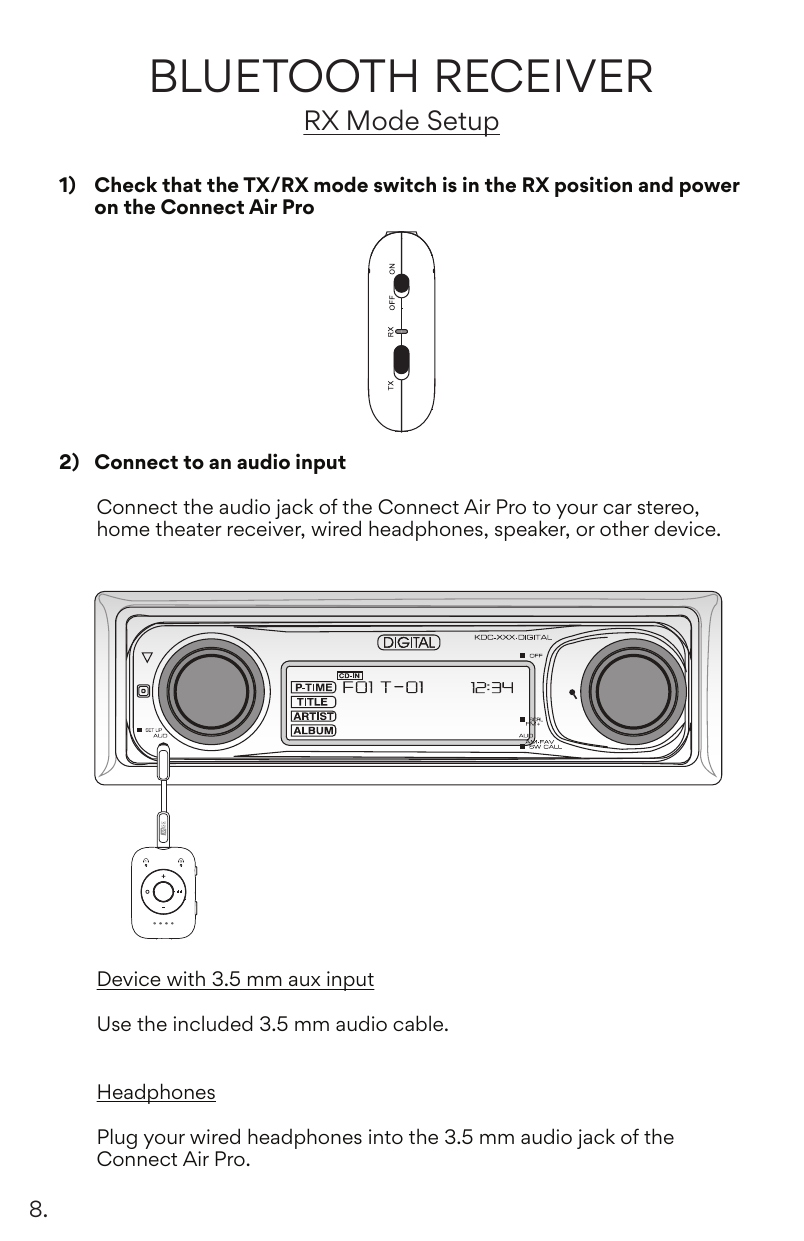
Device with 3.5 mm aux input
Use the included 3.5 mm audio cable.
Headphones
Plug your wired headphones into the 3.5 mm audio jack of the Connect Air Pro.
Step 3 – Pair with phone or tablet
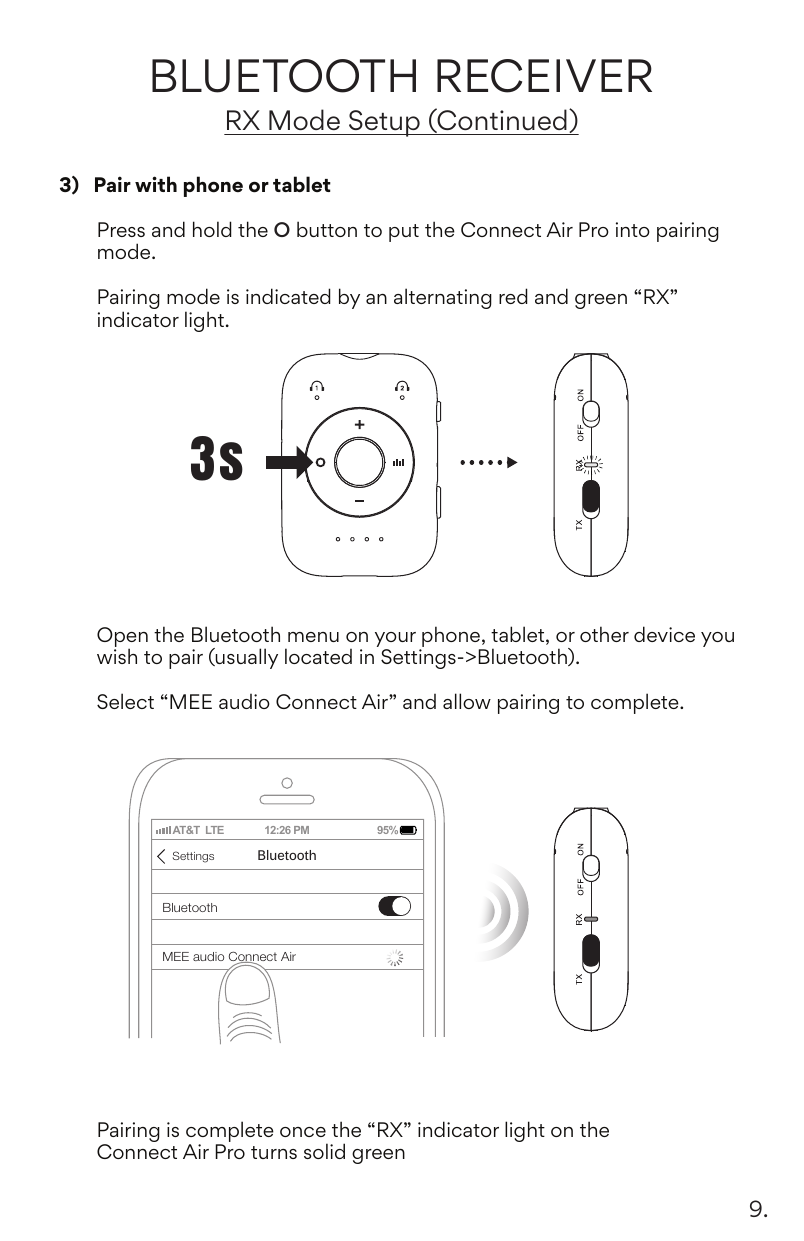
- Press and hold the O button to put the Connect Air Pro into pairing mode. Pairing mode is indicated by an alternating red and green "RX" indicator light.
- Open the Bluetooth menu on your phone, tablet, or other device you wish to pair (usually located in Settings → Bluetooth).
- Select "MEE audio Connect Air" and allow pairing to complete.
- Pairing is complete once the "RX" indicator light on the Connect Air Pro turns solid green.
7. Controls – RX RX Mode
| Function | Action |
|---|---|
| Power on / off | Slide the power switch to the on or off position |
| Enter Pairing mode |
Press and hold O button Pairing mode is indicated by an alternating red and green "RX" light |
| Play / Pause media, answer / hang up phone call | Press O button |
| Activate Siri® / Google Assistant™ | Double press O button |
| Next Track | Press and hold + button |
| Previous Track | Press and hold — button |
| Volume Up | Tap + button once |
| Volume Down | Tap — button once |
| Change CinemaEAR Mode | Press the CinemaEAR (bar chart) button |
| Check battery status | Press any button while the Connect Air Pro is powered on |
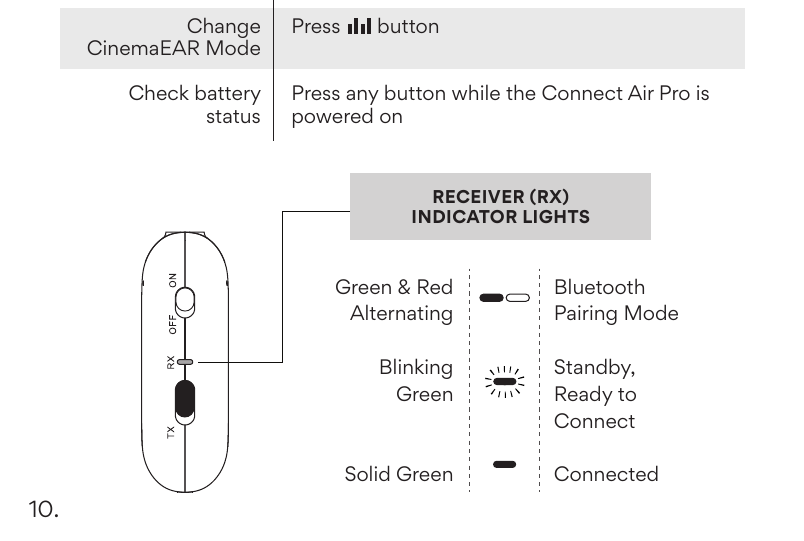
Receiver (RX) Indicator Lights
| Light Pattern | Status |
|---|---|
| Green & Red Alternating | Bluetooth Pairing Mode |
| Blinking Green | Standby, Ready to Connect |
| Solid Green | Connected |
8. CinemaEAR
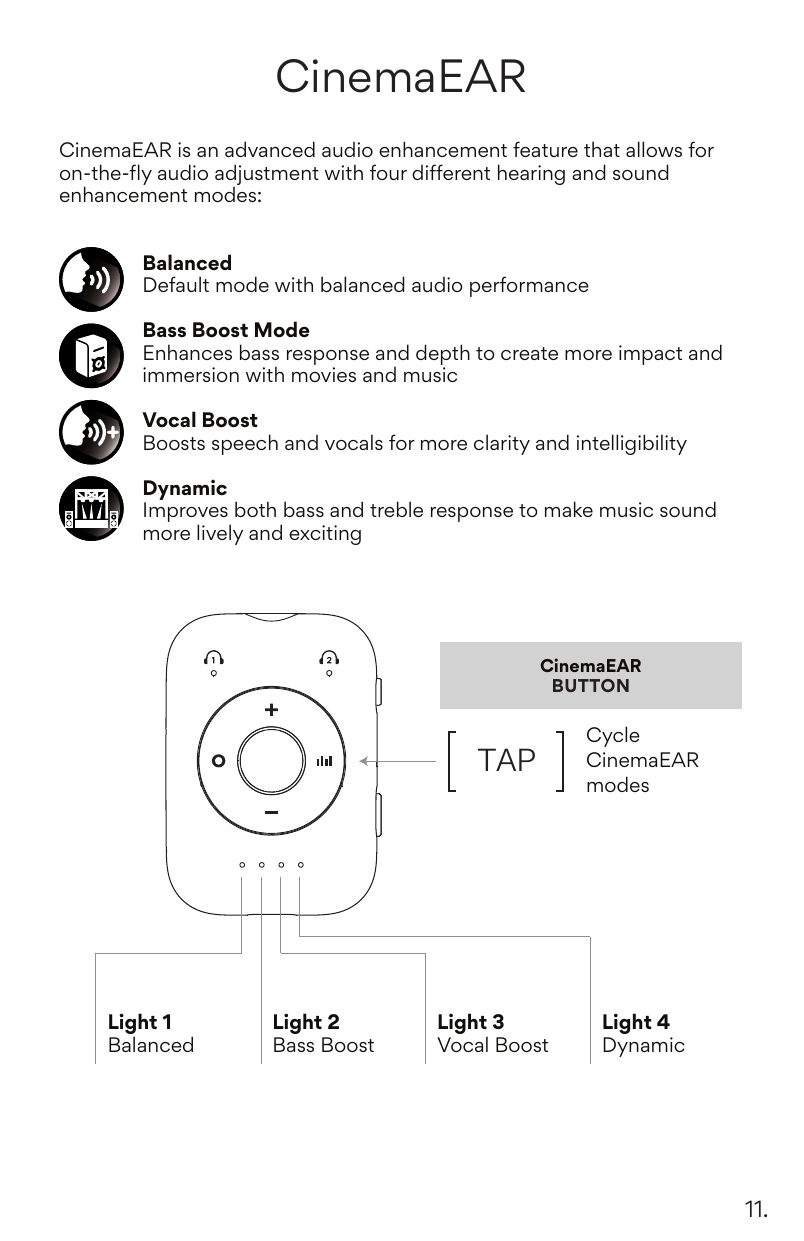
CinemaEAR is an advanced audio enhancement feature that allows for on-the-fly audio adjustment with four different hearing and sound enhancement modes. Tap the CinemaEAR button to cycle through them.
- Light 1 – Balanced — Default mode with balanced audio performance.
- Light 2 – Bass Boost Mode — Enhances bass response and depth to create more impact and immersion with movies and music.
- Light 3 – Vocal Boost — Boosts speech and vocals for more clarity and intelligibility.
- Light 4 – Dynamic — Improves both bass and treble response to make music sound more lively and exciting.
9. Troubleshooting
Most issues can be solved by a restart and/or a reset of the Connect Air Pro and the connected device.
- Power off both the Connect Air Pro and the Bluetooth device connected to it. Then, power the Connect Air Pro back on first, followed by the other Bluetooth device.
-
If powering both the Connect Air Pro and the connected Bluetooth device does not resolve the issue, a factory reset can be used to delete all previous Bluetooth pairings from memory.
Factory reset should be performed for each of the modes (TX/RX) in which you would like to clear the memory.
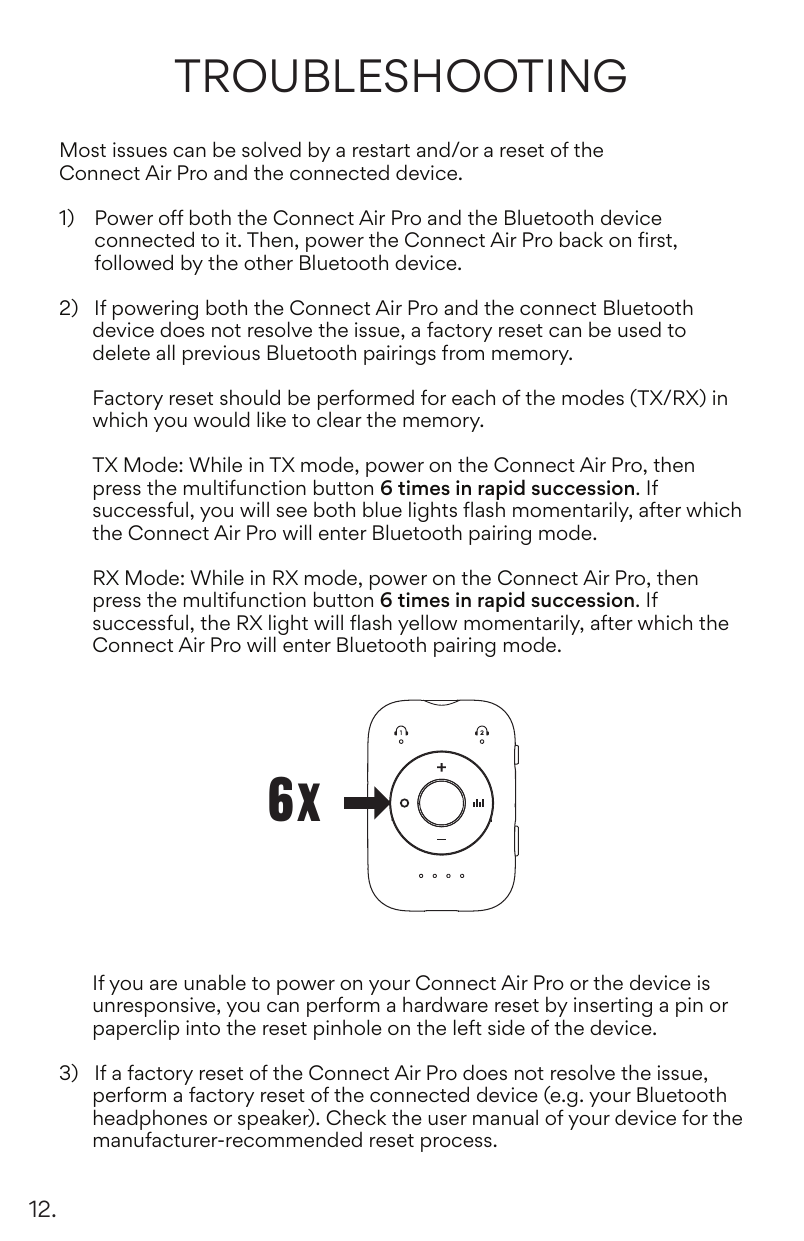
- TX Mode: While in TX mode, power on the Connect Air Pro, then press the multifunction button 6 times in rapid succession. If successful, you will see both blue lights flash momentarily, after which the Connect Air Pro will enter Bluetooth pairing mode.
- RX Mode: While in RX mode, power on the Connect Air Pro, then press the multifunction button 6 times in rapid succession. If successful, the RX light will flash yellow momentarily, after which the Connect Air Pro will enter Bluetooth pairing mode.
If you are unable to power on your Connect Air Pro or the device is unresponsive, you can perform a hardware reset by inserting a pin or paperclip into the reset pinhole on the left side of the device.
- If a factory reset of the Connect Air Pro does not resolve the issue, perform a factory reset of the connected device (e.g. your Bluetooth headphones or speaker). Check the user manual of your device for the manufacturer-recommended reset process.
10. For Additional Support
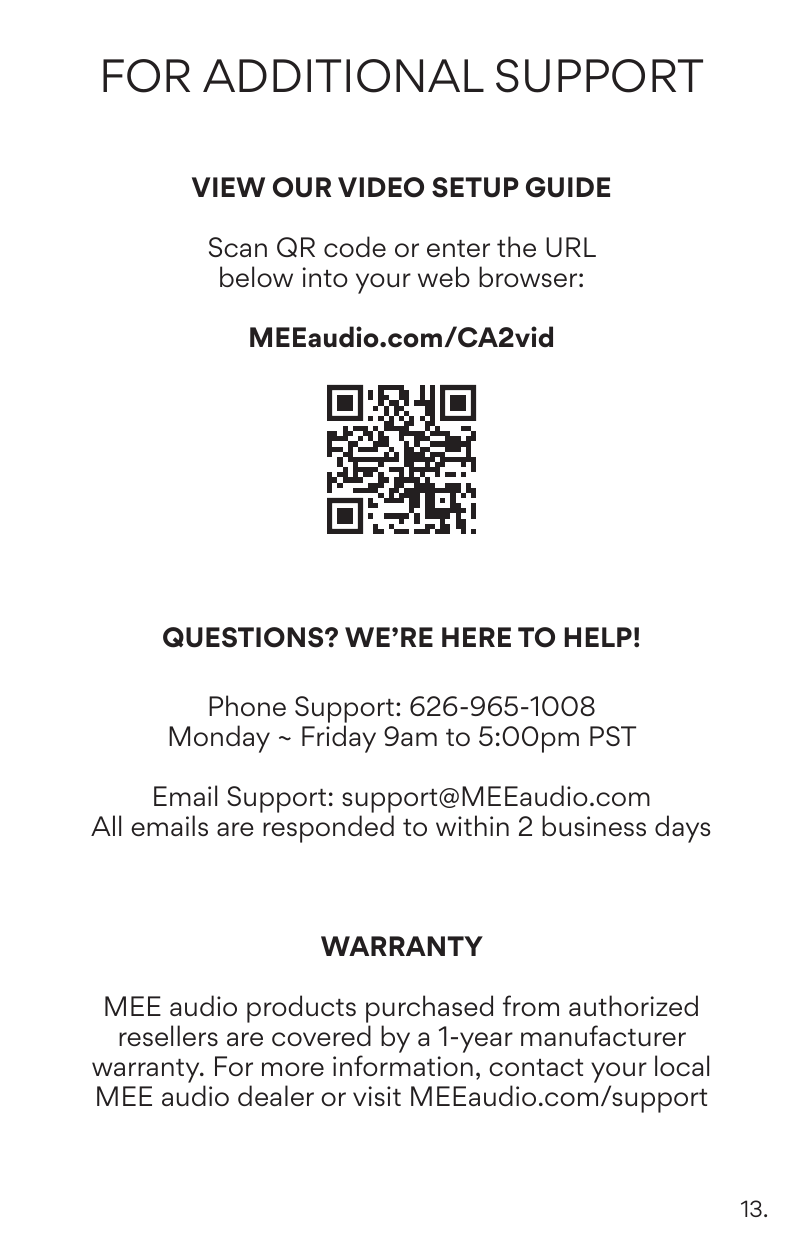
View Our Video Setup Guide
Scan the QR code or visit: MEEaudio.com/CA2vid
Questions? We're Here to Help!
Phone Support: 626-965-1008
Monday – Friday, 9 am to 5:00 pm PST
Email Support: support@MEEaudio.com
All emails are responded to within 2 business days.
Warranty
MEE audio products purchased from authorized resellers are covered by a 1-year manufacturer warranty. For more information, contact your local MEE audio dealer or visit MEEaudio.com/support.
↑ Back to top11. Safety and Care
Safety and Care
- Battery performance will be severely decreased when stored in extreme temperatures: below −10°C/14°F or above 45°C/113°F including direct sunlight.
- The lifetime of the battery will be significantly reduced if your device is not charged for a long time. It is recommended to charge your device at least once a month.
- Clean with a soft, slightly damp cloth. Do not use chemical cleaners.
- There are no user replaceable/reparable parts in this device. Disassembling it will void your warranty.
Warnings
This device is designed and manufactured to operate within its defined design limits. Misuse may result in electric shock or fire. Read and follow these instructions carefully.
- Danger of explosion or fire if batteries are damaged. Never attempt to open the battery for any reason. Do not use the device if it has been crushed, pierced, or otherwise damaged in any way that could compromise the battery. Do not leave the device in any location with excessive heat including naked flames or near heat sources such as radiators and stoves. Do not expose the battery to spark, flame, or salt water.
- Do not charge or use around flammable gasses, liquids, or dust as fire or explosion may occur.
- There are no user replaceable/reparable parts in the device. Disassembling it will void your warranty and may cause personal injury. Changes or modifications to this unit not expressly approved by MEE audio could void the user's authority to operate the equipment.
- Only use attachments/accessories specified by the manufacturer.
Keep the device and packaging out of reach of children.
↑ Back to top12. Compliance Information
FCC Statement
This device complies with part 15 of the FCC Rules. Operation is subject to the following two conditions: (1) This device may not cause harmful interference, and (2) this device must accept any interference received, including interference that may cause undesired operation.
FCC Rules
This equipment has been tested and found to comply with the limits for a Class B digital device, pursuant to part 15 of the FCC Rules. These limits are designed to provide reasonable protection against harmful interference in a residential installation. This equipment generates, uses and can radiate radio frequency energy and, if not installed and used in accordance with the instruction manual, may cause harmful interference to radio communications.
However, there is no guarantee that interference will not occur in a particular installation. If this equipment does cause harmful interference to radio or television reception, which can be determined by turning the equipment off and on, the user is encouraged to try to correct the interference by one or more of the following measures:
- Relocate the receiving antenna.
- Increase the separation between equipment and receiver.
- Connect the equipment into an outlet on a circuit different from that to which the receiver is connected.
- Consult the dealer or an experienced radio/TV technician for help.
FCC ID: 2ABMR-CA2
IC Statement
This device contains licence-exempt transmitter(s)/receiver(s) that comply with Innovation, Science and Economic Development Canada's licence-exempt RSS(s). Operation is subject to the following two conditions:
- This device may not cause interference.
- This device must accept any interference, including interference that may cause undesired operation of the device.
L'émetteur/récepteur exempt de licence contenu dans le présent appareil est conforme aux CNR d'Innovation, Sciences et Développement économique Canada applicables aux appareils radio exempts de licence. L'exploitation est autorisée aux deux conditions suivantes :
- L'appareil ne doit pas produire de brouillage;
- L'appareil doit accepter tout brouillage radioélectrique subi, même si le brouillage est susceptible d'en compromettre le fonctionnement.
IC: 21577-AFCA2
EU / UK Declaration of Conformity
S2E, Inc. dba MEE audio hereby declares that this wireless device is in compliance with Directive 2014/53/EU and Radio Equipment Regulations 2017. The full text of the EU declaration of conformity is available at meeaudio.com/compliance.
Operating frequency range: 2402–2480 MHz
Maximum transmission power: <20 dBm
Ver declaración en español / Voir la déclaration en français / Erklärung auf Deutsch
ES – Declaración de Conformidad UE/Reino Unido
S2E, Inc. dba MEE audio manifiesta por la presente que este dispositivo inalámbrico cumple la Directiva 2014/53/UE y la Normativa sobre equipos de radio de 2017. El texto completo de la declaración de conformidad de la UE está disponible en meeaudio.com/compliance. Rango de frecuencia de funcionamiento: 2402–2480 MHz. Potencia máxima de transmisión: <20 dBm.
FR – Déclaration de Conformité UE / Royaume-Uni
S2E, Inc. dba MEE audio déclare par la présente que cet appareil sans fil est conforme à la directive 2014/53/EU et à la réglementation 2017 relative aux équipements radioélectriques. Le texte intégral de la déclaration de conformité de l'UE est disponible à l'adresse meeaudio.com/compliance. Plage de fréquences de fonctionnement : 2402–2480 MHz. Puissance de transmission maximale : <20 dBm.
DE – EU / UK Konformitätserklärung
S2E, Inc. dba MEE audio erklärt hiermit, dass dieses drahtlose Gerät mit der Richtlinie 2014/53/EU und den Radio Equipment Regulations 2017 konform ist. Der vollständige Text der EU-Konformitätserklärung ist verfügbar unter meeaudio.com/compliance. Betriebsfrequenzbereich: 2402–2480 MHz. Maximale Sendeleistung: <20 dBm.
13. Disposal and Recycling
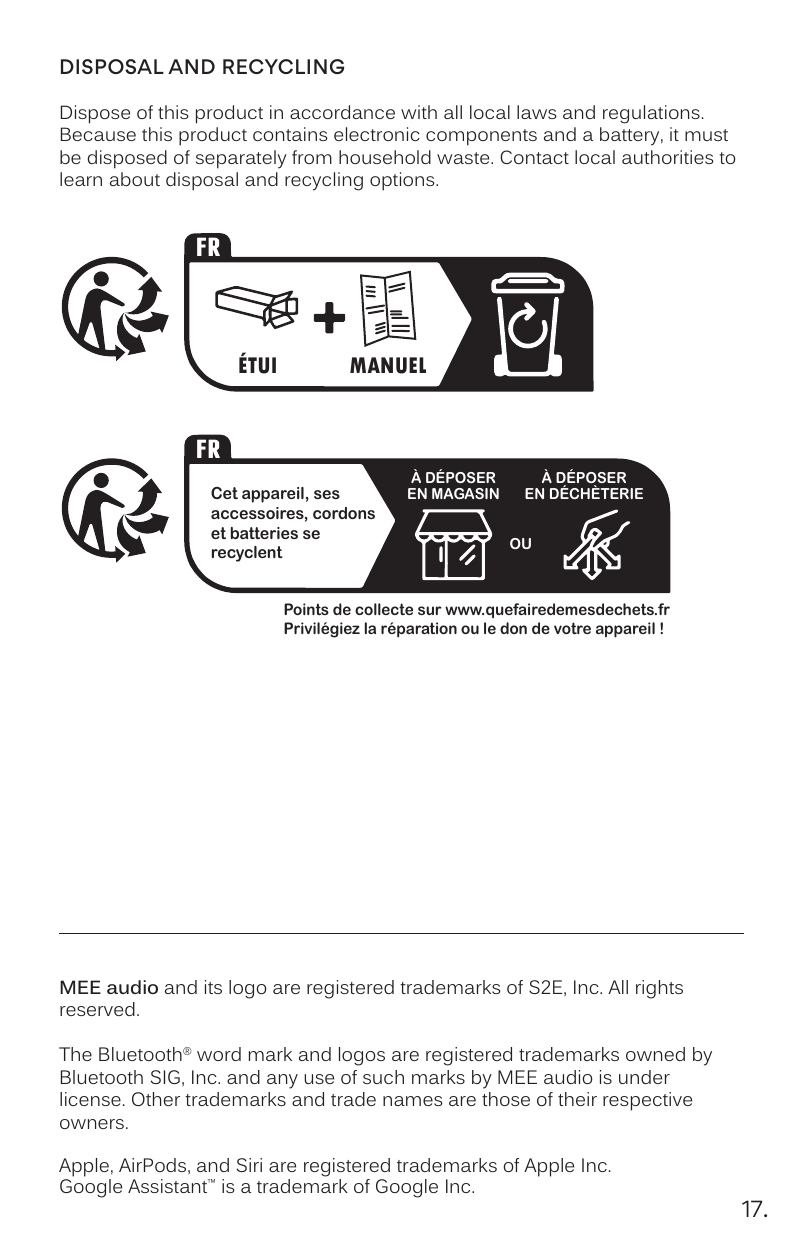
Dispose of this product in accordance with all local laws and regulations. Because this product contains electronic components and a battery, it must be disposed of separately from household waste. Contact local authorities to learn about disposal and recycling options.
MEE audio and its logo are registered trademarks of S2E, Inc. All rights reserved. The Bluetooth® word mark and logos are registered trademarks owned by Bluetooth SIG, Inc. and any use of such marks by MEE audio is under license. Other trademarks and trade names are those of their respective owners. Apple, AirPods, and Siri are registered trademarks of Apple Inc. Google Assistant™ is a trademark of Google Inc.
↑ Back to top